手势
ZepetoWorldContent API 允许您为所需的手势/姿势类别设置缩略图,并在点击缩略图时启用特定的手势/姿势。
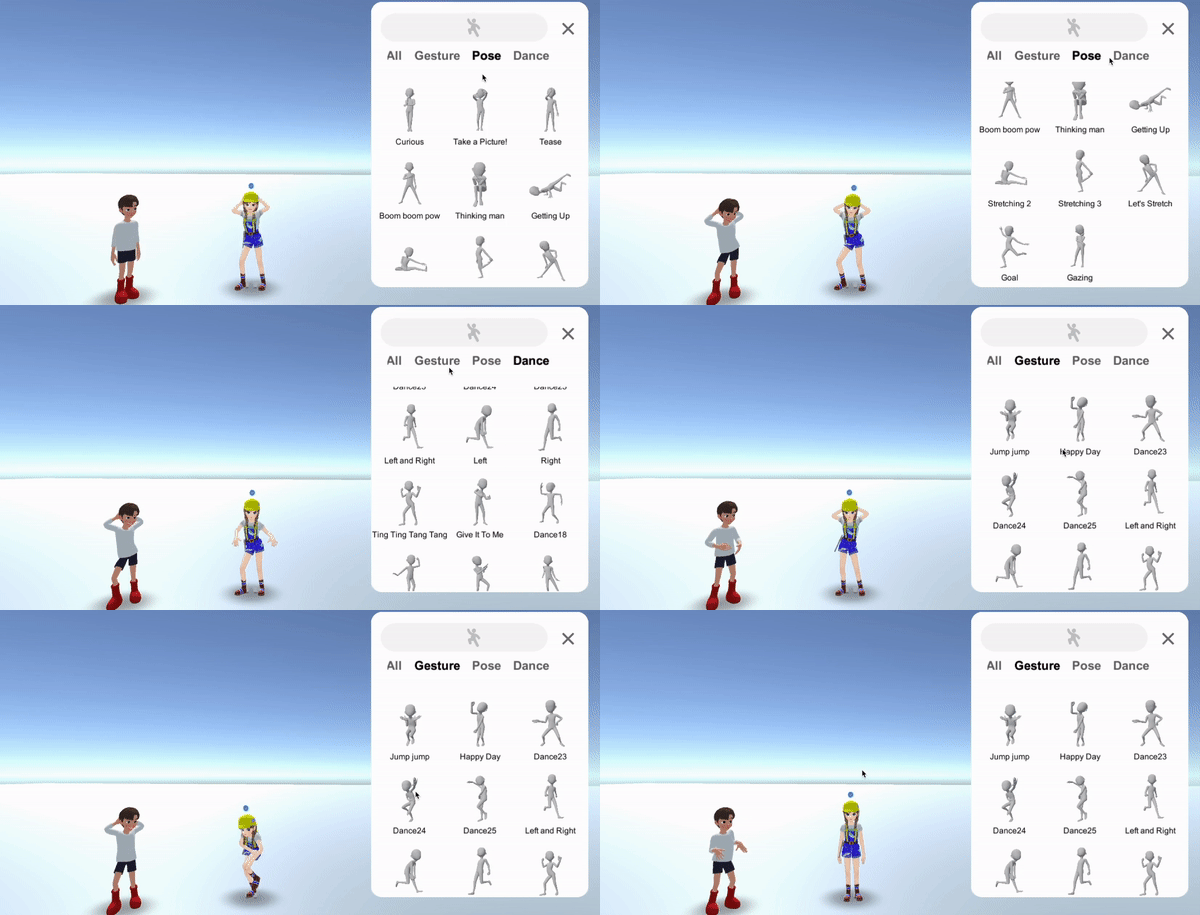
要使用 ZepetoWorldContent API,您必须按如下方式编写导入语句。
import { OfficialContentType, WorldService, ZepetoWorldContent, Content } from 'ZEPETO.World';
包含手势/姿势信息的内容类的成员变量和函数信息如下:
API | 描述 |
|---|---|
public get Id(): string | 内容唯一标识符 |
public get Title(): string | 手势、姿势标题文本 - 语言将根据设备语言自动翻译 |
public get Thumbnail(): UnityEngine.Texture2D | 2D缩略图 |
public get AnimationClip(): UnityEngine.AnimationClip | 手势动画剪辑 |
public get IsDownloadedThumbnail(): boolean | 确定您是否之前下载过此缩略图的功能 |
public get IsDownloadedAnimation(): boolean | 确定您是否之前下载过此动画剪辑的功能 |
public DownloadAnimation($complete: System.Action):void | 一个动画剪辑下载功能,接收一个完成回调 - 如果 IsDownloadedAnimation() 为 false,则实现 DownloadAnimation() 被调用。 |
public DownloadThumbnail($complete: System.Action):void | 下载缩略图的功能 - 如果 IsDownloadedThumbnail() 为 false,则实现 DownloadThumbnail() 被调用。 |
OfficialContentType : enum | 内容类型(世界 1.9.0 及更高版本) - 手势 = 2 - 姿势 = 4 - 自拍 = 8 - 手势问候 = 16 - 手势姿势 = 32 - 手势肯定 = 64 - 手势舞蹈 = 128 - 手势否定 = 256 - 手势等 = 512 - 全部 = 14 |
- 您可以使用现有的功能,public DownloadThumbnail($character: ZEPETO_Character_Controller.ZepetoCharacter, $complete: System.Action):void,没有任何功能方面的问题。然而,由于它不再接受Zepeto角色作为参数,请使用新修改的功能public DownloadThumbnail($complete: System.Action):void替代。
步骤 1 : 设置用户界面
步骤 1-1 : 创建手势按钮
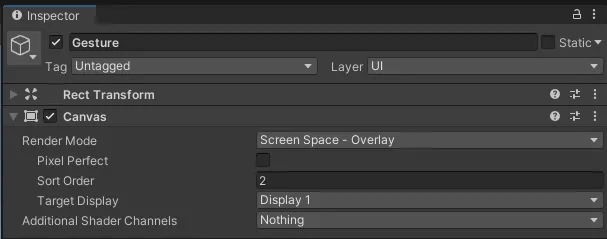
1) 添加层级 > 用户界面 > 画布,并将排序顺序设置为2,以避免被其他用户界面遮挡。
2) 添加层级 > UI > 按钮。
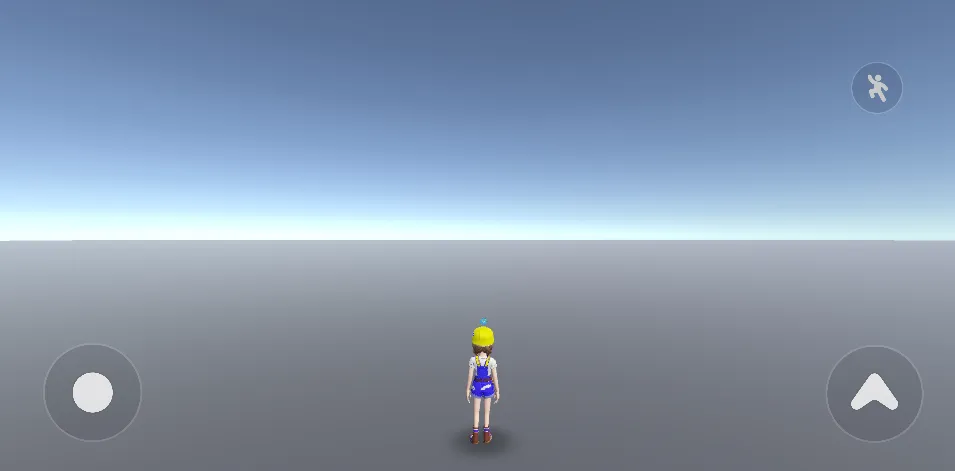
步骤 1-2 : 组织手势面板
1) 添加层级 > 创建空对象并重命名为 PanelParent。
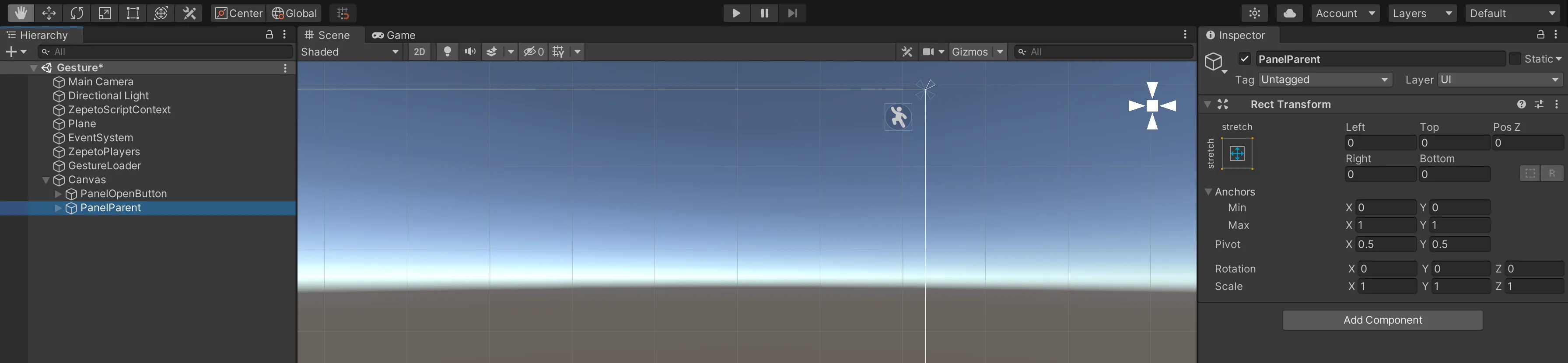
2) 添加层级 > UI > 面板作为 PanelParent 的子项。
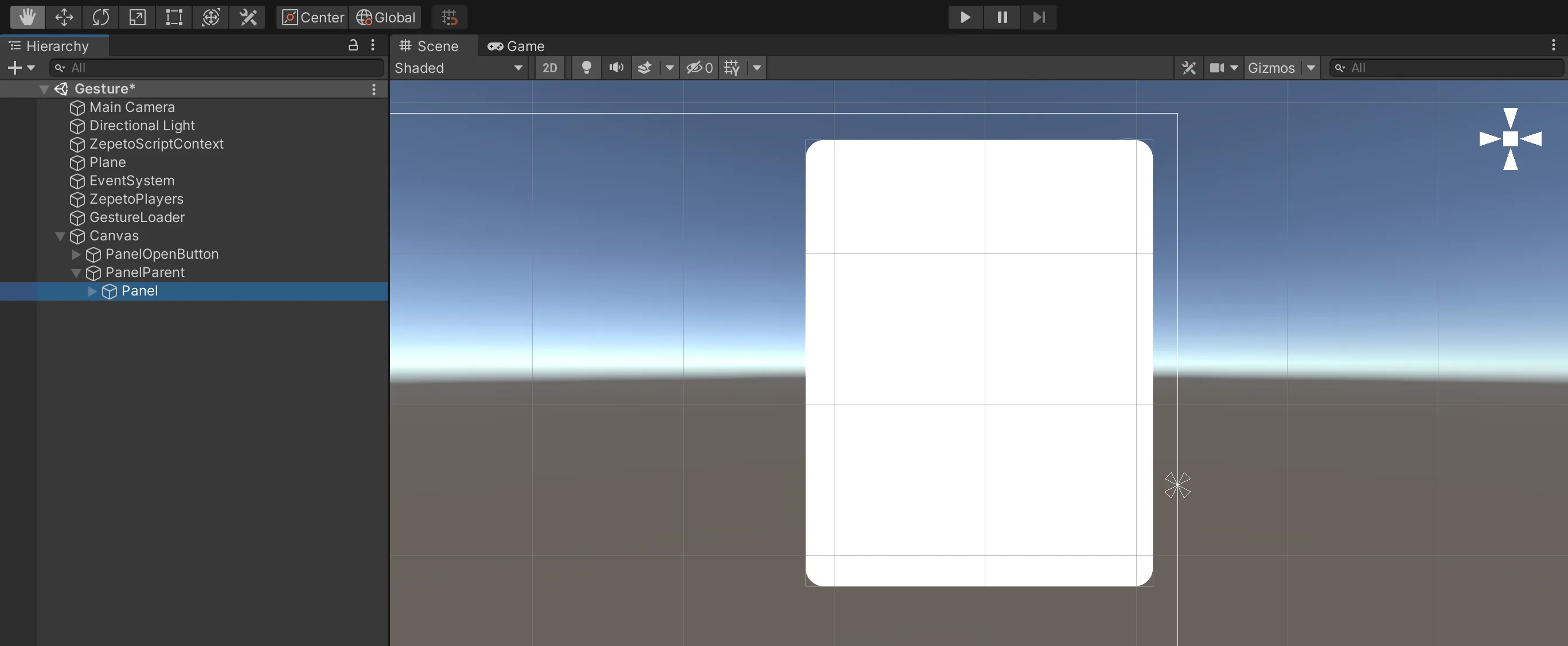
3) 关闭按钮:添加 UI > 按钮后,添加 onClick 事件以禁用手势面板。
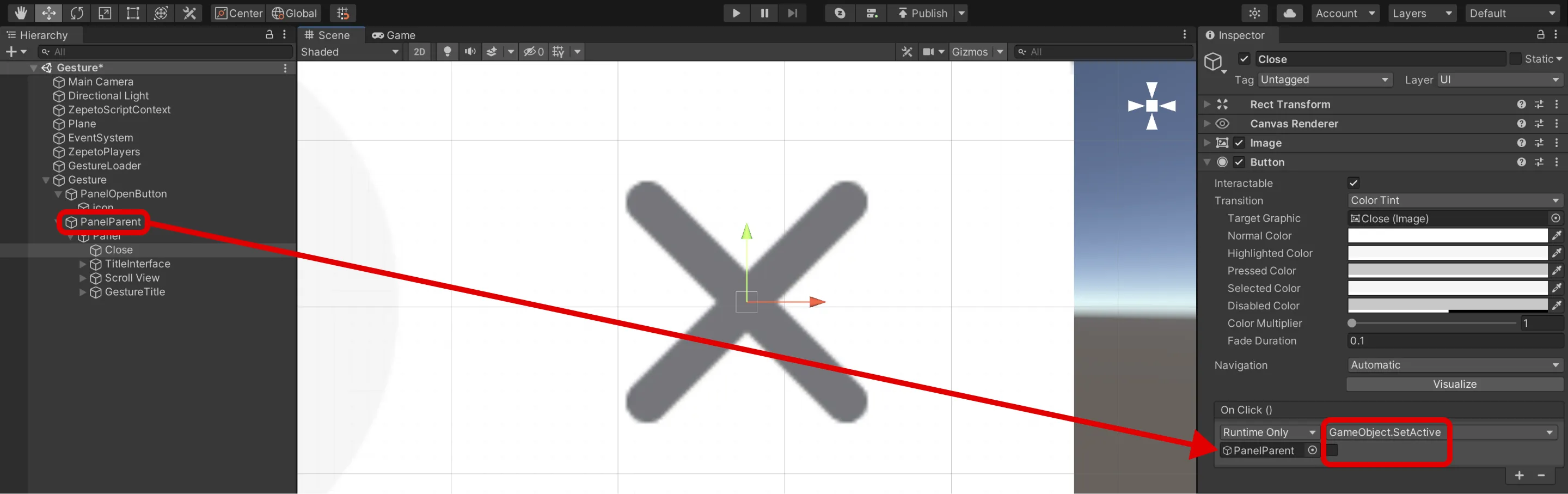
4) 打开按钮:请为上面创建的打开按钮添加一个激活手势面板的 onClick 事件。
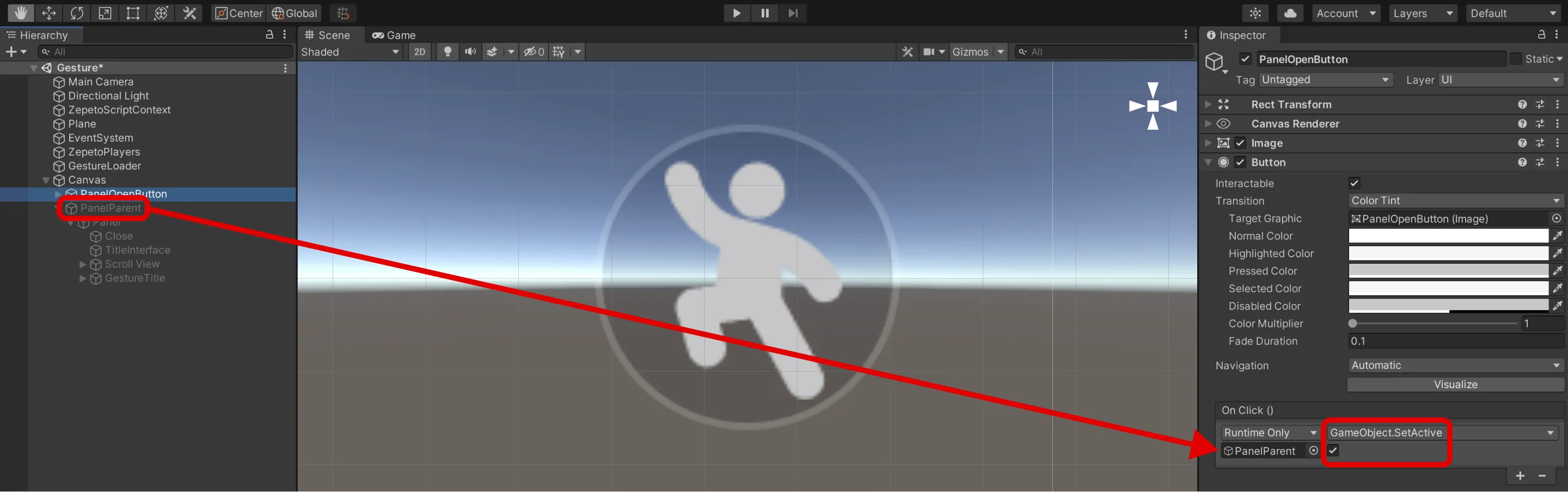
5) 添加一张图片作为标题区域。

6) 配置一个滚动视图以显示手势缩略图。
- 添加层级 > UI > 滚动视图。
- 勾选水平并禁用滚动条图像,因为您只会使用垂直滚动,水平滚动将不需要。
- 在滚动视图的内容中添加网格布局,以将缩略图对齐为网格模式。
- 添加内容大小适配器,使对象的大小适合内容的大小。
- 当您实现脚本时,必须将滚动视图中的内容设置为手势缩略图的父级(以便整个区域被识别并滚动)
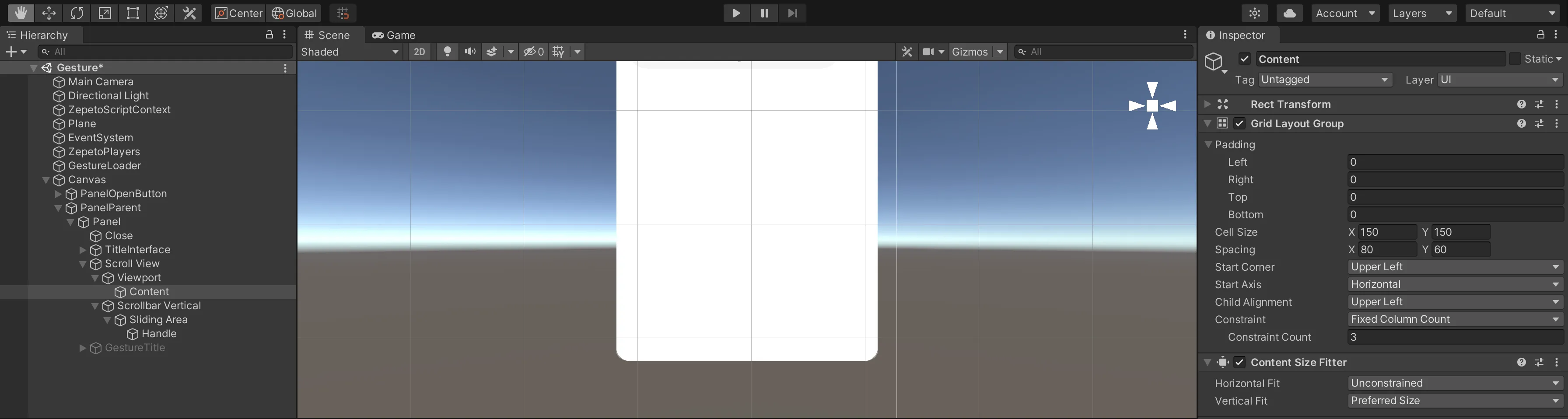
7) 按手势类型配置选项卡。
- 添加层级 > 创建一个空对象作为面板的子项,并将其重命名为 GestureTitle。
- 这是切换按钮的父对象。
- 添加水平布局以水平对齐选项卡。
- 添加切换组组件。
👍 要配置更多选项卡,添加层级 > UI > 滚动视图,并在滚动视图选项中勾选水平。
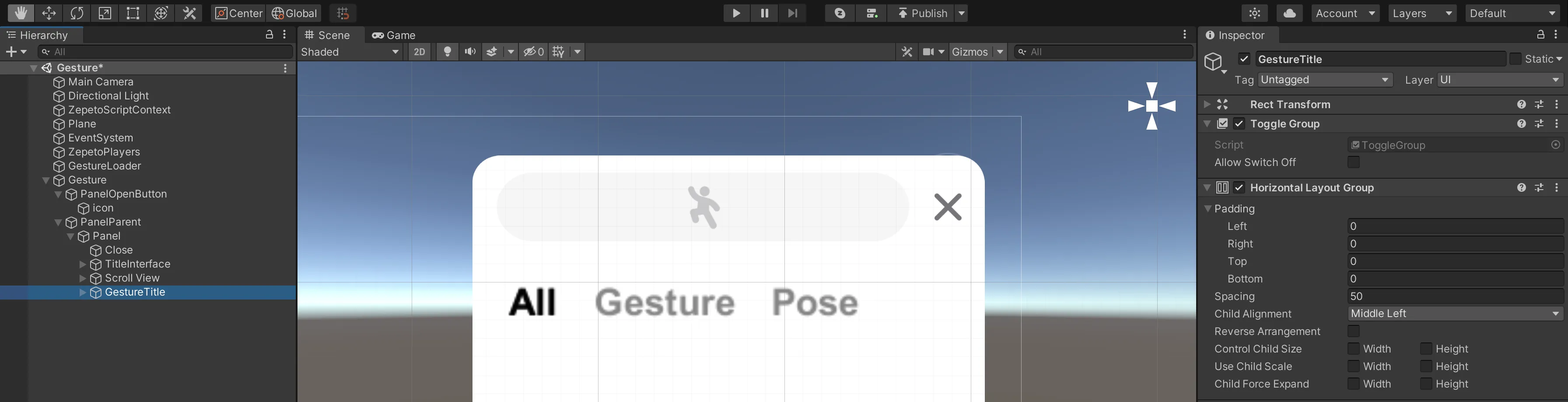
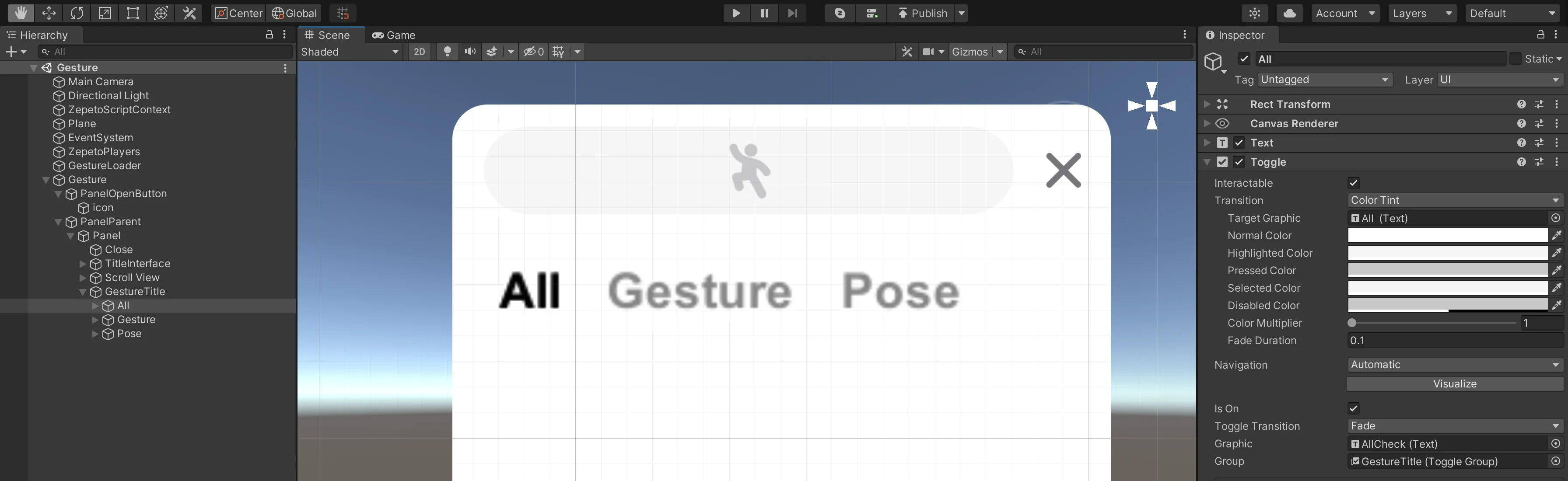
8) 将用作切换按钮的文本添加为GestureTitle的子项,并将其替换为全部。
- 将文本颜色设置为灰色。
- 添加在选中时显示的高亮文本作为文本的子项。
- 设置字体内容、大小和粗细相同,并将颜色设置为黑色。
- 添加切换组件。
- 指定组中的父对象。
- 添加您作为Graphic的子项添加的高亮文本。
- 仅检查将首先显示的所有切换组件的isOn。
- 以相同的方式创建Gesture和Pose切换按钮。
步骤 1-3 : 制作缩略图预制件
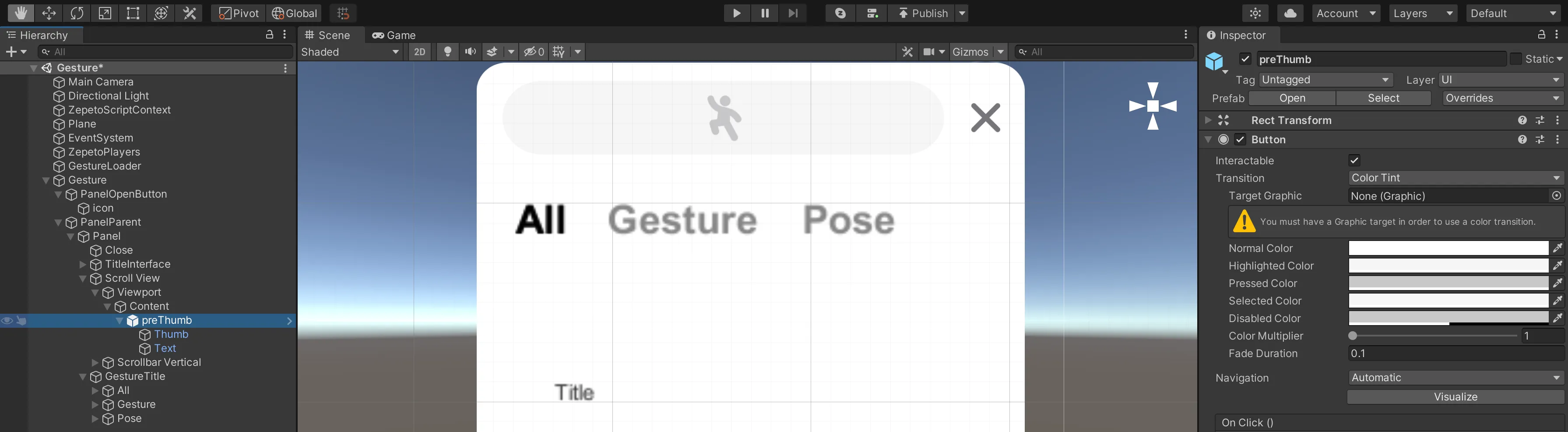
使用创建缩略图按钮作为预制件的方法,然后在脚本中生成它的实例。
1) 将 UI > 按钮添加为 Scroll View 中 Content 的子项,并将其重命名为 preThumb。
2) 添加 Raw Image 后,请将名称更改为 Thumb。
- 此图像将作为缩略图。请适当调整大小。
3) 添加文本。
- 设置位置以居中图像底部。
- 调整文字的大小和粗细,并添加内容大小适配器。
- 水平适配 : 首选大小
- 垂直适配 : 首选大小
4) 如果设置完成,请将其制作成预制件并放入 Resources 文件夹中。
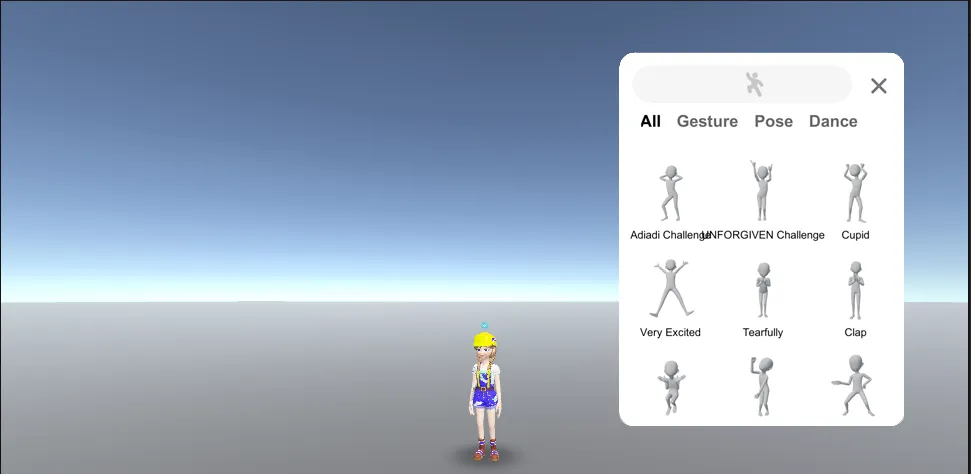
步骤 1-4 : 用户界面设置指南视频
👍 视频中显示的用户界面大小和位置值是推荐的,但您可以将其修改为您想要的值!
一旦用户界面设置完成,继续进行脚本编写。
步骤 2 : 编写脚本
此脚本基于单次播放。
步骤 2-1 : 缩略图
- 项目 > 创建 > ZEPETO > TypeScript 并重命名为缩略图。
- 编写如下示例脚本。
- 这是一个将手势内容信息(标题、图像)组织到 UI 中的脚本。
import { ZepetoScriptBehaviour } from 'ZEPETO.Script';
import { Content } from 'ZEPETO.World';
import { RawImage, Text } from 'UnityEngine.UI';
import { Texture2D } from 'UnityEngine';

export default class Thumbnail extends ZepetoScriptBehaviour {

    @HideInInspector() public content: Content;

    Start() {
        this.GetComponentInChildren<Text>().text = this.content.Title;
        this.GetComponentInChildren<RawImage>().texture = this.content.Thumbnail as Texture2D;
    }

}- 创建脚本后,打开 preThumb 预制件并添加脚本。
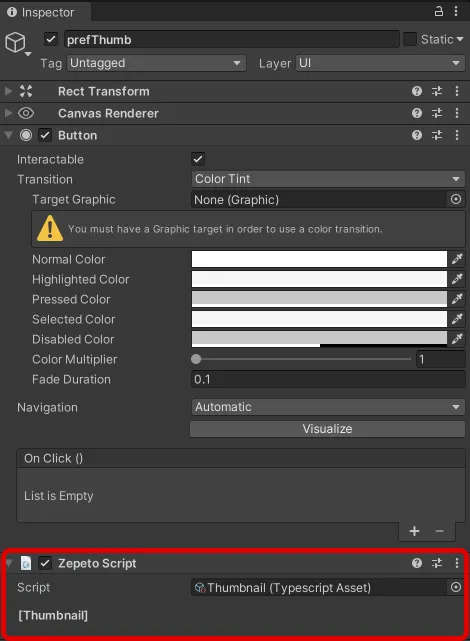
步骤 2-2 : GestureLoader
- 创建一个层次结构 > 创建空对象并将其重命名为 GestureLoader。
- 创建一个项目 > 创建 > ZEPETO > TypeScript 并将其重命名为 GestureLoader。
- 编写如下示例脚本。
import { ZepetoScriptBehaviour } from 'ZEPETO.Script';
import { LocalPlayer, SpawnInfo, ZepetoCharacter, ZepetoPlayers } from 'ZEPETO.Character.Controller';
import { OfficialContentType, WorldService, ZepetoWorldContent, Content } from 'ZEPETO.World';
import { RawImage, Text, Button } from 'UnityEngine.UI';
import { GameObject, Texture2D, Transform, WaitUntil } from 'UnityEngine';
import Thumbnail from './Thumbnail';

export default class GestureLoader extends ZepetoScriptBehaviour {

    @HideInInspector() public contents: Content[] = [];
    @HideInInspector() public thumbnails: GameObject[] = [];

    @SerializeField() private _count: number = 50;
    @SerializeField() private _contentsParent: Transform;
    @SerializeField() private _prefThumb: GameObject;

    private _myCharacter: ZepetoCharacter;

    Start() {
        // 创建角色
        ZepetoPlayers.instance.CreatePlayerWithUserId(WorldService.userId, new SpawnInfo(), true);

        ZepetoPlayers.instance.OnAddedLocalPlayer.AddListener(() => {
            this._myCharacter = ZepetoPlayers.instance.LocalPlayer.zepetoPlayer.character;

            // 为了用我的角色获取缩略图,您需要在角色创建后请求内容。
            this.ContentRequest();
        });
    }


    // 1. 从服务器接收内容
    private ContentRequest() {

        // 所有类型请求
        ZepetoWorldContent.RequestOfficialContentList(OfficialContentType.All, contents => {
            this.contents = contents;

            for (let i = 0; i < this._count; i++) {
                if (!this.contents[i].IsDownloadedThumbnail) {
                    // 使用我的角色拍摄缩略图
                    this.contents[i].DownloadThumbnail(() =>{
                        this.CreateThumbnailObjcet(this.contents[i]);
                    });
                } else {
                    this.CreateThumbnailObjcet(this.contents[i]);
                }
            }
        });

    }

    // 2. 创建缩略图对象
    private CreateThumbnailObjcet(content: Content) {
        const newThumb: GameObject = GameObject.Instantiate(this._prefThumb, this._contentsParent) as GameObject;
        newThumb.GetComponent<Thumbnail>().content = content;

        // 每个缩略图的按钮监听器
        newThumb.GetComponent<Button>().onClick.AddListener(() => {
            this.LoadAnimation(content);
        });

        this.thumbnails.push(newThumb);
    }

    // 3. 加载动画
    private LoadAnimation(content: Content) {
        // 验证动画加载
        if (!content.IsDownloadedAnimation) {
            // 如果动画尚未下载,则下载它。
            content.DownloadAnimation(() => {
                // 播放动画片段
                this._myCharacter.SetGesture(content.AnimationClip);
            });
        } else {
            this._myCharacter.SetGesture(content.AnimationClip);
        }
    }
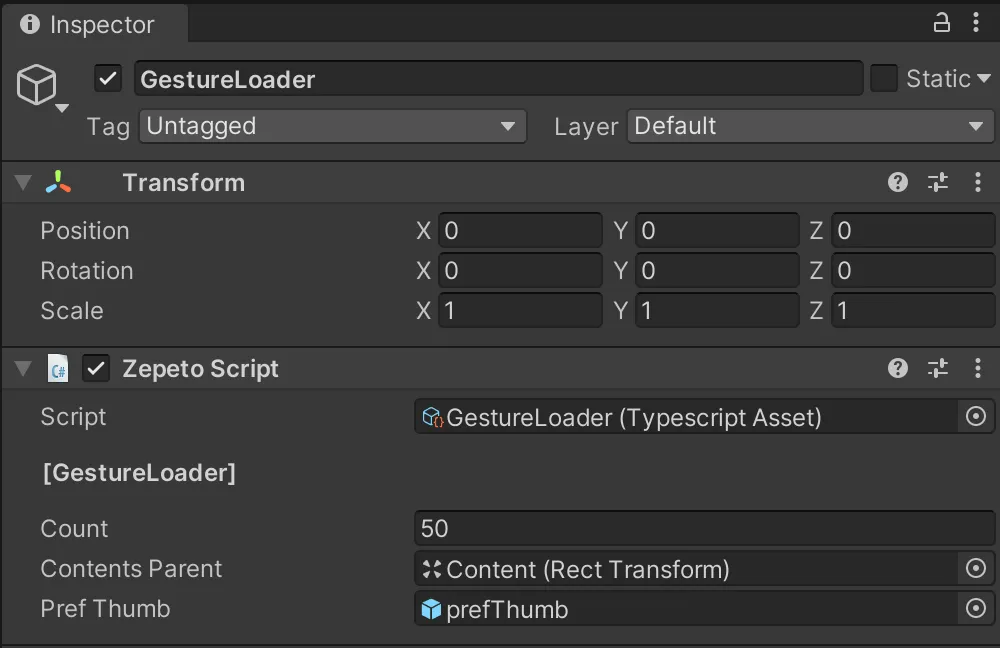
}- 计数是每个标签上要下载的最大手势数量。如果您将其设置为大于100的数字,缩略图下载过程中可能会出现错误,因此请仅根据需要进行设置。
脚本流程如下:
1) 调用 ContentsRequest() 自定义函数以在加载 ZEPETO 角色后生成缩略图。
- ContentsRequest() 函数通过分别分离手势和姿势来接收内容信息。
- 如果存在现有的缩略图,则跳过;否则,检索缩略图。
- 检索到的缩略图数据存储在各自的列表中。
步骤 2-3 : UIController
- 创建一个层次结构 > 创建空对象并将其重命名为 UIContoller。
- 创建项目 > 创建 > ZEPETO > TypeScript 并将其重命名为 UIContoller。
- 编写如下示例脚本。
import { ZepetoScriptBehaviour } from 'ZEPETO.Script';
import { Button, RawImage, Text, Toggle } from 'UnityEngine.UI';
import { LocalPlayer, ZepetoCharacter, ZepetoPlayers, ZepetoScreenTouchpad } from 'ZEPETO.Character.Controller';
import { OfficialContentType, Content } from 'ZEPETO.World';
import { Object, GameObject, Transform } from 'UnityEngine';
import GestureLoader from './GestureLoader';
import Thumbnail from './Thumbnail';

export default class UIController extends ZepetoScriptBehaviour {

    @SerializeField() private _closeButton : Button;
    @SerializeField() private _typeToggleGroup : Toggle[];

    private _gestureLodaer: GestureLoader;
    private _myCharacter: ZepetoCharacter;

    Start() {
        this._gestureLodaer = Object.FindObjectOfType<GestureLoader>();
        ZepetoPlayers.instance.OnAddedLocalPlayer.AddListener(() => {
            this._myCharacter = ZepetoPlayers.instance.LocalPlayer.zepetoPlayer.character;

            // If click the touchpad, cancel the gesture
            Object.FindObjectOfType<ZepetoScreenTouchpad>().OnPointerDownEvent.AddListener(() => {
                this.StopGesture();
            });

            // If click the close button, cancel the gesture
            this._closeButton.onClick.AddListener(() => {
                this.StopGesture();
            });
        });

        // UI Listener
        this._typeToggleGroup[0].onValueChanged.AddListener(() => {
            this.SetCategoryUI(OfficialContentType.All);
        });
        this._typeToggleGroup[1].onValueChanged.AddListener(() => {
            this.SetCategoryUI(OfficialContentType.Gesture);
        });
        this._typeToggleGroup[2].onValueChanged.AddListener(() => {
            this.SetCategoryUI(OfficialContentType.Pose);
        });

    }

    // Category Toggle UI Set
    private SetCategoryUI(category: OfficialContentType) {

        if (category == OfficialContentType.All) {
            this._gestureLodaer.thumbnails.forEach((Obj) => {
                Obj.SetActive(true);
            });
        }   else {
            for (let i = 0; i < this._gestureLodaer.thumbnails.length; i++) {
                const content = this._gestureLodaer.thumbnails[i].GetComponent<Thumbnail>().content;
                if (content.Keywords.includes(category)) {
                    this._gestureLodaer.thumbnails[i].SetActive(true);
                } else {
                    this._gestureLodaer.thumbnails[i].SetActive(false);
                }
            }
        }
    }

    private StopGesture() {
        this._myCharacter.CancelGesture();
    }
}
脚本流程如下:
- 触摸触控板或关闭按钮以使用CancelGesture()函数取消播放。
- 点击标签(切换按钮)以调用SetCategoryUI()自定义函数。
- SetCategoryUI()函数使用每个缩略图中的手势内容信息为每个相应类别设置。
- 如果是适用类型则启用,不是则禁用。
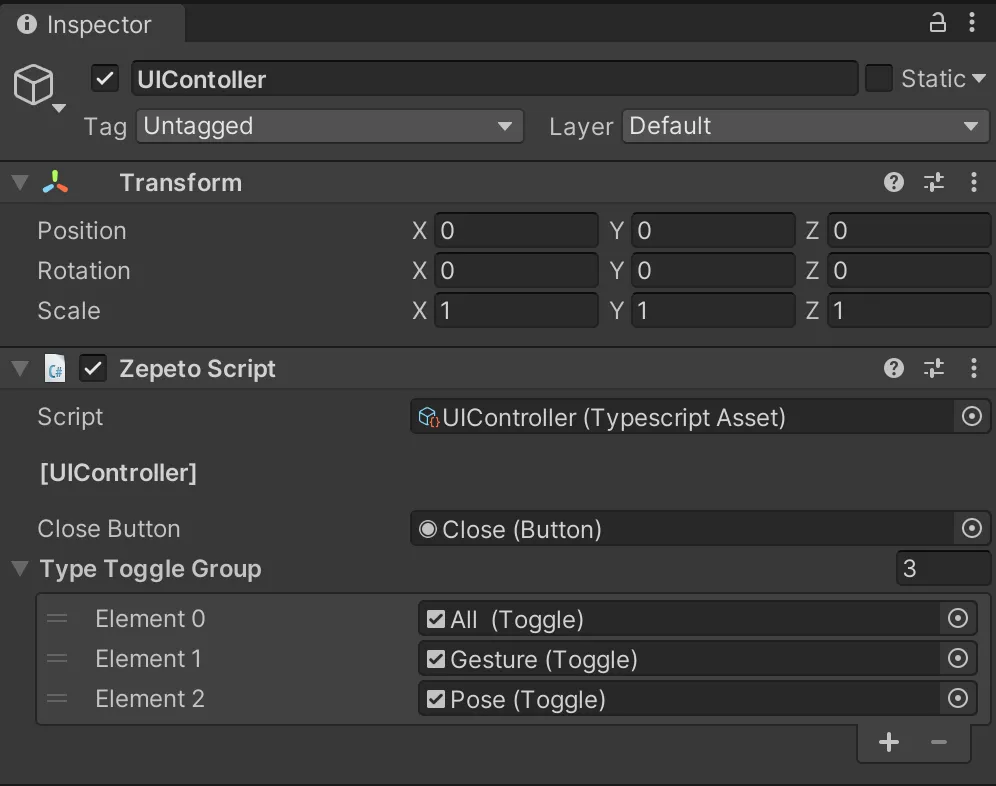
完成脚本后,将关闭按钮和类型切换组分配给检查器。
- 类型切换组的入口是手势面板中切换组的子切换。
步骤 3 : 运行
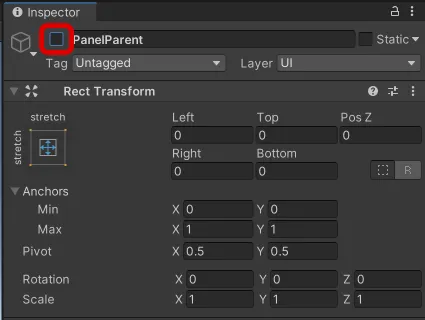
❗️ 注意 在播放之前,请禁用 PanelParent,以便在播放时仅显示打开按钮。
步骤 4 : 同步多玩家手势
- 在多玩家的情况下,必须添加一个同步代码,该代码接收特定玩家所采取的手势信息值,并将其应用于所有访问房间的玩家。
- 关键是发送和接收关于哪个玩家做了哪个手势的房间消息,在服务器和客户端之间进行。
步骤 4-1 : 客户端代码
缩略图 - 多人游戏
- 编写与单人游戏客户端代码中实现的相同脚本。
import { ZepetoScriptBehaviour } from 'ZEPETO.Script';
import { Content } from 'ZEPETO.World';
import { RawImage, Text } from 'UnityEngine.UI';
import { Texture2D } from 'UnityEngine';

export default class Thumbnail extends ZepetoScriptBehaviour {

    @HideInInspector() public content: Content;

    Start() {
        this.GetComponentInChildren<Text>().text = this.content.Title;
        this.GetComponentInChildren<RawImage>().texture = this.content.Thumbnail as Texture2D;
    }

}
手势加载器 - 多人游戏
- 默认情况下,单人游戏客户端代码中实现的脚本是相同的。
- 此外,客户端声明接口以包含 PlayerGestureInfo。
- 当将您的信息发送到服务器时:请参见 SendMyGesture() 自定义函数
- 当您的玩家按下缩略图以进行手势时,使用 room.Send() 将手势 ID 发送到服务器。
- 当您取消手势时,处理它以发送您已取消的信息。
- 从服务器接收来自另一个客户端的手势信息时:"OnChangeGesture" 房间消息被发送到 this.room.AddMessageHandler() 内的 Start()
- 通过在 "OnChangeGesture" 消息中包含会话 ID 和手势 ID 来实现同步,并使适当的玩家执行手势。
import { ZepetoScriptBehaviour } from 'ZEPETO.Script';
import { LocalPlayer, SpawnInfo, ZepetoCharacter, ZepetoPlayers } from 'ZEPETO.Character.Controller';
import { OfficialContentType, WorldService, ZepetoWorldContent, Content, ZepetoWorldMultiplay } from 'ZEPETO.World';
import { RawImage, Text, Button } from 'UnityEngine.UI';
import { GameObject, Texture2D, Transform, WaitUntil } from 'UnityEngine';
import Thumbnail from './Thumbnail';
import { Room, RoomData } from 'ZEPETO.Multiplay';

interface PlayerGestureInfo {
    sessionId: string,
    gestureId: string
}

const CancelMotion = "" as const;

export default class GestureLoaderMultiPlay extends ZepetoScriptBehaviour {

    public multiplay: ZepetoWorldMultiplay;

    @HideInInspector() public contents: Content[] = [];
    @HideInInspector() public thumbnails: GameObject[] = [];

    @SerializeField() private _count: number = 50;
    @SerializeField() private _contentsParent: Transform;
    @SerializeField() private _prefThumb: GameObject;

    private _myCharacter: ZepetoCharacter;
    private _room: Room;
    private _contentsMap: Map<string, Content> = new Map<string, Content>();

    Start() {
        // 创建角色
        ZepetoPlayers.instance.OnAddedLocalPlayer.AddListener(() => {
            this._myCharacter = ZepetoPlayers.instance.LocalPlayer.zepetoPlayer.character;

            // 为了用我的角色获取缩略图,您需要在角色创建后请求内容。
            this.ContentRequest();
        });

        // 多人游戏
        this.multiplay.RoomCreated += (room: Room) => {
            this._room = room;
            // 从服务器接收用户的手势信息
            this._room.AddMessageHandler("OnChangeGesture", (message: PlayerGestureInfo) => {
                let playerGestureInfo: PlayerGestureInfo = {
                    sessionId: message.sessionId,
                    gestureId: message.gestureId
                };
                this.LoadAnimation(playerGestureInfo);
            });
        };
    }


    // 1. 从服务器接收内容
    private ContentRequest(){

        // 所有类型请求
        ZepetoWorldContent.RequestOfficialContentList(OfficialContentType.All, contents => {
            this.contents = contents;
            for (let i = 0; i < this._count; i++) {
                if (!this.contents[i].IsDownloadedThumbnail) {
                    // 使用我的角色拍摄缩略图
                    this.contents[i].DownloadThumbnail(() =>{
                        this.CreateThumbnailObjcet(this.contents[i]);
                    });
                } else {
                    this.CreateThumbnailObjcet(this.contents[i]);
                }
            }
        });

    }

    // 2. 创建缩略图对象
    private CreateThumbnailObjcet(content: Content) {
        const newThumb: GameObject = GameObject.Instantiate(this._prefThumb, this._contentsParent) as GameObject;
        newThumb.GetComponent<Thumbnail>().content = content;

        // 创建一个字典以通过内容 ID 查找内容
        this._contentsMap.set(content.Id, content);

        // 每个缩略图的按钮监听器
        newThumb.GetComponent<Button>().onClick.AddListener(() => {
            this.SendMyGesture(content.Id);
        });

        // 缩略图列表
        this.thumbnails.push(newThumb);

    }

    // 多人游戏
    // 将点击的手势信息发送到服务器
    public SendMyGesture(gestureId) {
        const data = new RoomData();
        data.Add("gestureId", gestureId);
        this._room.Send("OnChangeGesture", data.GetObject());
    }

    // 3. 加载动画
    private LoadAnimation(playerGestureInfo: PlayerGestureInfo){

        if (!ZepetoPlayers.instance.HasPlayer(playerGestureInfo.sessionId)) {
            console.log("玩家不存在");
            return;
        }

        const zepetoPlayer = ZepetoPlayers.instance.GetPlayer(playerGestureInfo.sessionId).character;

        if (playerGestureInfo.gestureId == CancelMotion) {
            zepetoPlayer.CancelGesture();
            return;
        }
        else if(!this._contentsMap.has(playerGestureInfo.gestureId)) {
            console.log("资源尚未加载");
            return;
        }

        const content = this._contentsMap.get(playerGestureInfo.gestureId);

        // 验证动画加载
        if (!content.IsDownloadedAnimation) {
            // 如果动画尚未下载,则下载它。
            content.DownloadAnimation(() => {
                // 播放动画剪辑
                zepetoPlayer.SetGesture(content.AnimationClip);
            });
        } else {
            zepetoPlayer.SetGesture(content.AnimationClip);
        }
    }
}
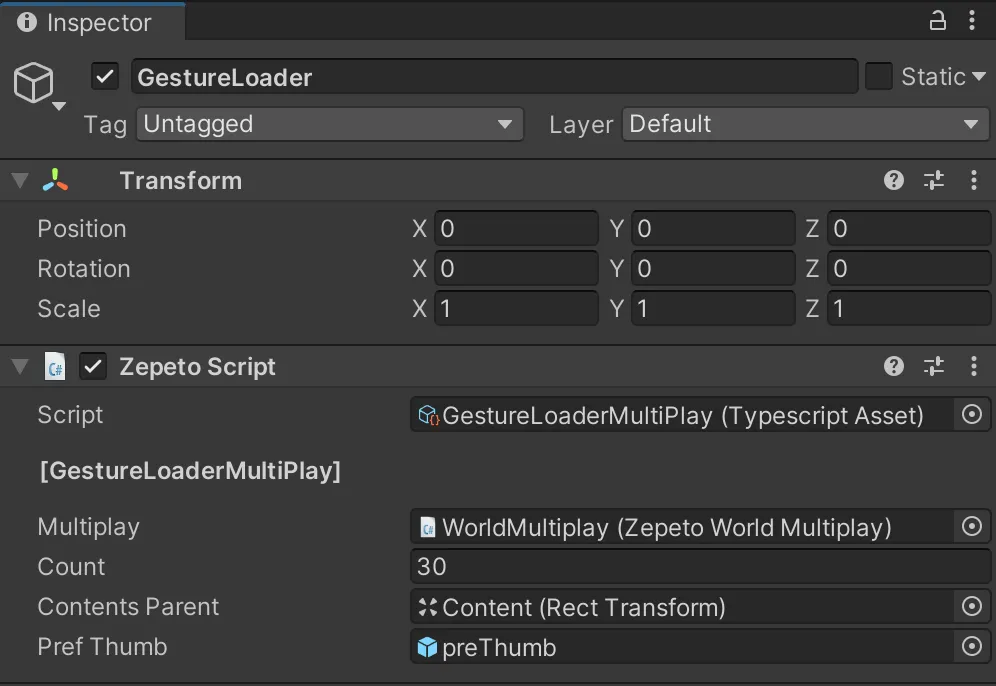
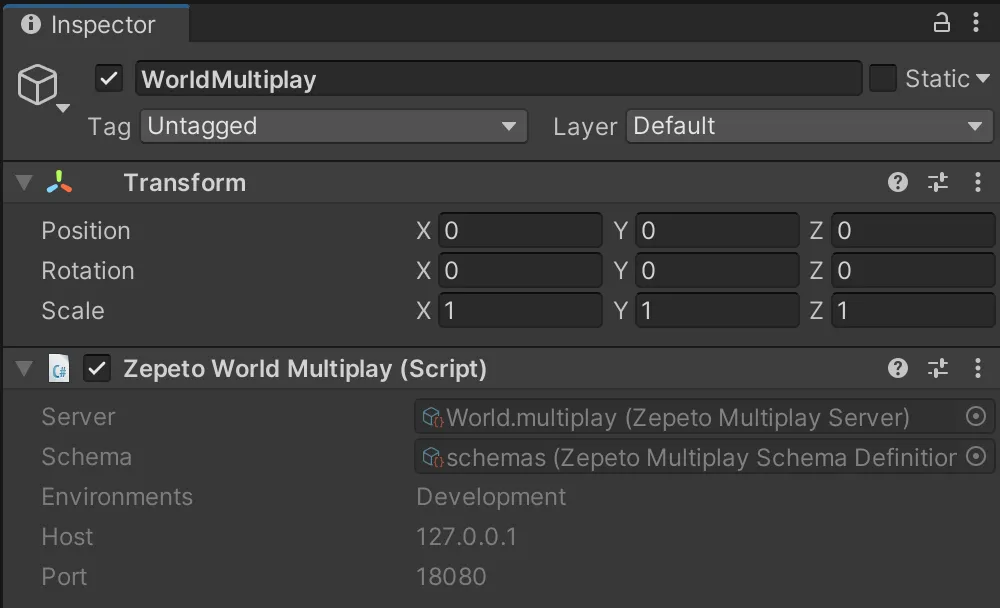
- 完成脚本后,检查员将为Multiplay分配一个额外的对象,使用Zepeto World Multiplay组件。
UIController - 多人游戏
- 默认情况下,单人游戏客户端代码中实现的脚本是相同的。
- 与单人游戏客户端代码的区别在于 StopGesture() 自定义函数。
- 在 GestureLoaderMultiplay 中调用 SendMyGesture() 自定义函数。
- 处理发送手势已被取消的信息。
import { ZepetoScriptBehaviour } from 'ZEPETO.Script';
import { Button, RawImage, Text, Toggle } from 'UnityEngine.UI';
import { LocalPlayer, ZepetoCharacter, ZepetoPlayers, ZepetoScreenTouchpad } from 'ZEPETO.Character.Controller';
import { OfficialContentType, Content } from 'ZEPETO.World';
import { Object, GameObject, Transform } from 'UnityEngine';
import GestureLoaderMultiPlay from './GestureLoaderMultiPlay';
import Thumbnail from './Thumbnail';

const CancelMotion = "" as const;

export default class UIController extends ZepetoScriptBehaviour {

    @SerializeField() private _closeButton : Button;
    @SerializeField() private _typeToggleGroup : Toggle[];

    private _gestureLodaer: GestureLoaderMultiPlay;
    private _myCharacter: ZepetoCharacter;

    Start() {
        this._gestureLodaer = Object.FindObjectOfType<GestureLoaderMultiPlay>();
        ZepetoPlayers.instance.OnAddedLocalPlayer.AddListener(() => {
            this._myCharacter = ZepetoPlayers.instance.LocalPlayer.zepetoPlayer.character;

            // 如果点击触摸板,取消手势
            Object.FindObjectOfType<ZepetoScreenTouchpad>().OnPointerDownEvent.AddListener(() => {
                this.StopGesture();
            });

            // 如果点击关闭按钮,取消手势
            this._closeButton.onClick.AddListener(() => {
                this.StopGesture();
            });
        });

        // UI 监听
        this._typeToggleGroup[0].onValueChanged.AddListener(() => {
            this.SetCategoryUI(OfficialContentType.All);
        });
        this._typeToggleGroup[1].onValueChanged.AddListener(() => {
            this.SetCategoryUI(OfficialContentType.Gesture);
        });
        this._typeToggleGroup[2].onValueChanged.AddListener(() => {
            this.SetCategoryUI(OfficialContentType.Pose);
        });

    }

    // 类别切换 UI 设置
    private SetCategoryUI(category: OfficialContentType) {

        if (category == OfficialContentType.All) {
            this._gestureLodaer.thumbnails.forEach((Obj) => {
                Obj.SetActive(true);
            });
        }  else {
            for (let i = 0; i < this._gestureLodaer.thumbnails.length; i++) {
                const content = this._gestureLodaer.thumbnails[i].GetComponent<Thumbnail>().content;
                if (content.Keywords.includes(category)) {
                    this._gestureLodaer.thumbnails[i].SetActive(true);
                } else {
                    this._gestureLodaer.thumbnails[i].SetActive(false);
                }
            }
        }
    }

    private StopGesture() {
        this._gestureLodaer.SendMyGesture(CancelMotion);
    }
}
步骤 4-2 : 服务器代码
- 服务器代码然后声明接口以包含 PlayerGestureInfo,方式相同。
- 服务器代码默认基于 Multiplay Sample 中的服务器代码。
- 它创建了一个 onMessage() 回调,当手势在 onCreate() 中变化时,将手势信息发送给其他客户端。
import { Sandbox, SandboxOptions, SandboxPlayer } from 'ZEPETO.Multiplay';
import { Player, Transform, Vector3 } from 'ZEPETO.Multiplay.Schema';

// 定义一个接口 PlayerGestureInfo 来表示玩家手势的信息。
interface PlayerGestureInfo {
    sessionId: string,
    gestureId: string
}

export default class extends Sandbox {

 	 // 定义一个常量对象 `MESSAGE_TYPE` 来存储脚本中使用的消息类型。
    MESSAGE_TYPE = {
        OnChangeGesture: "OnChangeGesture"
    }

    onCreate(options: SandboxOptions) {

        // 当房间创建时调用。
        // 处理房间的状态或数据初始化。

        this.onMessage("onChangedTransform", (client, message) => {
            const player = this.state.players.get(client.sessionId);

            const transform = new Transform();
            transform.position = new Vector3();
            transform.position.x = message.position.x;
            transform.position.y = message.position.y;
            transform.position.z = message.position.z;

            transform.rotation = new Vector3();
            transform.rotation.x = message.rotation.x;
            transform.rotation.y = message.rotation.y;
            transform.rotation.z = message.rotation.z;

            player.transform = transform;
        });

        this.onMessage("onChangedState", (client, message) => {
            const player = this.state.players.get(client.sessionId);
            player.state = message.state;
            player.subState = message.subState; // 角色控制器 V2
        });

        // 当手势改变时,
        this.onMessage<PlayerGestureInfo>(this.MESSAGE_TYPE.OnChangeGesture, (client, message) => {
            let gestureInfo:PlayerGestureInfo = {
                sessionId: client.sessionId,
                gestureId: message.gestureId
            };
            // 将手势发送给除客户端以外的其他玩家
            this.broadcast(this.MESSAGE_TYPE.OnChangeGesture, gestureInfo);
        });

    }

    onJoin(client: SandboxPlayer) {

        // 在创建玩家对象后设置初始值,玩家对象在 schemas.json 中定义。
        console.log(`[OnJoin] sessionId : ${client.sessionId}, userId : ${client.userId}`)

        const player = new Player();
        player.sessionId = client.sessionId;


        if (client.userId) {
            player.zepetoUserId = client.userId;
        }

        // 使用 sessionId 管理玩家对象,这是客户端对象的唯一键值。
        // 客户端可以通过将 add_OnAdd 事件添加到 players 对象来检查有关添加的玩家对象的信息。
        this.state.players.set(client.sessionId, player);
    }

    onLeave(client: SandboxPlayer, consented?: boolean) {

        // 通过设置 allowReconnection,可以保持电路的连接,但在基本指南中立即清理。
        // 客户端可以通过将 add_OnRemove 事件添加到 players 对象来检查有关已删除玩家对象的信息。
        this.state.players.delete(client.sessionId);
    }
}