Side View Example
5 분
이것은 사이드 뷰 컨트롤 설정의 예입니다.
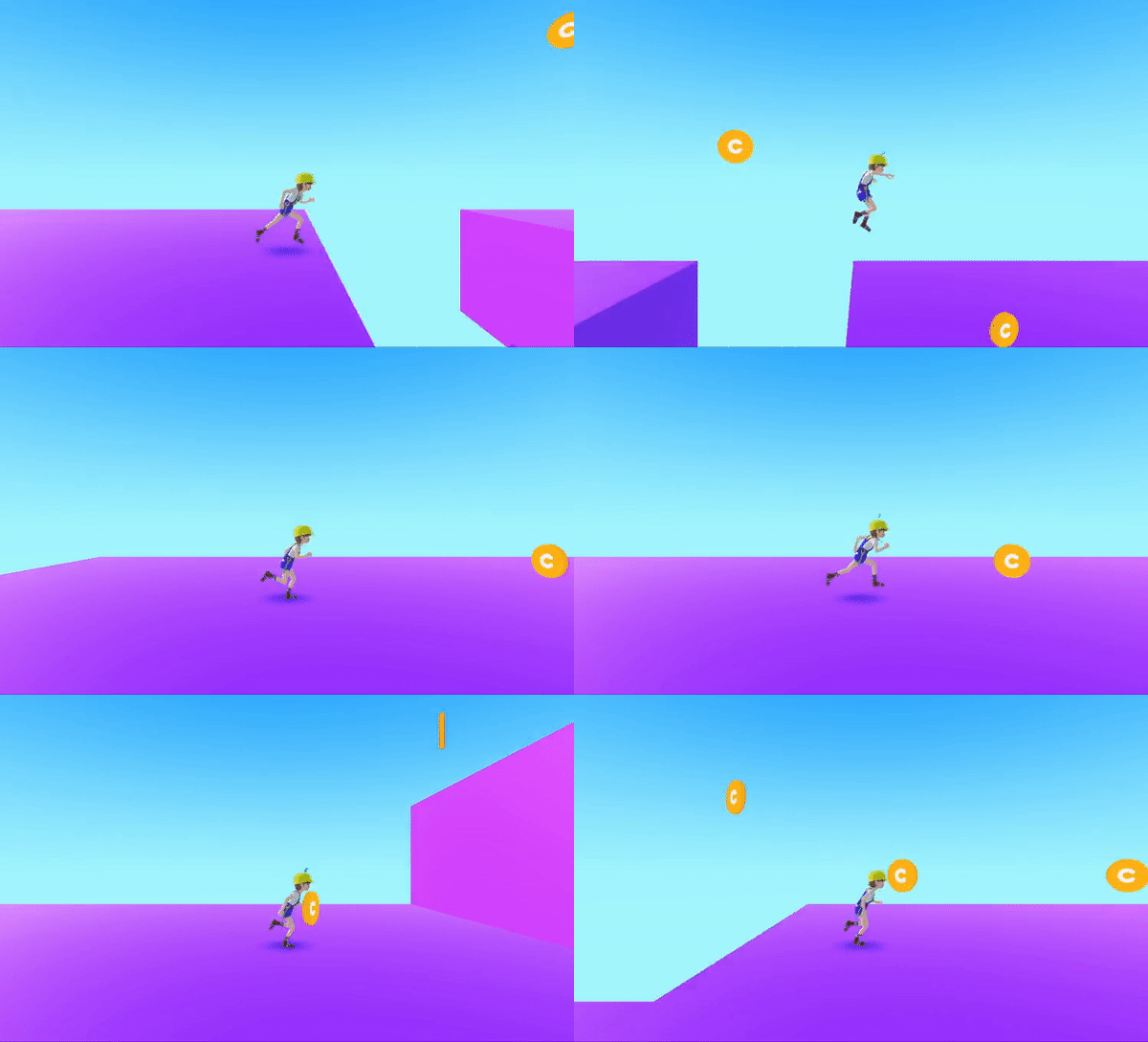
1단계 : 카메라 뷰 설정
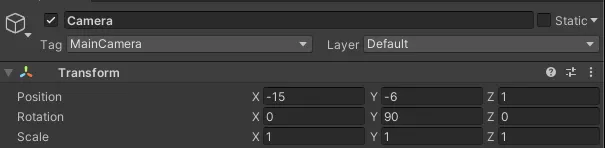
카메라를 사이드 뷰로 설정합니다. (이것은 예시이므로, 프로젝트에 맞게 카메라 설정을 수정해 주세요.)
이 시점에서 카메라의 태그는 MainCamara로 설정되어야 합니다.
2단계 : InputAction 설정
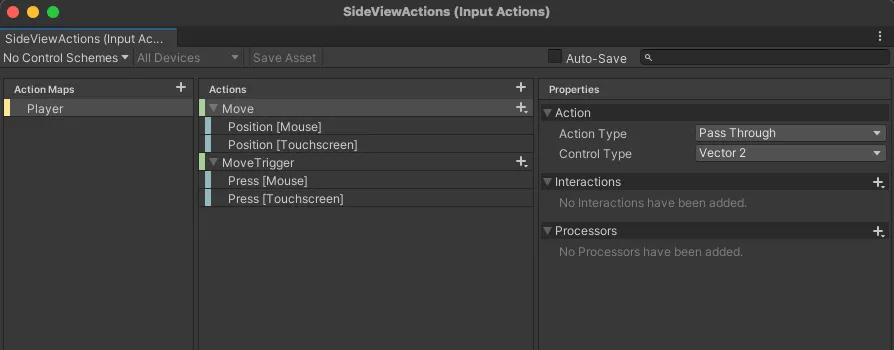
사이드 뷰에 맞는 새로운 InputAction을 정의함으로써, 터치 스크린을 통해 캐릭터의 움직임을 제어할 수 있습니다.
Create > Input Actions를 선택하고 파일 이름을 SideView Actions로 지정합니다.
- 이동
- 액션 유형 : 통과
- 이동 트리거
- 액션 유형 : 버튼
계층 구조 만들기 > 빈 객체 만들기를 선택하고 이름을 SideView Controller로 변경합니다.
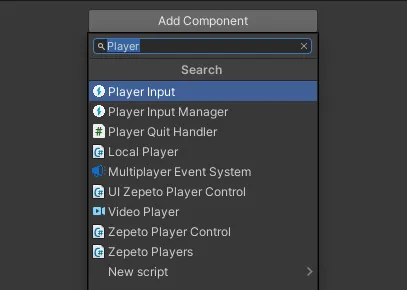
SideViewController 객체에서 구성 요소 추가를 선택하고 플레이어 입력을 추가합니다.
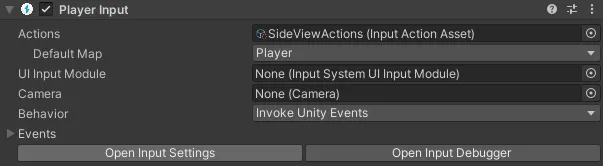
방금 생성한 SideView Actions를 Actions 목록에 드래그하여 연결하세요.
Behavoir를 Unity Events를 호출하도록 변경하세요.
3단계 : 스크립팅
ZEPETO 캐릭터가 좌우로 이동하도록 제어하는 스크립트를 만들고, 카메라가 따라가게 하세요.
생성 > ZEPETO > TypeScript를 선택하고 이름을 SideView Controller로 변경합니다.
스크립트를 SideViewController 객체에 추가합니다.
import {ZepetoScriptBehaviour} from 'ZEPETO.Script'
import {PlayerInput,InputAction} from "UnityEngine.InputSystem"
import {CallbackContext} from "UnityEngine.InputSystem.InputAction"
import {CharacterState, ZepetoCharacter, ZepetoPlayers, ZepetoCamera} from 'ZEPETO.Character.Controller'
import {Camera, Quaternion, Time, Vector2, Vector3, WaitForEndOfFrame} from "UnityEngine";

export default class SideViewController extends ZepetoScriptBehaviour {

    public customCamera : Camera;
    public cameraDistance : number = 10;

    private originSpawnPoint : Vector3 = new Vector3(-16,-5,0);
    private myCharacter: ZepetoCharacter;
    private startPos: Vector2 = Vector2.zero;
    private curPos: Vector2 = Vector2.zero;

    private playerInput: PlayerInput;
    private touchPositionAction : InputAction;
    private touchTriggerAction : InputAction;

    private isTriggered: boolean = false;
    private isTouchDown: boolean = false;

    private CanMove() : boolean {
        return this.isTouchDown && !this.isTriggered;
    }


    OnEnable(){
        this.playerInput = this.gameObject.GetComponent<PlayerInput>();
    }

    Start() {

        this.touchTriggerAction = this.playerInput.actions.FindAction("MoveTrigger");
        this.touchPositionAction = this.playerInput.actions.FindAction("Move");

        this.touchTriggerAction.add_started((context)=>{
            this.isTriggered = true;
            this.isTouchDown = true;
        });

        this.touchTriggerAction.add_canceled((context)=>{
            this.isTriggered = false;
            this.isTouchDown = false;
        });

        this.touchPositionAction.add_performed((context)=>{

            if(this.isTouchDown)
            {
                this.curPos = context.ReadValueAsObject() as Vector2;

                if(this.isTriggered) {
                    this.isTriggered = false;
                    this.startPos = this.curPos;
                }
            }
        });

        //zepeto 카메라 끄기
        ZepetoPlayers.instance.OnAddedLocalPlayer.AddListener(() => {
            ZepetoPlayers.instance.LocalPlayer.zepetoCamera.gameObject.SetActive(false);
            this.myCharacter = ZepetoPlayers.instance.LocalPlayer.zepetoPlayer.character;
            this.customCamera.transform.position = this.myCharacter.transform.position + this.originSpawnPoint;
            this.StartCoroutine(this.InputControlLoop());
        });
    }

    private *InputControlLoop(){
        while(true)
        {
            yield new WaitForEndOfFrame();

            if (this.myCharacter && this.CanMove()) {

                var camRot = Quaternion.Euler(0, Camera.main.transform.rotation.eulerAngles.y, 0);
                var moveDir = Vector2.op_Subtraction(this.curPos, this.startPos);
                moveDir = Vector2.op_Division(moveDir, 100);


                if (moveDir.magnitude > 0) {

                    if(moveDir.magnitude > 1)
                        moveDir.Normalize();

                    //좌우
                    var optMoveDir = new Vector3(moveDir.x, 0, 0);
                    optMoveDir = Vector3.op_Multiply(optMoveDir, Time.deltaTime * 80 );
                    this.myCharacter.Move(camRot * optMoveDir);
                }
            }
        }
    }

    //zepeto 캐릭터 따라가기
    LateUpdate()
    {
        if(null == this.myCharacter)
        {
            return;
        }
        let characterPos = this.myCharacter.transform.position;
        //let cameraPosition = new Vector3(characterPos.x - this.cameraDistance, this.customCamera.transform.position.y, characterPos.z);
        let cameraPosition = new Vector3(characterPos.x - this.cameraDistance, characterPos.y + 1, characterPos.z);
        this.customCamera.transform.position = cameraPosition;
    }
}
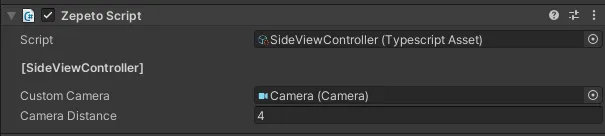
카메라를 실행하기 전에 검사기에서 설정해 주세요.