Hello ZEPETOScript
What is ZEPETOScript?
- ZEPETOScript is a scripting language used for creating ZEPETO World.
- It supports the TypeScript programming language.
- ZEPETOScript is designed to define behaviors and functionalities within ZEPETO World, including:
- Movement, physics, and interactions of objects.
- Handling events, including user inputs.
- Inherits from the ZepetoScriptBehaviour class, designed to be compatible with Unity's MonoBehaviour interface.
- It can be attached to active GameObjects in the scene for execution.
❗️ Caution
- When developing for ZEPETO World, C# scripts are not included in the package build.
- Make sure to only implement using ZEPETOScript.
Hello World Tutorial
STEP 1 : Creating a ZEPETOScript
To create a new ZEPETOScript file,
click [Project] and select the [+] icon in the top left corner of the panel, or click Assets → Create → ZEPETO → TypeScript.
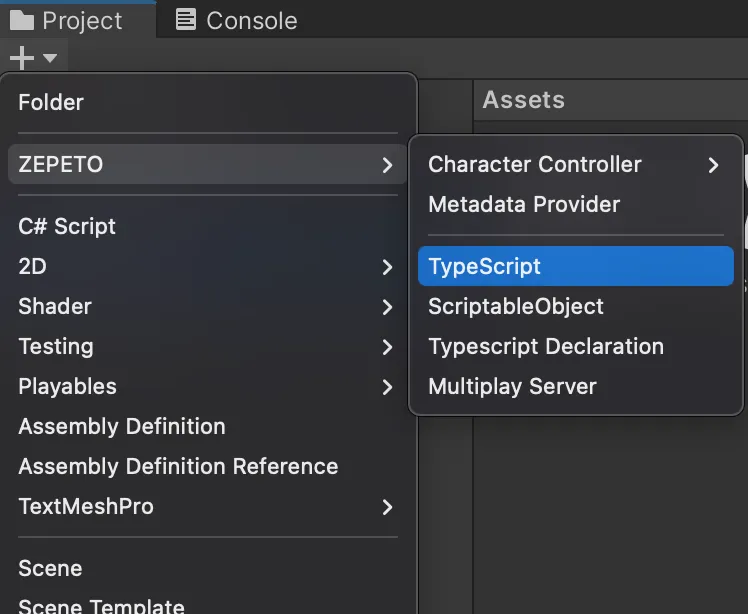
You can see that a new ZEPETOScript has been created, as shown below.
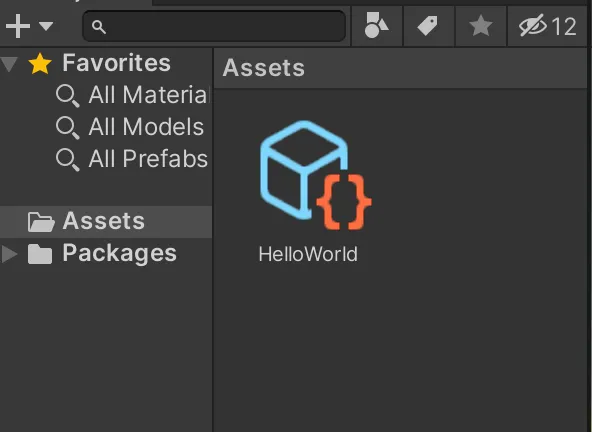
STEP 2 : Adding ZEPETOScript to a GameObject
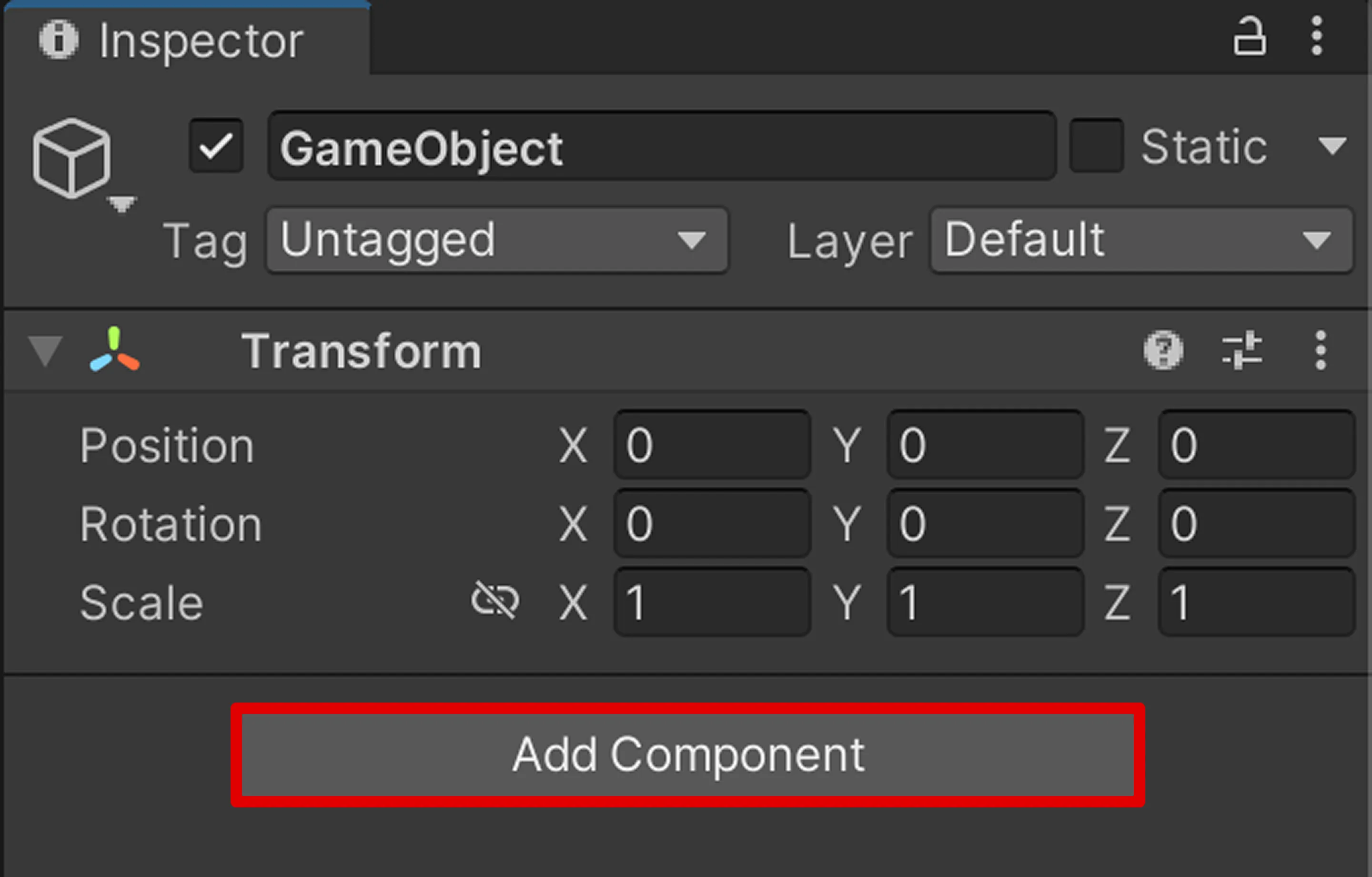
To add the previously created ZEPETOScript as a Component to a GameObject, click the Add Component button in the Inspector window of the GameObject.
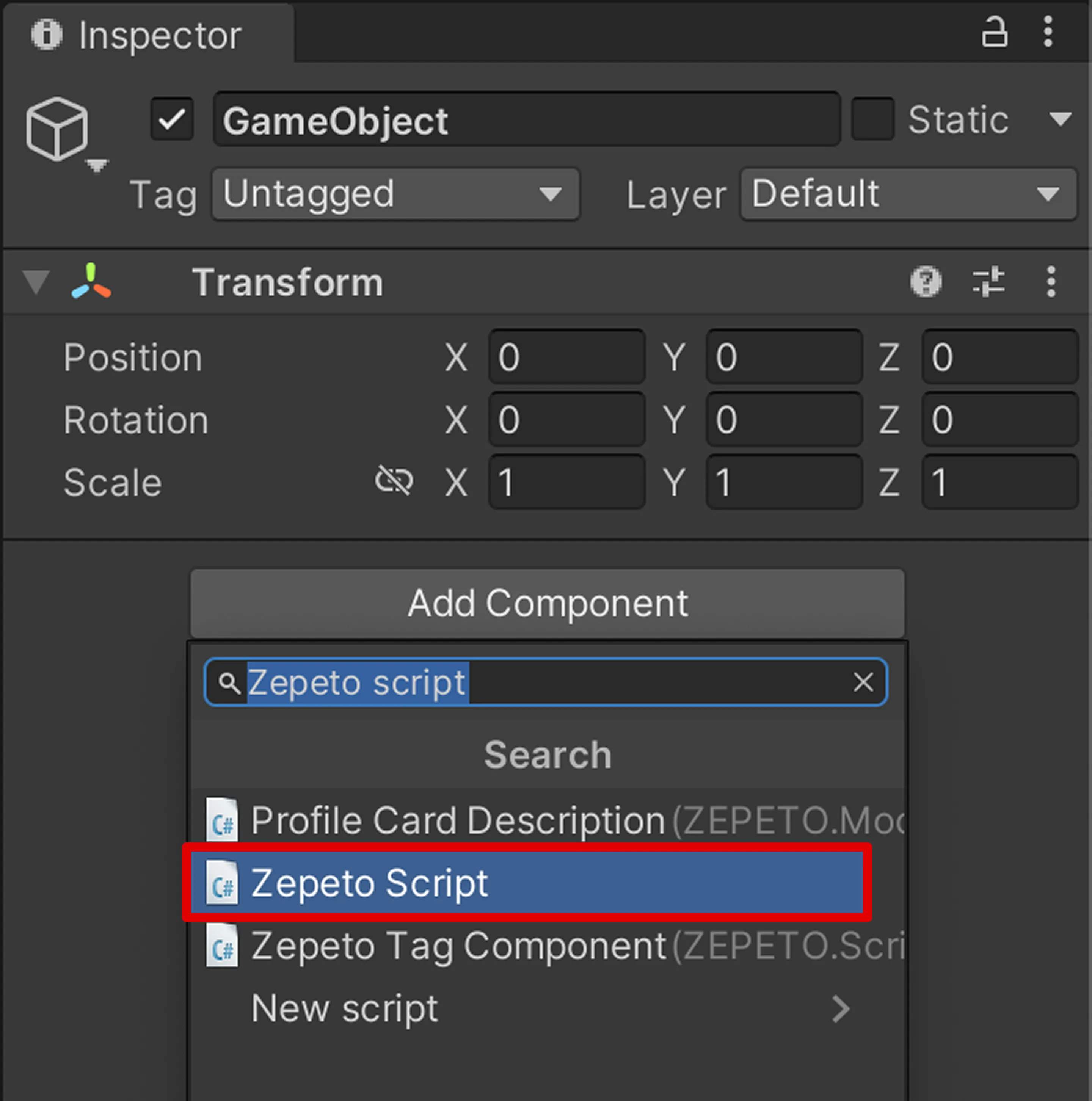
In the Add Component window, select Zepeto Script Component.
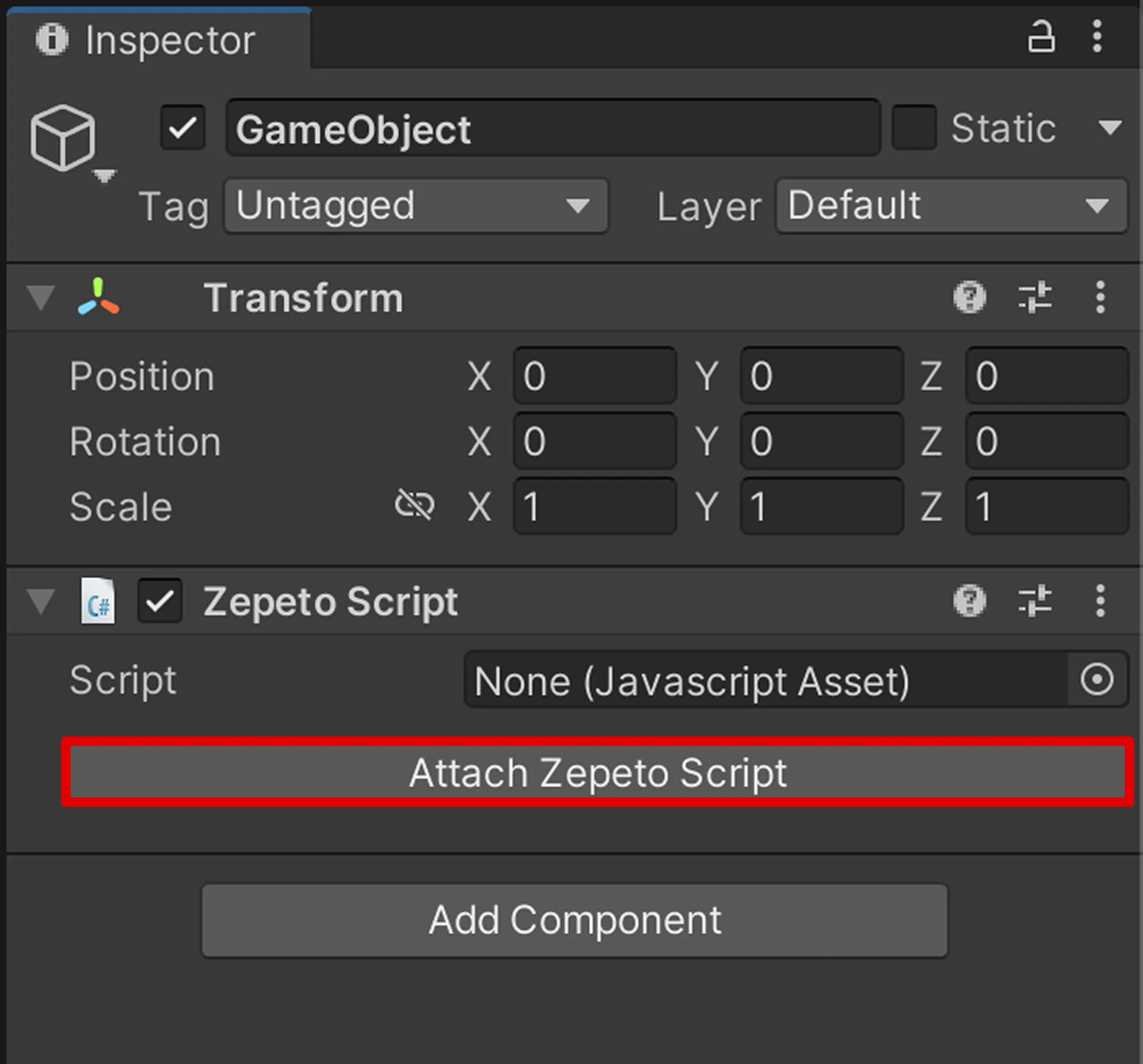
Click the Attach Zepeto Script button in the Zepeto Script Component.
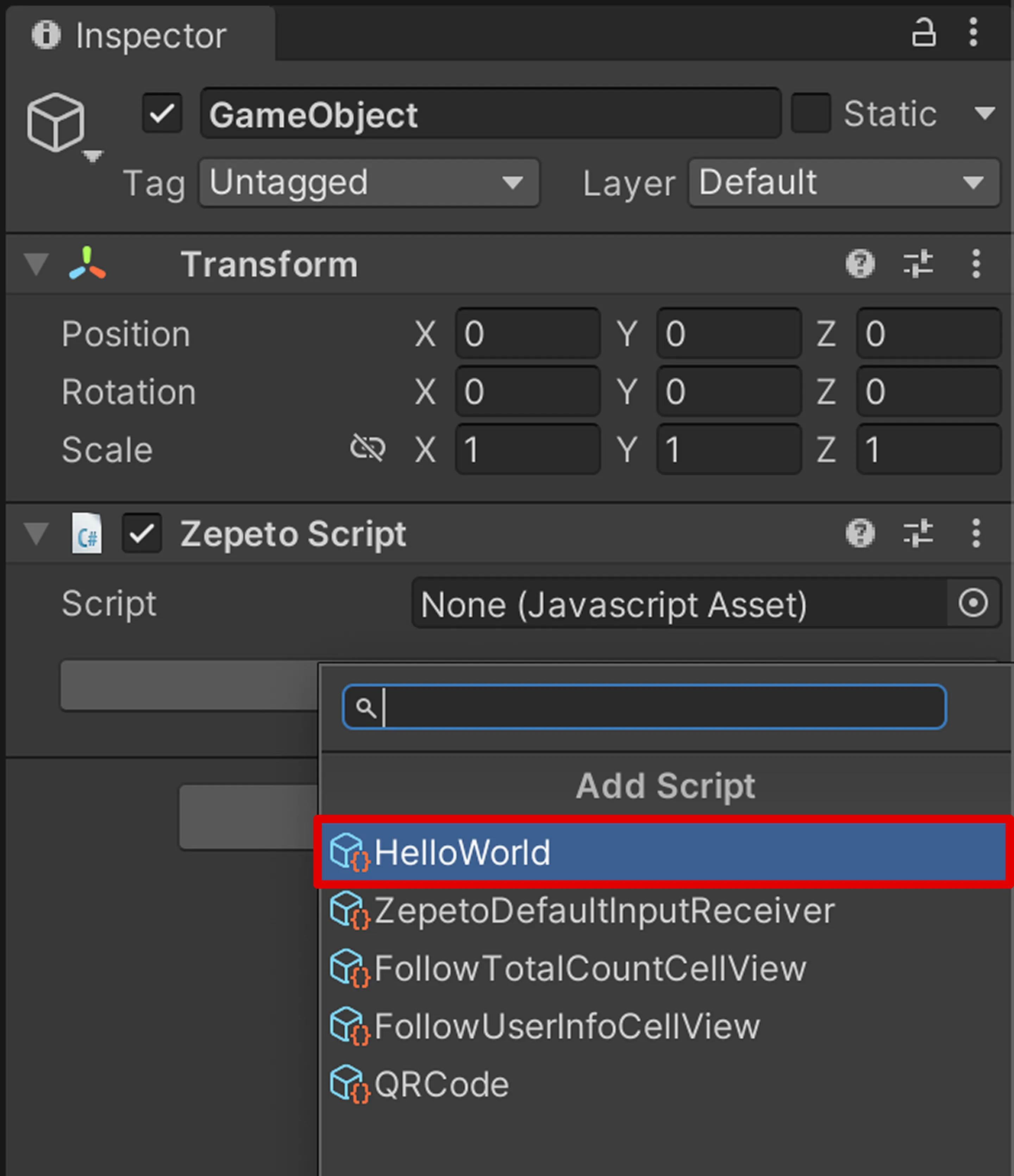
In the Attach Zepeto Script window, select the HelloWorld ZEPETOScript file you created earlier.
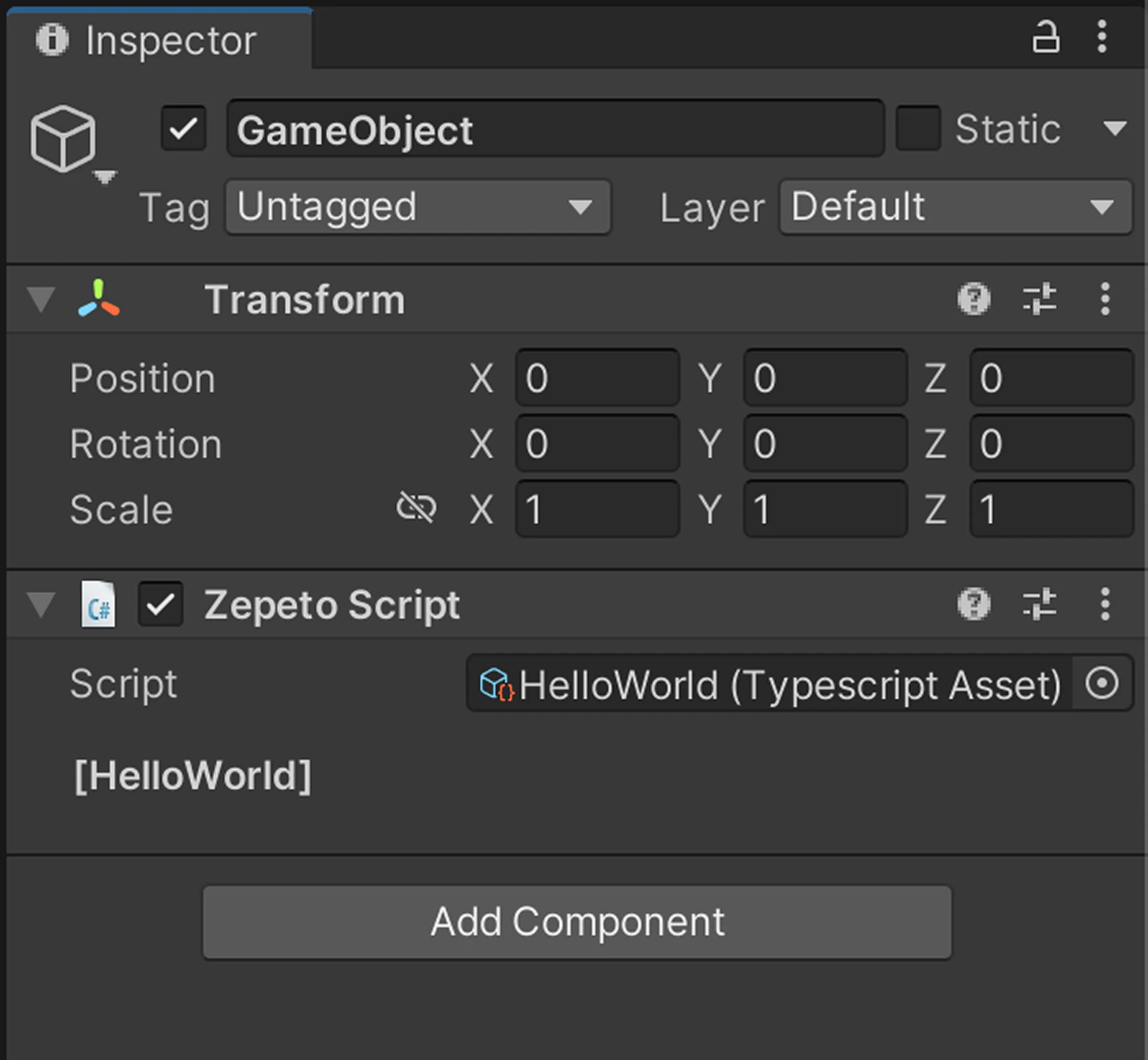
You can add the HelloWorld ZEPETOScript file as a Component to the GameObject as shown in the screen below.
STEP 3 : Adding test codes or emitting logs
The newly generated ZEPETOScript is shown below. You can edit the script using Unity’s development tools.
import { ZepetoScriptBehaviour } from 'ZEPETO.Script';

export default class NewTypescript extends ZepetoScriptBehaviour {

    Start() {

    }

}
Try adding log codes within the Start function to test whether the ZEPETOScript moves.
import { ZepetoScriptBehaviour } from 'ZEPETO.Script';

export default class HelloWorld extends ZepetoScriptBehaviour {

    Start() {
        console.log(`log : Hello World`);
        console.warn(`warn : Hello World`);
        console.error(`error : Hello World`);
    }

}
Check out the test code output screen below.
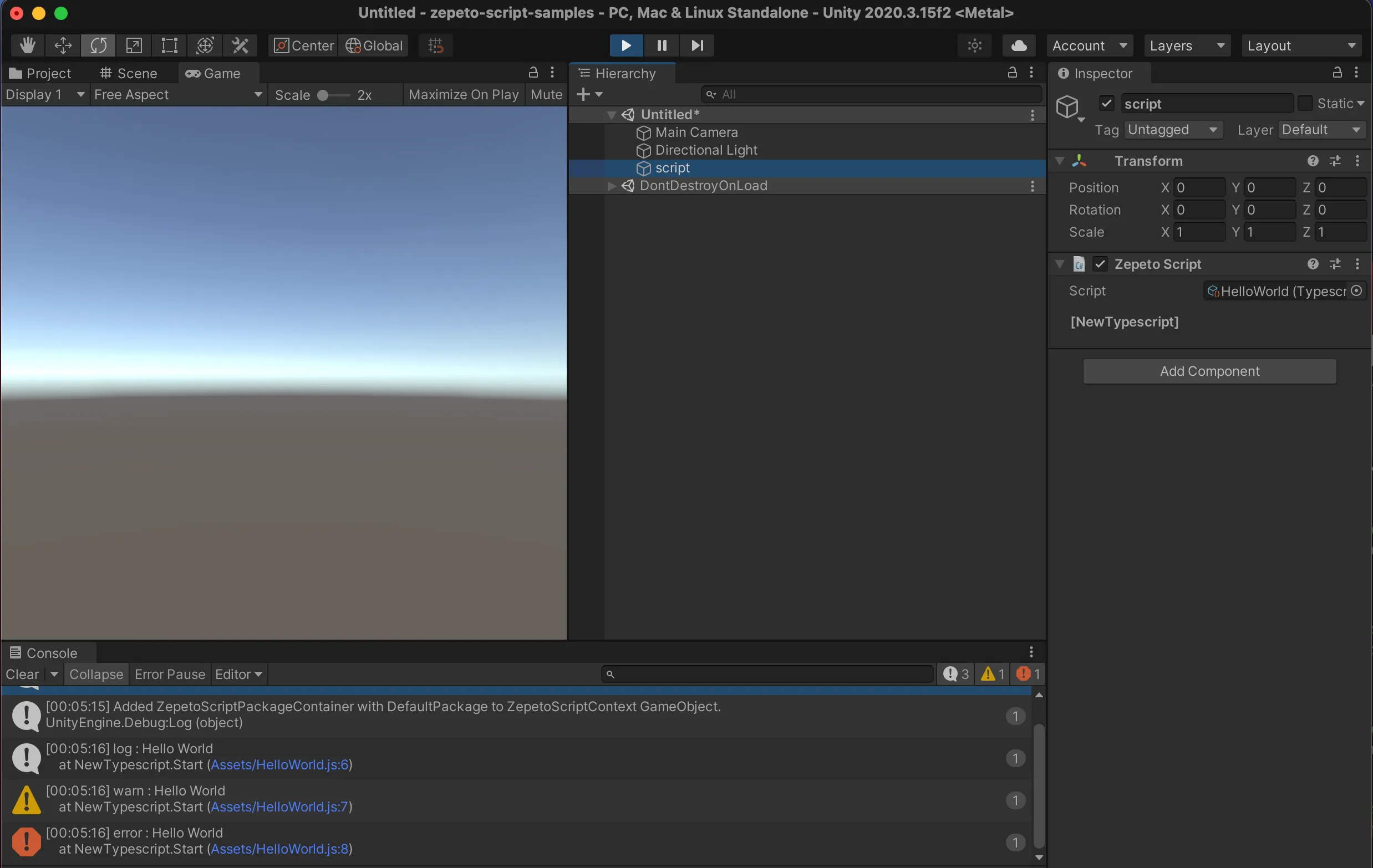
Congratulations on completing the ZEPETOScript tutorial!
For those who have previously developed with C# in Unity or those new to ZEPETO World development, let's dive into the basics of ZEPETOScript.
Declaring Variables in ZEPETOScript
- ZEPETOScript follows TypeScript syntax.
- Therefore, it is essential to declare the type when declaring a variable.
- Example of variable declaration:
import { ZepetoScriptBehaviour } from 'ZEPETO.Script';

export default class HelloZepetoScript extends ZepetoScriptBehaviour {

    // Global Variables
    private number: number = 10;
    private floatNumber: number = 10.5;
    private word: string = "ZEPETO!";
    private isTrue: boolean = true;
    private list : number[] = [1,2,3];
    private listGeneric : Array<number> = [4,5,6];

    Start() {
        console.log(this.number);
        console.log(this.floatNumber);
        console.log(`Hello, ${this.word}`);
        console.log(this.isTrue);
        console.log(this.list);
        console.log(this.listGeneric);

        // Local Variables
        let a = 30;
        const b = 40;
        console.log(a);
        console.log(b);
    }
}
Using Map Data Type
- Instead of C#'s Dictionary data type, use TypeScript's Map data type to store and manage key-value pairs.
- This data type is especially convenient for managing player data when implementing a multiplayer world.
- Simple usage example of Map:
import { ZepetoScriptBehaviour } from 'ZEPETO.Script';

export default class HelloZepetoScript extends ZepetoScriptBehaviour {

    private myMap = new Map<string, string>();

    Start() {
        this.myMap.set("Player1", "Ze");
        this.myMap.set("Player2", "pe");
        this.myMap.set("Player3", "to");

        this.myMap.forEach((value, key) => {
            console.log(key, value);
        });

        if(this.myMap.has("Player2")) {
            let value: string | undefined = this.myMap.get("Player2");
            console.log(value);
        }

        this.myMap.delete("Player2");

        console.log(this.myMap.has("Player2"));
    }
}
Utilizing JSON
When working with JSON-formatted data, you can use TypeScript's built-in functions.
- Converting a JSON string to an object
- Use the JSON.parse() method.
- Converting an object to a JSON string
- Use the JSON.stringify() method.
- Example of utilizing JSON:
import { ZepetoScriptBehaviour } from 'ZEPETO.Script';

export default class HelloZepetoScript extends ZepetoScriptBehaviour {

    Start() {
        let jsonData = '{"id":"USER1234", "name":"zepeto", "age":15}';

        // Converting a JSON string to an object
        let userObject : User = JSON.parse(jsonData);
        console.log(userObject.id);
        console.log(userObject.name);
        console.log(userObject.age);

        userObject.age = 16;

        // Converting an object to a JSON string
        let newJsonData = JSON.stringify(userObject);
        console.log(newJsonData);
    }
}

class User {
    constructor(public id: string, public name: string, public age: number) {}
}
- For more detailed syntax, please refer to the TypeScript Docs