オブジェクトとの相互作用
ZEPETOキャラクターがオブジェクトに近づくと表示されるインタラクションボタンを実装します。

ステップ 1 : 環境設定
- インタラクションサンプルで使用されるアニメーションとボタンリソースは、以下のリンクからダウンロードできます。
📘 ZEPETOインタラクションサンプル Zepetoインタラクションモジュール
- ZEPETOキャラクター作成コードをシーンにデフォルトとして実装します。
📘 以下のガイドを参照してください。 [ZEPETOプレーヤー]
ステップ 2 : オブジェクトの設定
ZEPETOキャラクターと対話するオブジェクトを設定します。
1) ZEPETOキャラクターが対話するオブジェクトを配置します。
2) 階層を作成 > 空のオブジェクトを作成し、DockPointに名前を変更します。
- これはZEPETOキャラクターが対話するポイントです。オブジェクトの位置を調整してください。
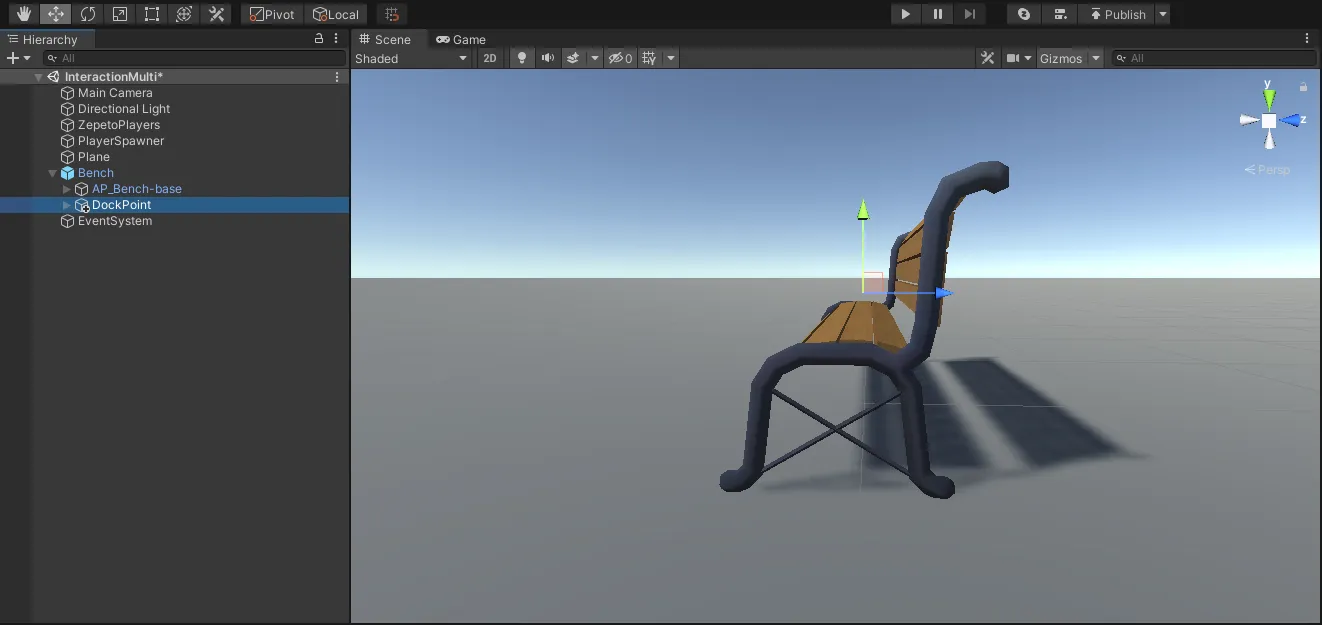
- Unityエディタの上部にあるトランスフォームギズモのトグルボタンがローカルになっていることを確認し、Z軸(青い矢印)をオブジェクトの外側に回転させます。
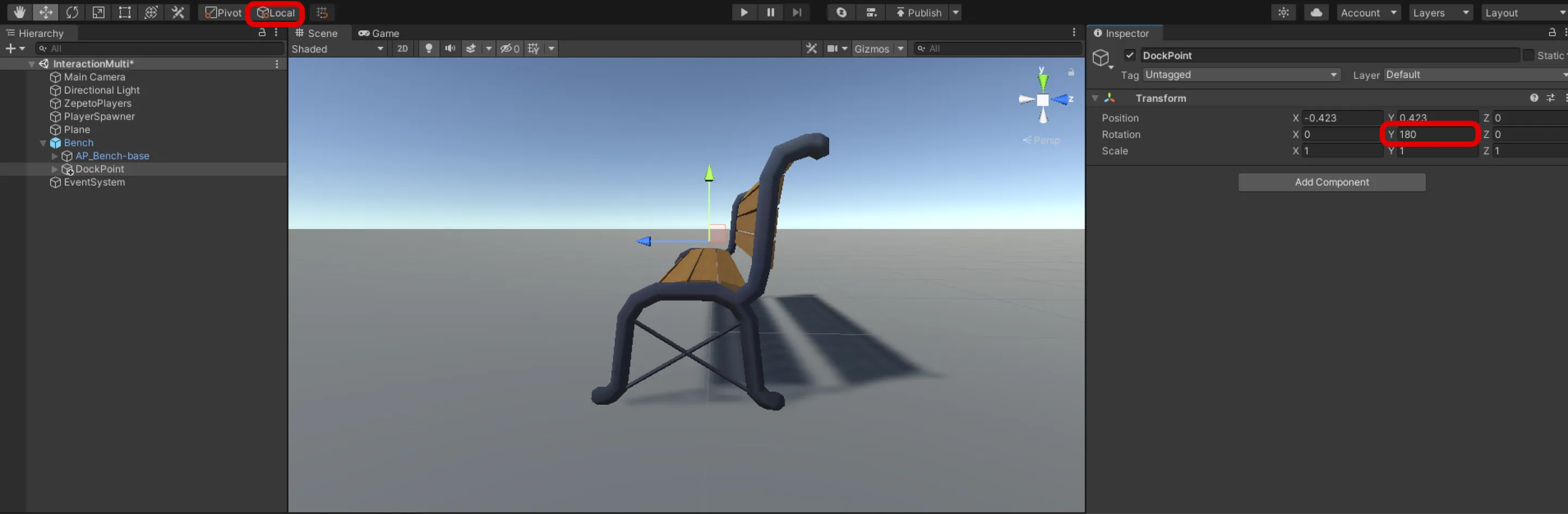
- コライダーコンポーネントを追加した後、isTriggerを確認します。
- プレイヤーがオブジェクトとインタラクトできる範囲に合わせてコライダーのサイズを調整します。
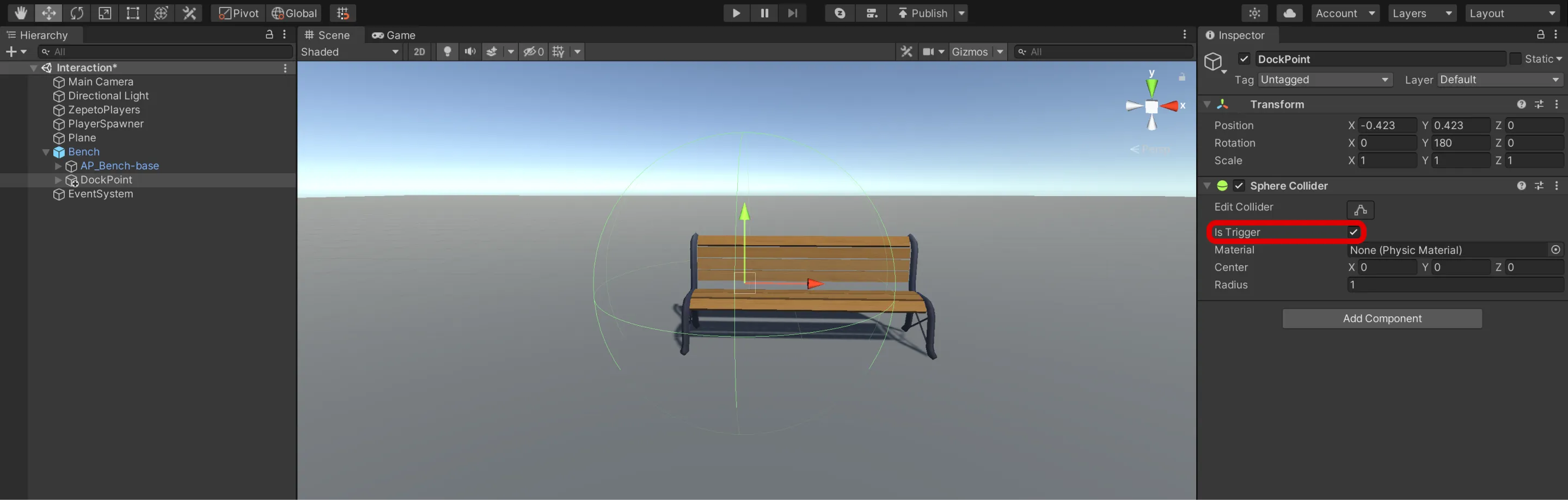
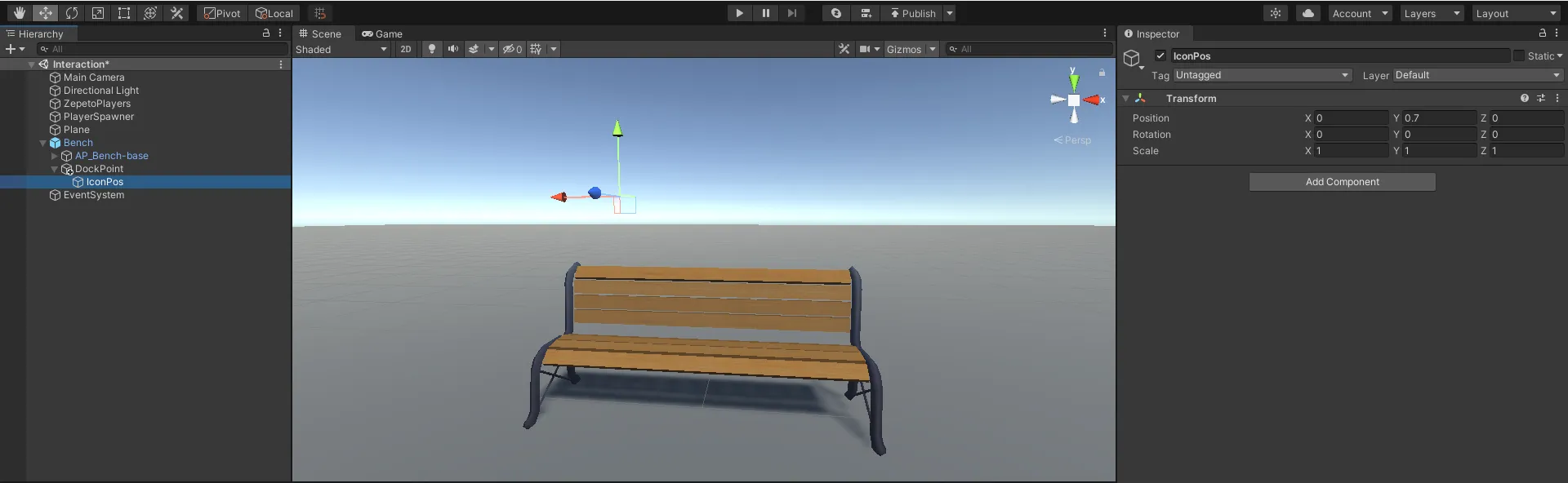
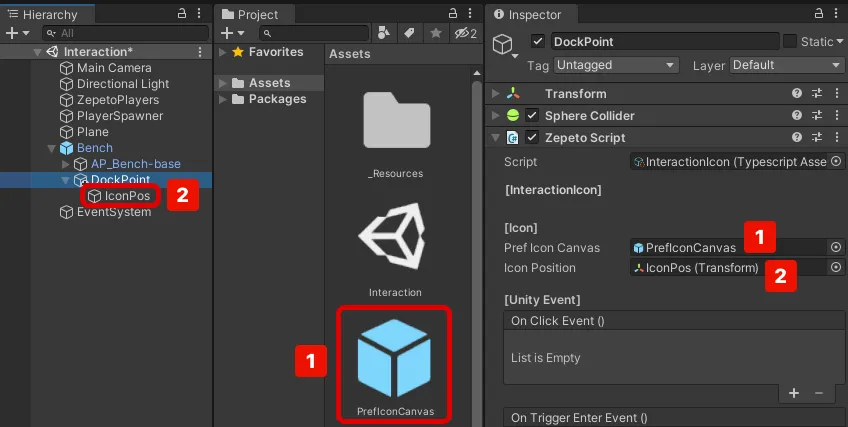
3) ヒエラルキー > DockPointの子として空のオブジェクトを作成し、IconPosに名前を変更します。
ステップ 3 : UIの設定
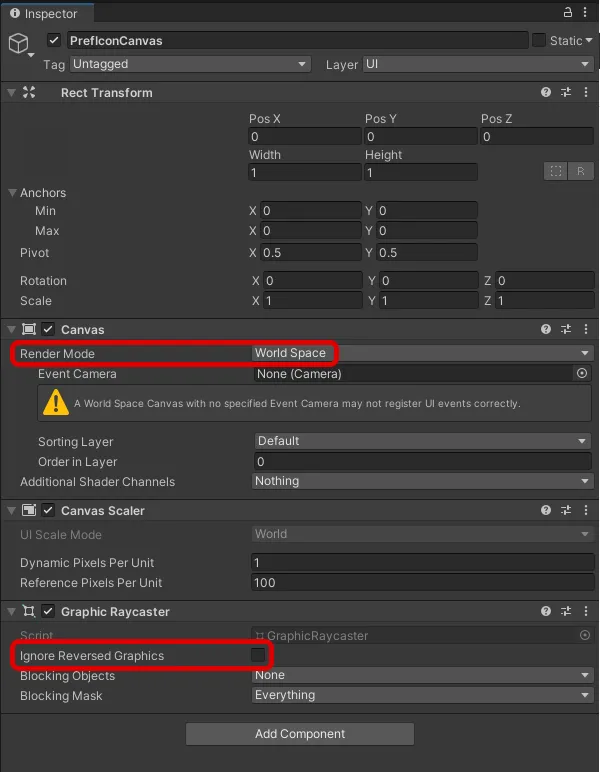
1) 階層を作成 > UI > Canvas を ZEPETO キャラクターが対話するオブジェクトの子として作成し、PrefIconCanvas に名前を変更します。
- レンダーモードをワールドスペースに設定します。
- 幅と高さをそれぞれ1に設定します。
- Graphic Raycaster コンポーネントの「Ignore Reversed Graphics」オプションのチェックを外します。
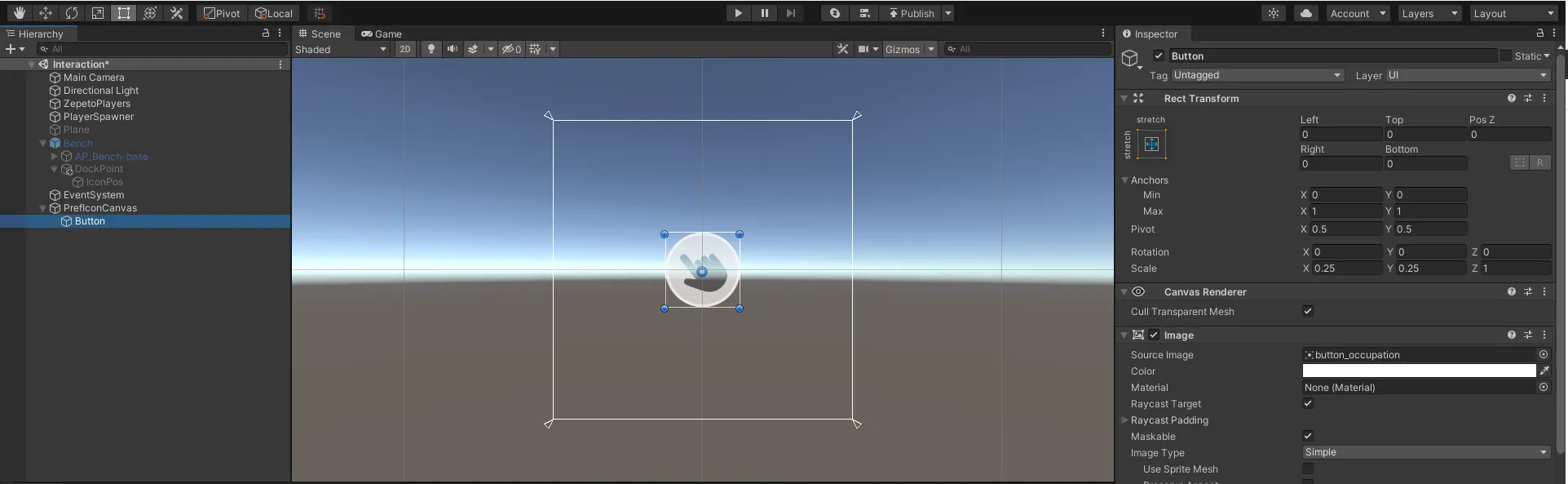
2) 階層を作成 > UI > Button を PrefIconCanvas の子として作成します。
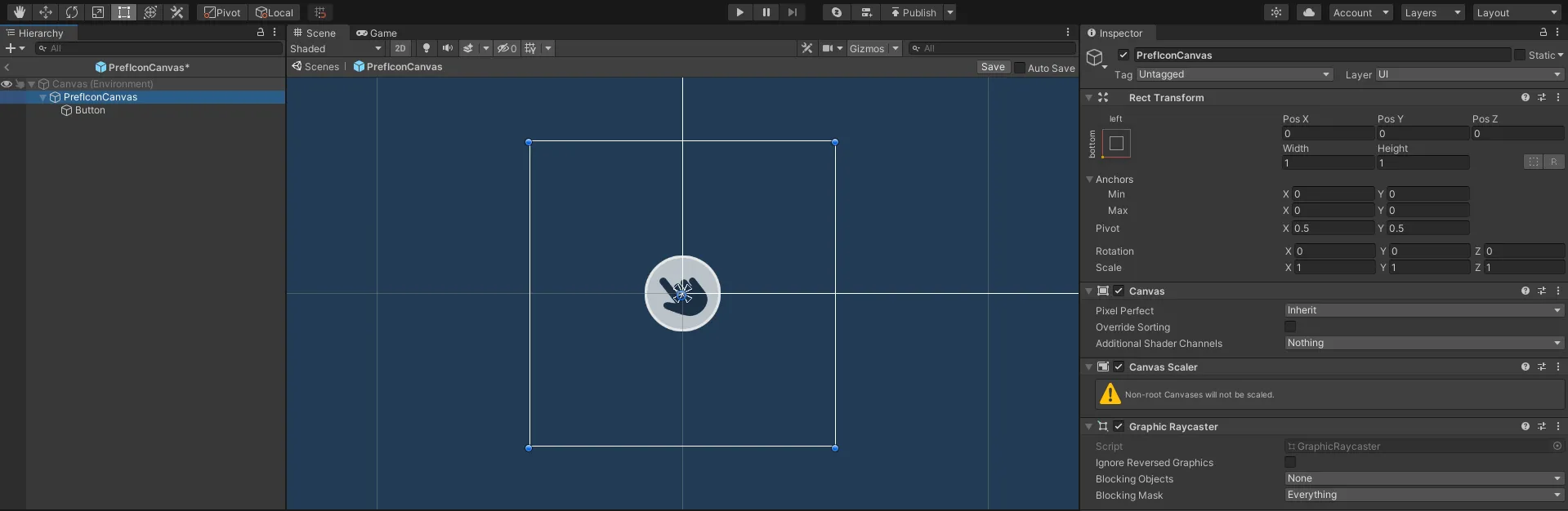
3) 設定が完了したら、Prefabにして、階層内の残りのPrefIconCanvasを削除します。
ステップ 4 : スクリプトを書く
ステップ 4 - 1 : InteractionIcon
1) プロジェクトを作成 > 作成 > ZEPETO > TypeScript として、InteractionIcon に名前を変更します。
2) 以下のようなサンプルスクリプトを書きます。
import { ZepetoScriptBehaviour } from 'ZEPETO.Script';
import { Camera, Canvas, Collider, GameObject, Transform, Object } from 'UnityEngine';
import { Button } from 'UnityEngine.UI';
import { UnityEvent } from 'UnityEngine.Events';
import { ZepetoPlayers } from 'ZEPETO.Character.Controller';

export default class InteractionIcon extends ZepetoScriptBehaviour {

    // アイコン
    @Header("[アイコン]")
    @SerializeField() private prefIconCanvas: GameObject;
    @SerializeField() private iconPosition: Transform;

    // Unity イベント
    @Header("[Unity イベント]")
    public OnClickEvent: UnityEvent;
    public OnTriggerEnterEvent: UnityEvent;
    public OnTriggerExitEvent: UnityEvent;

    private _button: Button;
    private _canvas: Canvas;
    private _cachedWorldCamera: Camera;
    private _isIconActive: boolean = false;
    private _isDoneFirstTrig: boolean = false;


    private Update() {
        if (this._isDoneFirstTrig && this._canvas?.gameObject.activeSelf) {
            this.UpdateIconRotation();
        }
    }

    private OnTriggerEnter(coll: Collider) {
        if (coll != ZepetoPlayers.instance.LocalPlayer?.zepetoPlayer?.character.GetComponent<Collider>()) {
            return;
        }

        this.ShowIcon();
        this.OnTriggerEnterEvent?.Invoke();
    }

    private OnTriggerExit(coll: Collider) {
        if (coll != ZepetoPlayers.instance.LocalPlayer?.zepetoPlayer?.character.GetComponent<Collider>()) {
            return;
        }

        this.HideIcon();
        this.OnTriggerExitEvent?.Invoke();
    }

    public ShowIcon(){
        if (!this._isDoneFirstTrig) {
            this.CreateIcon();
            this._isDoneFirstTrig = true;
        }
        else {
            this._canvas.gameObject.SetActive(true);
        }
        this._isIconActive = true;
    }

    public HideIcon() {
        this._canvas?.gameObject.SetActive(false);
        this._isIconActive = false;
    }

    private CreateIcon() {
        if (this._canvas === undefined) {
            const canvas = GameObject.Instantiate(this.prefIconCanvas, this.iconPosition) as GameObject;
            this._canvas = canvas.GetComponent<Canvas>();
            this._button = canvas.GetComponentInChildren<Button>();
            this._canvas.transform.position = this.iconPosition.position;
        }
        this._cachedWorldCamera = Object.FindObjectOfType<Camera>();
        this._canvas.worldCamera = this._cachedWorldCamera;

        this._button.onClick.AddListener(() => {
            this.OnClickIcon();
        });
    }

    private UpdateIconRotation() {
        this._canvas.transform.LookAt(this._cachedWorldCamera.transform);
    }

    private OnClickIcon() {
        this.OnClickEvent?.Invoke();
    }
}- スクリプトの流れは次のとおりです:
- Update()
- アイコンのキャンバスをカメラの回転に合わせて回転させるために、UpdateIconRotation()カスタム関数を呼び出します。
- OnTriggerEnter(), OnTriggerExit()
- コライダーエリアに入ってトリガーを検出したときは、ShowIcon()カスタム関数を呼び出してアイコンをアクティブにします。
- コライダーエリアから出たときは、HideIcon()カスタム関数を呼び出してアイコンを無効にします。
3) スクリプト作成が完了したら、スクリプトをDockPointオブジェクトに追加します。
4) インスペクターからPref Icon Canvas、Icon Positionを割り当てます。
ステップ 4 - 2 : ジェスチャーインタラクション
1) プロジェクトを作成 > 作成 > ZEPETO > TypeScript として名前を変更し、GestureInteractionにします。
2) 以下のようなサンプルスクリプトを書いてください。
import { AnimationClip, Animator, HumanBodyBones, Physics, Transform, Vector3, WaitForEndOfFrame} from 'UnityEngine';
import { ZepetoScriptBehaviour } from 'ZEPETO.Script';
import { ZepetoPlayers, ZepetoCharacter } from "ZEPETO.Character.Controller";

import InteractionIcon from './InteractionIcon';

export default class GestureInteraction extends ZepetoScriptBehaviour {

    @SerializeField() private animationClip: AnimationClip;
    @SerializeField() private isSnapBone: boolean = true;
    @SerializeField() private bodyBone: HumanBodyBones;
    @SerializeField() private allowOverlap: boolean = false;

    private _interactionIcon: InteractionIcon;
    private _isFirst: boolean = true;
    private _localCharacter: ZepetoCharacter;
    private _outPosition: Vector3;
    private _playerGesturePosition: Vector3;

    private Start() {
        this._interactionIcon = this.transform.GetComponent<InteractionIcon>();
        ZepetoPlayers.instance.OnAddedLocalPlayer.AddListener(() => {
            this._localCharacter = ZepetoPlayers.instance.LocalPlayer.zepetoPlayer.character;
        });

        this._interactionIcon.OnClickEvent.AddListener(()=> {
            // When onclick interaction icon
            this._interactionIcon.HideIcon();
            this.DoInteraction();
        });
    }

    private DoInteraction() {
        this._outPosition = this.transform.position;

        if (this.isSnapBone) {
            // Is place empty
            if (this.allowOverlap || this.FindOtherPlayerNum() < 1) {
                this._localCharacter.SetGesture(this.animationClip);
                this.StartCoroutine(this.SnapBone());
                this.StartCoroutine(this.WaitForExit());
            } else {
                // The seats are full.
                this._interactionIcon.ShowIcon();
            }
        } else {
            this._localCharacter.SetGesture(this.animationClip);
            this.StartCoroutine(this.WaitForExit());
        }
    }

    private *SnapBone() {
        const animator: Animator = this._localCharacter.ZepetoAnimator;
        const bone: Transform = animator.GetBoneTransform(this.bodyBone);

        let idx = 0;
        while(true) {
            const distance = Vector3.op_Subtraction(bone.position, this._localCharacter.transform.position);
            const newPos: Vector3 = Vector3.op_Subtraction(this.transform.position, distance);

            this._playerGesturePosition = newPos;
            this._localCharacter.transform.position = this._playerGesturePosition;
            this._localCharacter.transform.rotation = this.transform.rotation;
            yield new WaitForEndOfFrame();
            idx++;
            // Calibrate position during 5 frames of animation.
            if (idx > 5) {
                return;
            }
        }
    }

    // The exact method must go through the server code,
    // but it is calculated by the local client for server optimization.
    private FindOtherPlayerNum() {
        const hitInfos = Physics.OverlapSphere(this.transform.position, 0.1);

        let playerNum = 0;
        if (hitInfos.length > 0) {
            hitInfos.forEach((hitInfo) => {
                if (hitInfo.transform.GetComponent<ZepetoCharacter>()) {
                    playerNum ++;
                }
            });
        }
        return playerNum;
    }

    private *WaitForExit() {
        if (this._localCharacter) {
            while (true) {
                if (this._localCharacter.tryJump || this._localCharacter.tryMove) {
                    this._localCharacter.CancelGesture();

                    this.transform.position = this._outPosition;
                    this._interactionIcon.ShowIcon();
                    break;
                } else if(this.isSnapBone && this._playerGesturePosition != this._localCharacter.transform.position){
                    this._interactionIcon.ShowIcon();
                    break;
                }
                yield;
            }
        }
    }
}- スクリプトの流れは次のとおりです:
- アイコンがクリックされると、無効になり、DoInteraction()カスタム関数を呼び出します。
- DoInteraction()
- isSnapBoneがチェックされている場合、
- 座席が空いている場合(allowOverlapがチェックされているか、FindOtherPlayerNum()カスタム関数の戻り値が1未満)
- アニメーションクリップに割り当てられたジェスチャーを取ります。
- SnapBone()コルーチンを開始し、ZEPETOキャラクターのbodyBoneをtargetTransformにアタッチします。
- WaitForExit()コルーチンを開始します。
- ZEPETOキャラクターがジャンプしたり移動したり、コライダーエリアから出たりした場合、ジェスチャーをキャンセルし、アイコンをアクティブにします。
- 座席の定員が満杯のときにアイコンをアクティブにします。
- isSnapBoneがチェックされていない場合、
- アニメーションクリップに割り当てられたジェスチャーを取ります。
- WaitForExit()コルーチンを開始します。
3) スクリプト作成が完了したら、スクリプトをDockPointオブジェクトに追加します。
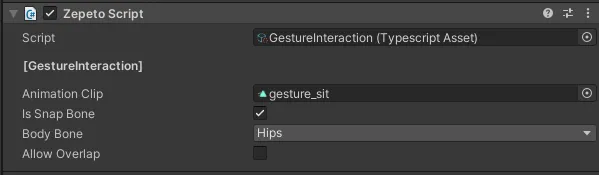
4) インスペクターでアニメーションクリップ、スナップボーン、ボディボーン、オーバーラップを許可します。
- アニメーションクリップを割り当てます。これらはインタラクションに伴うジェスチャーです。
- スナップボーンを確認します。ボディボーンに割り当てられた部分がドックポイントとして位置していることを確認してください。
- ボディボーンをヒップに設定します。ヒップがドックポイントに位置していることを確認してください。これは座るジェスチャーになります。
- オーバーラップを許可すると、複数の人が1つの席に座ることができるかどうかを決定できます。
ステップ 5 : プレイ
ZEPETOキャラクターがオブジェクトに近づくとボタンが表示され、離れると消えます。
設定したジェスチャーがボタンに近づいて相互作用すると再生されれば成功です。
ジェスチャーに加えて、相互作用後に発生するさまざまなイベントを実装できます。
以下は、相互作用後にアイテムを作成するイベントを実装する例です。
📘 Zepeto World サンプル - 第3章 インタラクションサンプル https://github.com/naverz/zepeto-world-sample/tree/main/Assets/Chapter3