오브젝트와 인터렉션하기
ZEPETO 캐릭터가 객체에 접근할 때 나타나는 상호작용 버튼을 구현하세요.

1단계 : 환경 설정
- 상호작용 샘플 및 가이드에 사용된 애니메이션과 버튼 리소스를 다음 링크에서 다운로드할 수 있습니다.
📘 ZEPETO 상호작용 샘플 Zepeto 상호작용 모듈
- 장면에서 ZEPETO 캐릭터 생성 코드를 기본값으로 구현하세요.
📘 다음 가이드를 참조하세요. [ZEPETO Player]
단계 2 : 객체 설정
ZEPETO 캐릭터와 상호작용할 객체를 설정합니다.
1) ZEPETO 캐릭터가 상호작용할 객체를 배치합니다.
2) 계층 만들기 > 빈 객체 만들기를 선택하고 이름을 DockPoint로 변경합니다.
- 이 지점이 ZEPETO 캐릭터가 상호작용할 지점입니다. 객체의 위치를 조정하세요.
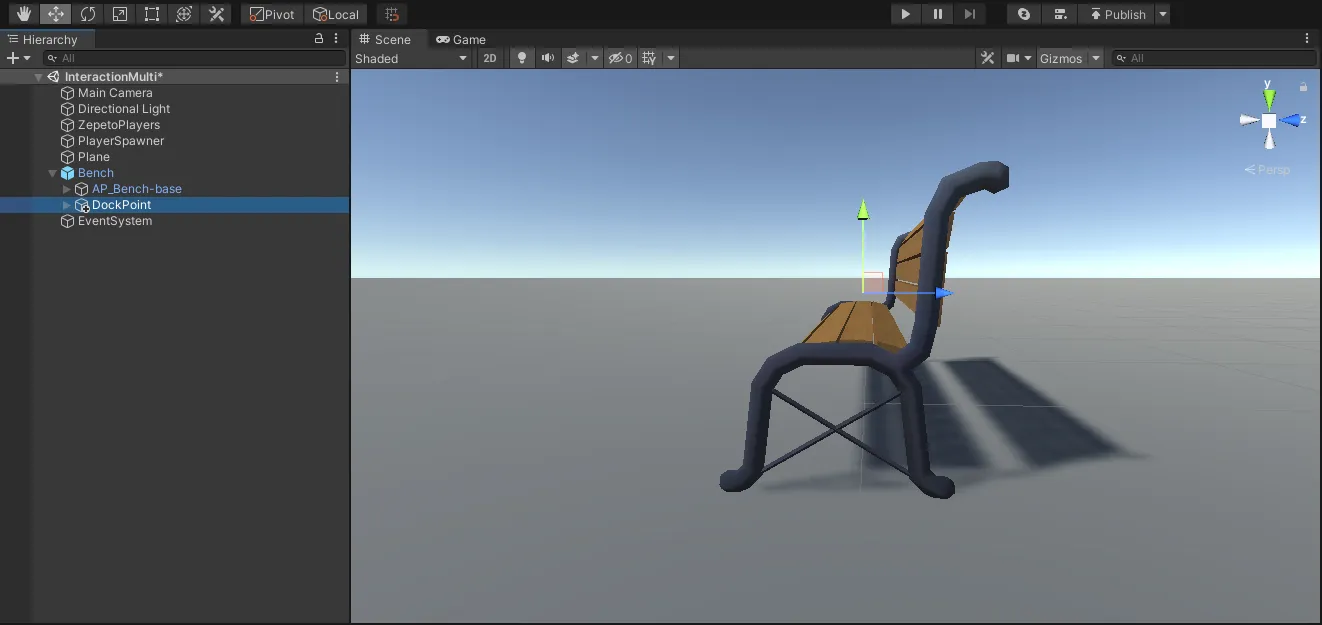
- 유니티 에디터 상단의 변환 기즈모 토글 버튼이 로컬인지 확인하고 Z축(파란 화살표)을 객체의 바깥쪽으로 회전시킵니다.
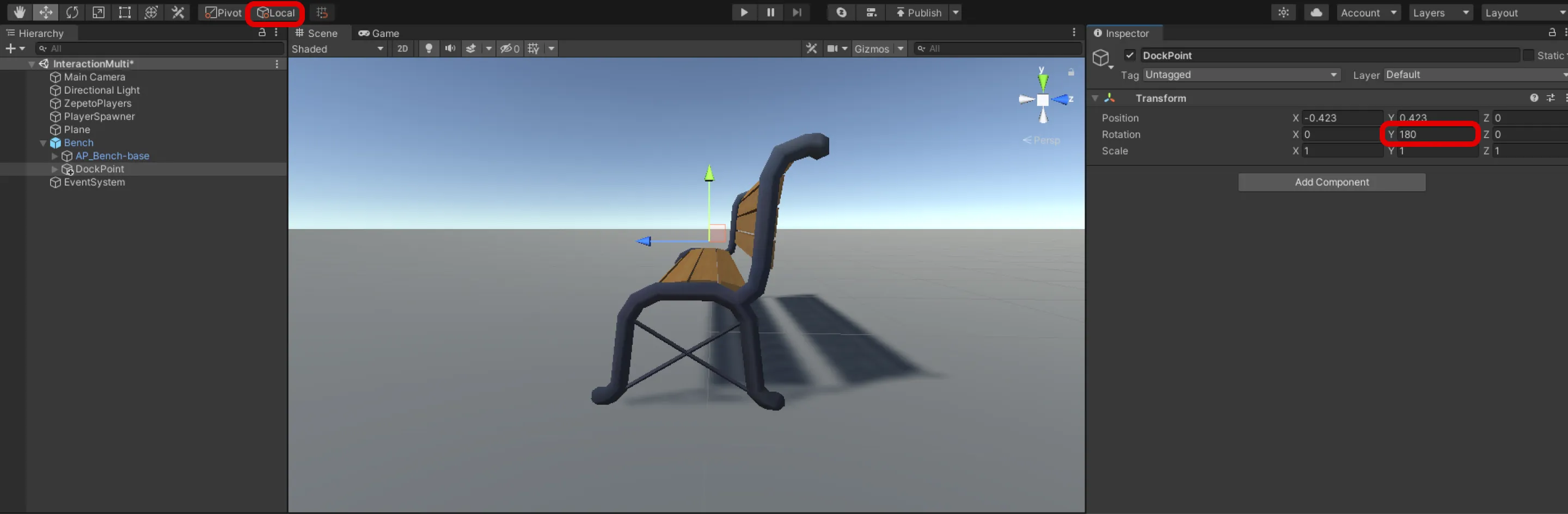
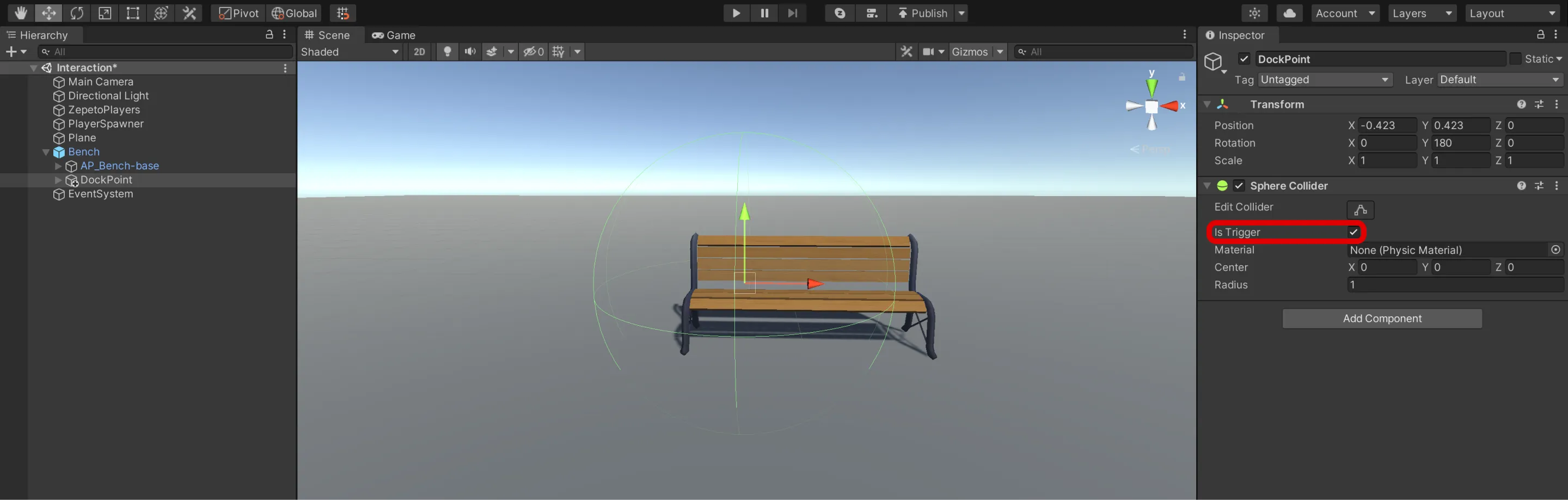
- 콜라이더 컴포넌트를 추가한 후 isTrigger를 확인합니다.
- 플레이어가 객체와 상호작용할 수 있는 범위에 맞게 콜라이더의 크기를 조정합니다.
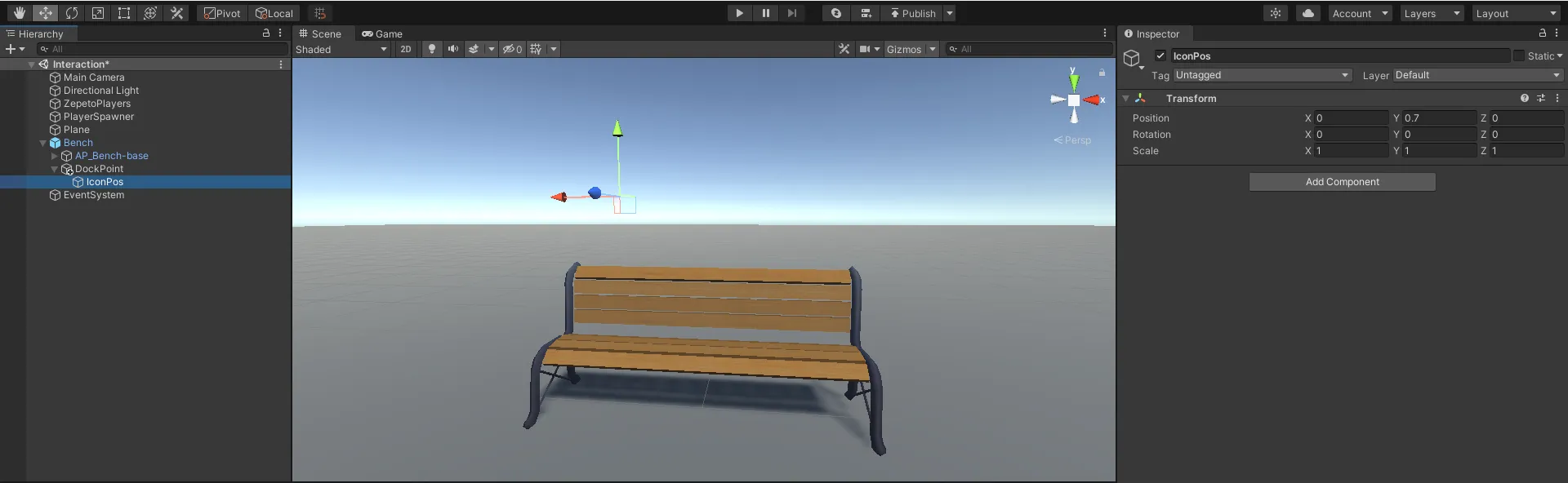
3) 계층 구조 만들기 > DockPoint의 자식으로 빈 객체를 생성하고 이름을 IconPos로 변경합니다.
3단계 : UI 설정
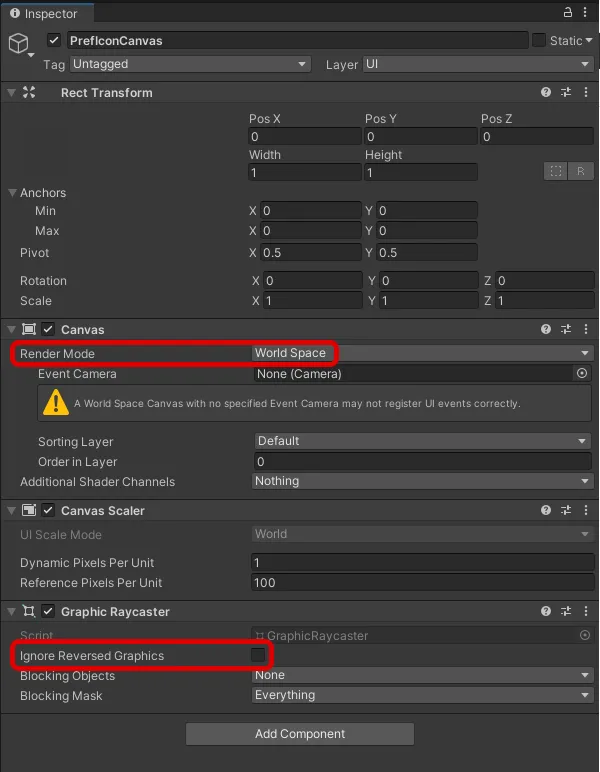
1) 계층 구조 만들기 > UI > 캔버스를 ZEPETO 캐릭터가 상호작용할 객체의 자식으로 만들고 이름을 PrefIconCanvas로 변경합니다.
- 렌더 모드를 월드 스페이스로 설정합니다.
- 너비와 높이를 각각 1로 설정합니다.
- Graphic Raycaster 구성 요소에서 Ignore Reversed Graphics 옵션의 선택을 해제합니다.
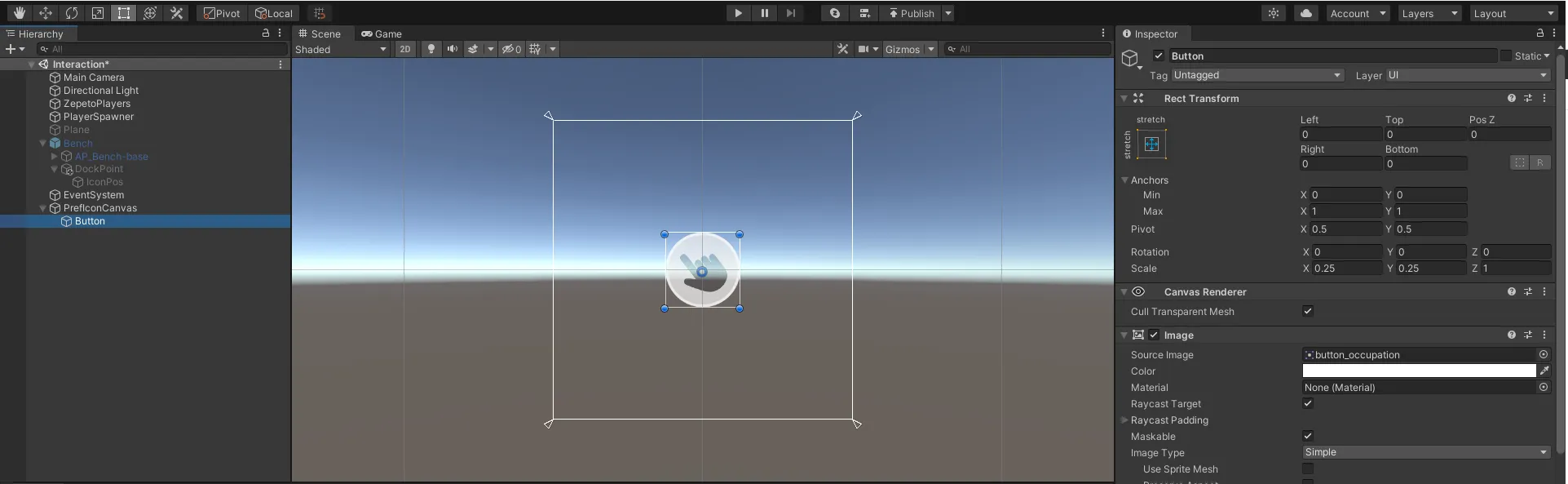
2) 계층 구조 만들기 > UI > 버튼을 PrefIconCanvas의 자식으로 만듭니다.
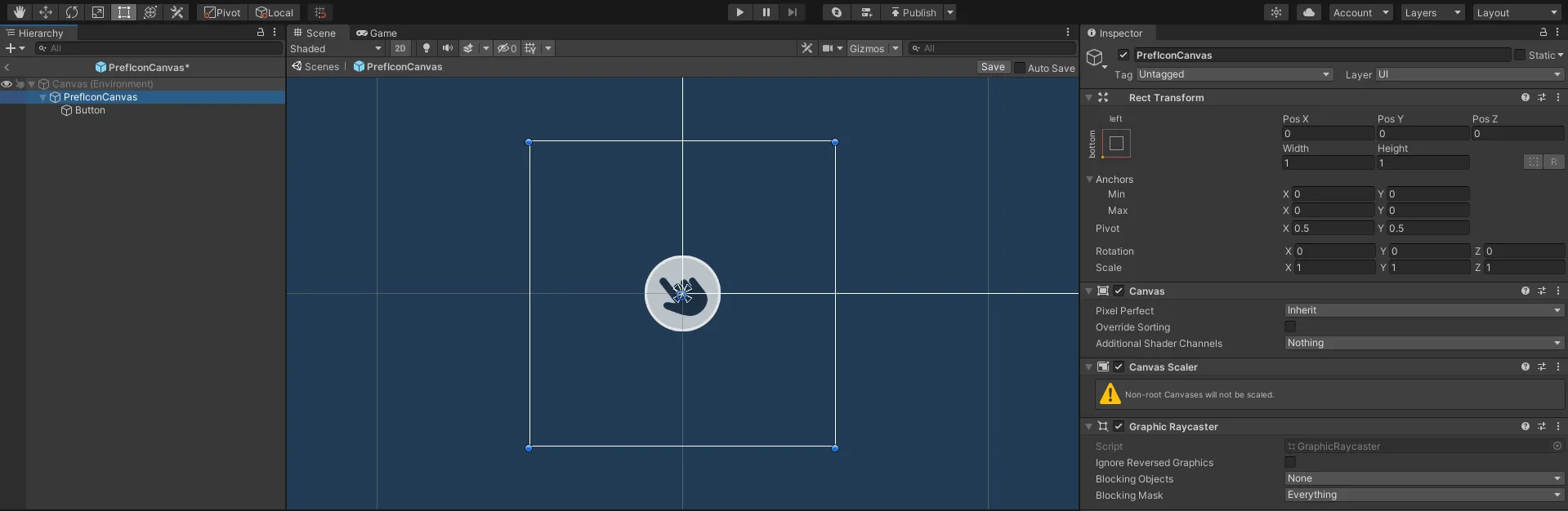
3) 설정이 완료되면, 이를 프리팹으로 만들고 계층 구조에서 나머지 PrefIconCanvas를 삭제합니다.
단계 4 : 스크립트 작성
단계 4 - 1 : InteractionIcon
1) 프로젝트 생성 > 생성 > ZEPETO > TypeScript로 이름을 InteractionIcon으로 변경합니다.
2) 아래와 같은 샘플 스크립트를 작성합니다.
import { ZepetoScriptBehaviour } from 'ZEPETO.Script';
import { Camera, Canvas, Collider, GameObject, Transform, Object } from 'UnityEngine';
import { Button } from 'UnityEngine.UI';
import { UnityEvent } from 'UnityEngine.Events';
import { ZepetoPlayers } from 'ZEPETO.Character.Controller';

export default class InteractionIcon extends ZepetoScriptBehaviour {

    // 아이콘
    @Header("[아이콘]")
    @SerializeField() private prefIconCanvas: GameObject;
    @SerializeField() private iconPosition: Transform;

    // 유니티 이벤트
    @Header("[유니티 이벤트]")
    public OnClickEvent: UnityEvent;
    public OnTriggerEnterEvent: UnityEvent;
    public OnTriggerExitEvent: UnityEvent;

    private _button: Button;
    private _canvas: Canvas;
    private _cachedWorldCamera: Camera;
    private _isIconActive: boolean = false;
    private _isDoneFirstTrig: boolean = false;


    private Update() {
        if (this._isDoneFirstTrig && this._canvas?.gameObject.activeSelf) {
            this.UpdateIconRotation();
        }
    }

    private OnTriggerEnter(coll: Collider) {
        if (coll != ZepetoPlayers.instance.LocalPlayer?.zepetoPlayer?.character.GetComponent<Collider>()) {
            return;
        }

        this.ShowIcon();
        this.OnTriggerEnterEvent?.Invoke();
    }

    private OnTriggerExit(coll: Collider) {
        if (coll != ZepetoPlayers.instance.LocalPlayer?.zepetoPlayer?.character.GetComponent<Collider>()) {
            return;
        }

        this.HideIcon();
        this.OnTriggerExitEvent?.Invoke();
    }

    public ShowIcon(){
        if (!this._isDoneFirstTrig) {
            this.CreateIcon();
            this._isDoneFirstTrig = true;
        }
        else {
            this._canvas.gameObject.SetActive(true);
        }
        this._isIconActive = true;
    }

    public HideIcon() {
        this._canvas?.gameObject.SetActive(false);
        this._isIconActive = false;
    }

    private CreateIcon() {
        if (this._canvas === undefined) {
            const canvas = GameObject.Instantiate(this.prefIconCanvas, this.iconPosition) as GameObject;
            this._canvas = canvas.GetComponent<Canvas>();
            this._button = canvas.GetComponentInChildren<Button>();
            this._canvas.transform.position = this.iconPosition.position;
        }
        this._cachedWorldCamera = Object.FindObjectOfType<Camera>();
        this._canvas.worldCamera = this._cachedWorldCamera;

        this._button.onClick.AddListener(() => {
            this.OnClickIcon();
        });
    }

    private UpdateIconRotation() {
        this._canvas.transform.LookAt(this._cachedWorldCamera.transform);
    }

    private OnClickIcon() {
        this.OnClickEvent?.Invoke();
    }
}- 스크립트의 흐름은 다음과 같습니다:
- Update()
- UpdateIconRotation() 사용자 정의 함수를 호출하여 아이콘 캔버스를 카메라 회전과 일치하도록 회전시킵니다.
- OnTriggerEnter(), OnTriggerExit()
- Collider 영역에 들어가고 트리거를 감지하면 ShowIcon() 사용자 정의 함수를 호출하여 아이콘을 활성화합니다.
- Collider 영역에서 나가면 HideIcon() 사용자 정의 함수를 호출하여 아이콘을 비활성화합니다.
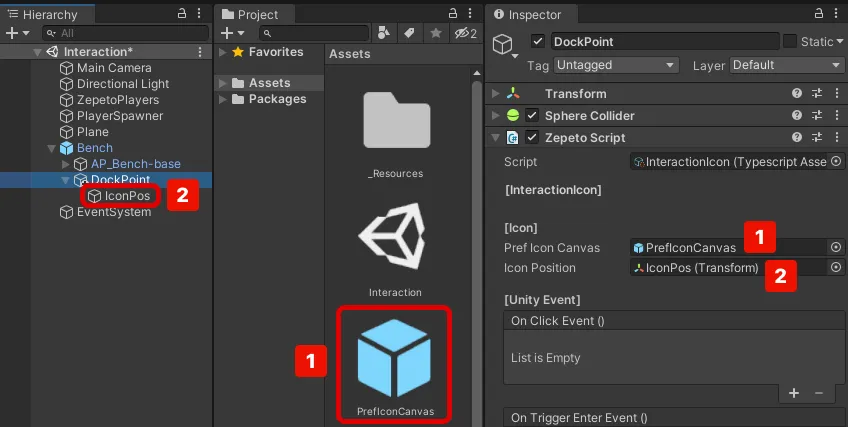
3) 스크립트 생성을 완료한 후, 스크립트를 DockPoint 객체에 추가합니다.
4) 검사기에서 Pref Icon Canvas와 Icon Position을 지정합니다.
STEP 4 - 2 : GestureInteraction
1) 프로젝트 생성 > 생성 > ZEPETO > TypeScript를 선택하고 GestureInteraction으로 이름을 변경합니다.
2) 아래와 같은 샘플 스크립트를 작성하세요.
import { AnimationClip, Animator, HumanBodyBones, Physics, Transform, Vector3, WaitForEndOfFrame} from 'UnityEngine';
import { ZepetoScriptBehaviour } from 'ZEPETO.Script';
import { ZepetoPlayers, ZepetoCharacter } from "ZEPETO.Character.Controller";

import InteractionIcon from './InteractionIcon';

export default class GestureInteraction extends ZepetoScriptBehaviour {

    @SerializeField() private animationClip: AnimationClip;
    @SerializeField() private isSnapBone: boolean = true;
    @SerializeField() private bodyBone: HumanBodyBones;
    @SerializeField() private allowOverlap: boolean = false;

    private _interactionIcon: InteractionIcon;
    private _isFirst: boolean = true;
    private _localCharacter: ZepetoCharacter;
    private _outPosition: Vector3;
    private _playerGesturePosition: Vector3;

    private Start() {
        this._interactionIcon = this.transform.GetComponent<InteractionIcon>();
        ZepetoPlayers.instance.OnAddedLocalPlayer.AddListener(() => {
            this._localCharacter = ZepetoPlayers.instance.LocalPlayer.zepetoPlayer.character;
        });

        this._interactionIcon.OnClickEvent.AddListener(()=> {
            // When onclick interaction icon
            this._interactionIcon.HideIcon();
            this.DoInteraction();
        });
    }

    private DoInteraction() {
        this._outPosition = this.transform.position;

        if (this.isSnapBone) {
            // Is place empty
            if (this.allowOverlap || this.FindOtherPlayerNum() < 1) {
                this._localCharacter.SetGesture(this.animationClip);
                this.StartCoroutine(this.SnapBone());
                this.StartCoroutine(this.WaitForExit());
            } else {
                // The seats are full.
                this._interactionIcon.ShowIcon();
            }
        } else {
            this._localCharacter.SetGesture(this.animationClip);
            this.StartCoroutine(this.WaitForExit());
        }
    }

    private *SnapBone() {
        const animator: Animator = this._localCharacter.ZepetoAnimator;
        const bone: Transform = animator.GetBoneTransform(this.bodyBone);

        let idx = 0;
        while(true) {
            const distance = Vector3.op_Subtraction(bone.position, this._localCharacter.transform.position);
            const newPos: Vector3 = Vector3.op_Subtraction(this.transform.position, distance);

            this._playerGesturePosition = newPos;
            this._localCharacter.transform.position = this._playerGesturePosition;
            this._localCharacter.transform.rotation = this.transform.rotation;
            yield new WaitForEndOfFrame();
            idx++;
            // Calibrate position during 5 frames of animation.
            if (idx > 5) {
                return;
            }
        }
    }

    // The exact method must go through the server code,
    // but it is calculated by the local client for server optimization.
    private FindOtherPlayerNum() {
        const hitInfos = Physics.OverlapSphere(this.transform.position, 0.1);

        let playerNum = 0;
        if (hitInfos.length > 0) {
            hitInfos.forEach((hitInfo) => {
                if (hitInfo.transform.GetComponent<ZepetoCharacter>()) {
                    playerNum ++;
                }
            });
        }
        return playerNum;
    }

    private *WaitForExit() {
        if (this._localCharacter) {
            while (true) {
                if (this._localCharacter.tryJump || this._localCharacter.tryMove) {
                    this._localCharacter.CancelGesture();

                    this.transform.position = this._outPosition;
                    this._interactionIcon.ShowIcon();
                    break;
                } else if(this.isSnapBone && this._playerGesturePosition != this._localCharacter.transform.position){
                    this._interactionIcon.ShowIcon();
                    break;
                }
                yield;
            }
        }
    }
}- 스크립트의 흐름은 다음과 같습니다:
- 시작()
- 아이콘이 클릭되면 비활성화되고 DoInteraction() 사용자 정의 함수를 호출합니다.
- DoInteraction()
- isSnapBone이 체크되어 있으면,
- 좌석이 비어 있으면 (allowOverlap이 체크되어 있거나 FindOtherPlayerNum() 사용자 정의 함수의 반환 값이 1보다 작음)
- 애니메이션 클립에 할당된 제스처를 가져옵니다.
- SnapBone() 코루틴을 시작하고 ZEPETO 캐릭터의 bodyBone을 targetTransform에 연결합니다.
- WaitForExit() 코루틴을 시작합니다.
- ZEPETO 캐릭터가 점프하거나 이동하거나 콜라이더 영역을 벗어날 때, 제스처를 취소하고 아이콘을 활성화합니다.
- 좌석 수용 인원이 가득 차면 아이콘을 활성화합니다.
- isSnapBone이 체크되어 있지 않으면,
- 애니메이션 클립에 할당된 제스처를 가져옵니다.
- WaitForExit() 코루틴을 시작합니다.
3) 스크립트 생성을 완료한 후, 스크립트를 DockPoint 객체에 추가합니다.
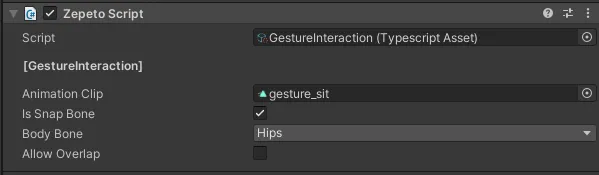
4) 검사기에서 애니메이션 클립, 스냅 본, 본체 본 및 겹침 허용을 할당합니다.
- 애니메이션 클립을 할당합니다. 이는 상호작용 시 취할 제스처입니다.
- 스냅 본을 확인합니다. 본체 본에 할당된 부분이 도크 포인트에 위치해 있는지 확인합니다.
- 본체 본을 엉덩이로 설정합니다. 앉는 제스처가 될 것이므로 엉덩이가 도크 포인트에 위치해 있는지 확인합니다.
- 겹침 허용은 여러 사람이 하나의 좌석에 앉을 수 있는지를 결정할 수 있게 해줍니다.
5단계 : 플레이
ZEPETO 캐릭터가 객체에 접근할 때 버튼이 나타나고, 멀어질 때 사라집니다.
버튼에 접근하고 상호작용할 때 설정한 제스처가 재생된다면 성공입니다.
제스처 외에도 상호작용 후 발생할 수 있는 다양한 이벤트를 구현할 수 있습니다.
다음은 상호작용 후 아이템을 생성하는 이벤트를 구현하는 예입니다.
📘 Zepeto 월드 샘플 - 3장 상호작용 샘플 https://github.com/naverz/zepeto-world-sample/tree/main/Assets/Chapter3