1. Installation
Let's follow along with the video and install all the tools you need for building your world. Subtitles are available in multiple languages, so make sure to turn them on!
ZEPETO Build it Plug-in [Full Version]
ZEPETO 2D Build it Plug-in [Lite Version]
Instead of the ZEPETO Template Installer and Build it Template shown in the video, please download only the ZEPETO Build it Unity Plug-in!
Prefer text over video?
Install Unity Hub.
Install Unity Editor version 2022.3.34f1.
Please install the following modules based on your operating system during the installation process.
[If your PC is Windows]
- Android Build Support
- IOS Build Support
- Mac Build Support (Mono)
[If your PC is Mac]
- Android Build Support
- IOS Build Support
- Windows Build Support (Mono)
Download ZEPETO Build it Unity Plug-in project and unzip it.
👍 Tips
- You can freely choose the folder to unzip.
- However, since Unity itself may encounter errors if the folder name contains a language other than English, we recommend unzipping it to a folder that only contains English characters.
- If you want to create a new BuildIt plugin world, download the project in the same way and unzip it.
Select and open the unzipped folder in Unity Hub.
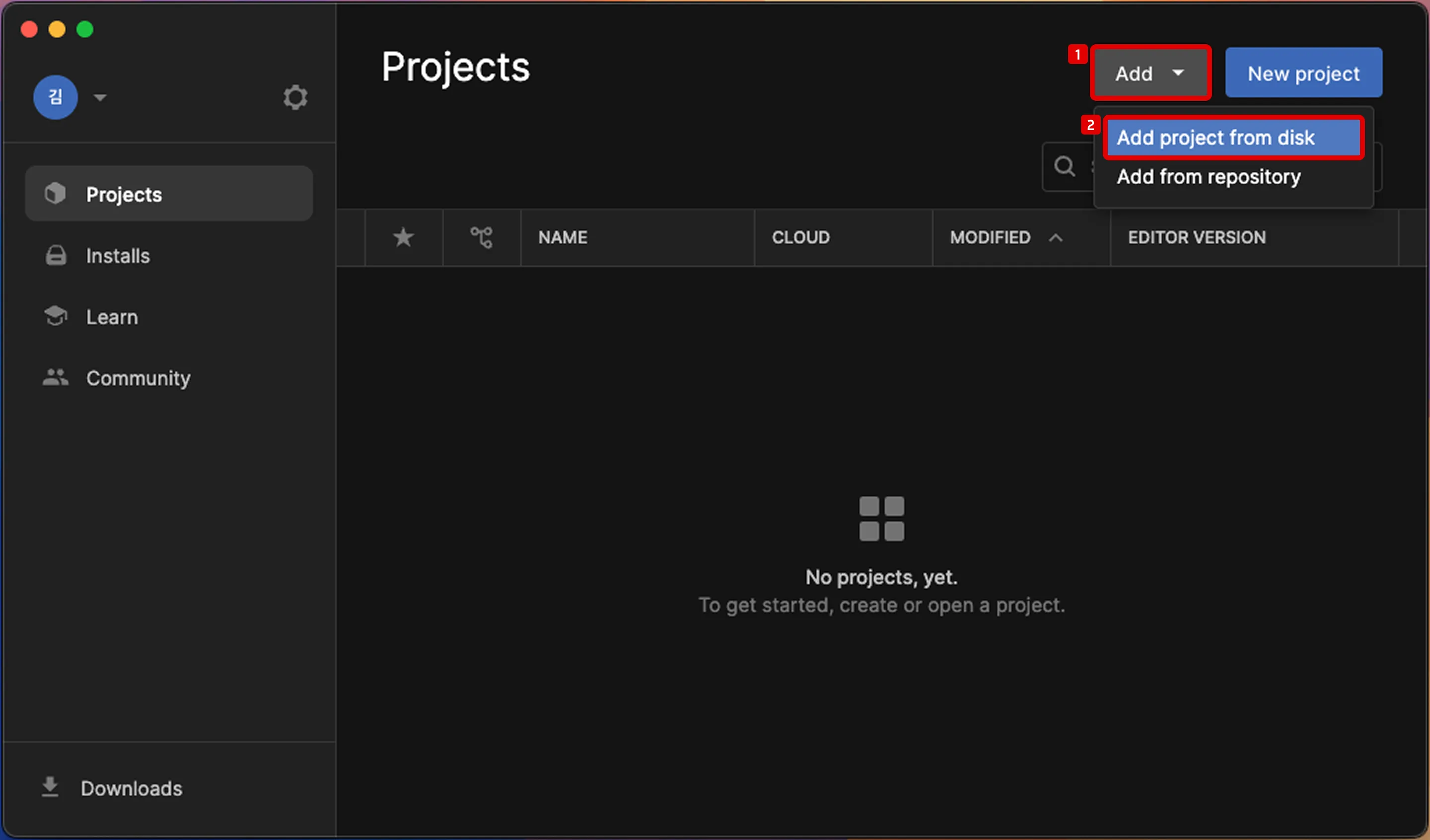
In the Unity Hub, click the Add button and then select the Add project from disk button.
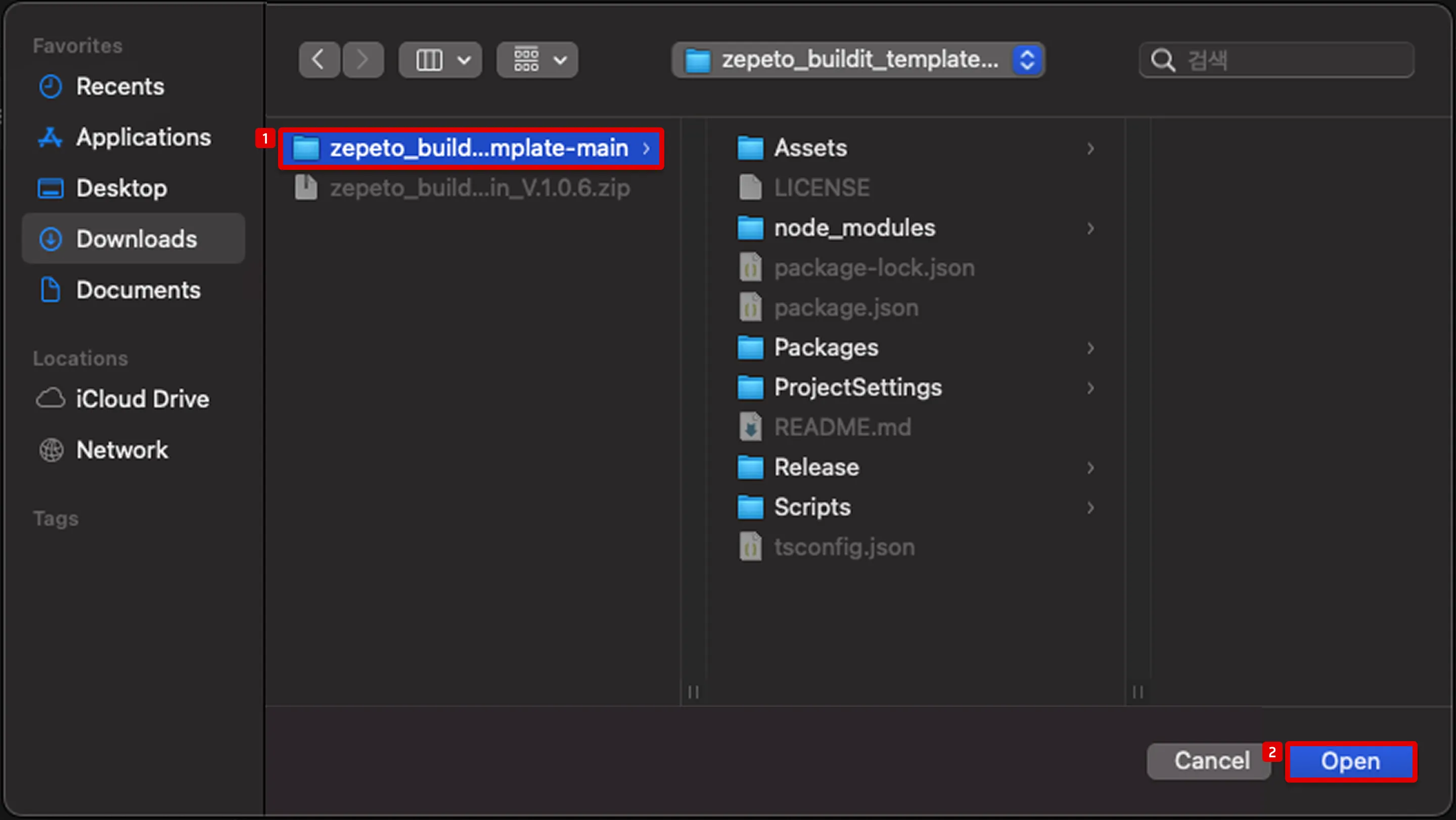
Select the unzipped BuildIt plugin folder and click the Open button at the bottom.
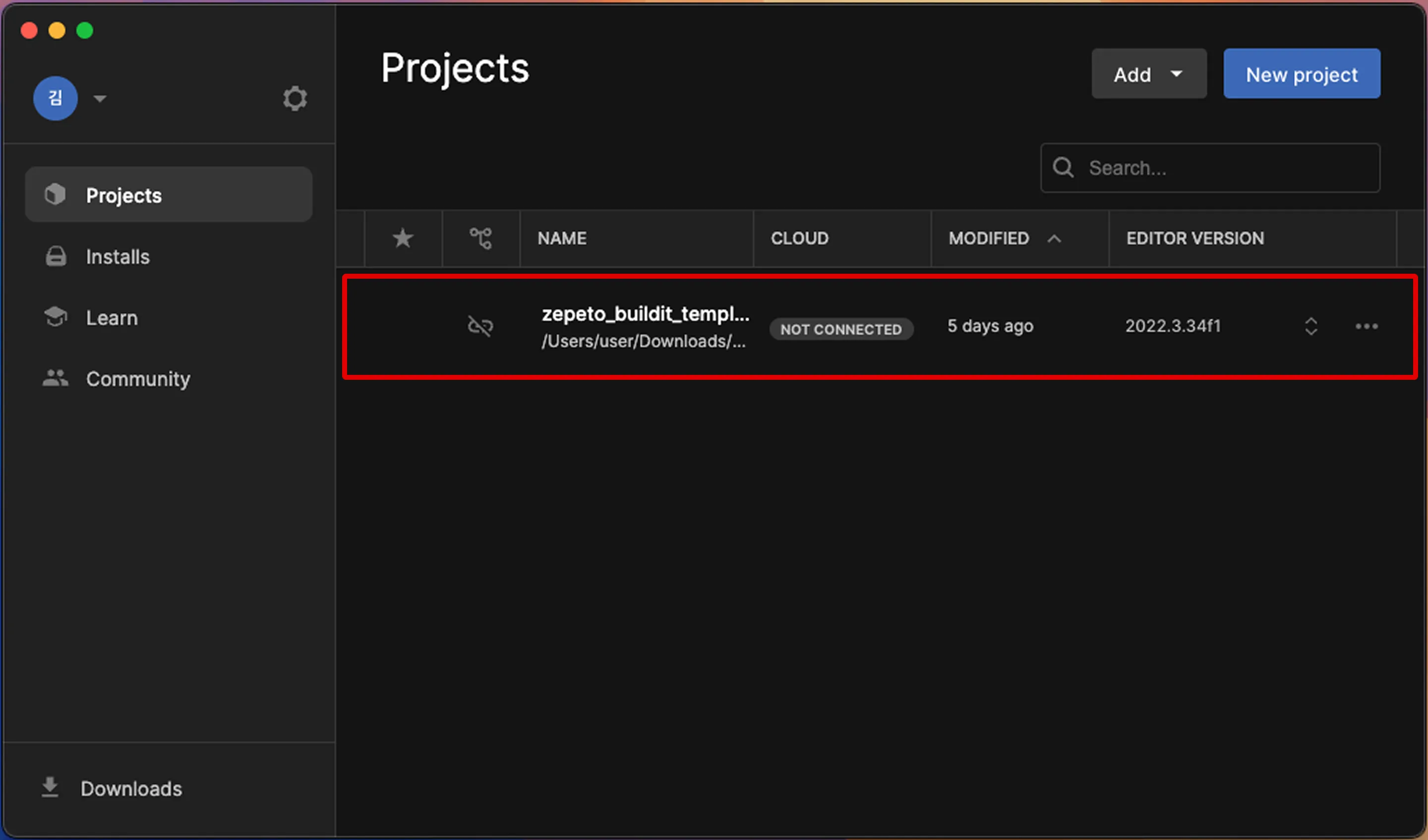
Finally, open the project you just added by selecting it from the Projects list in Unity Hub.
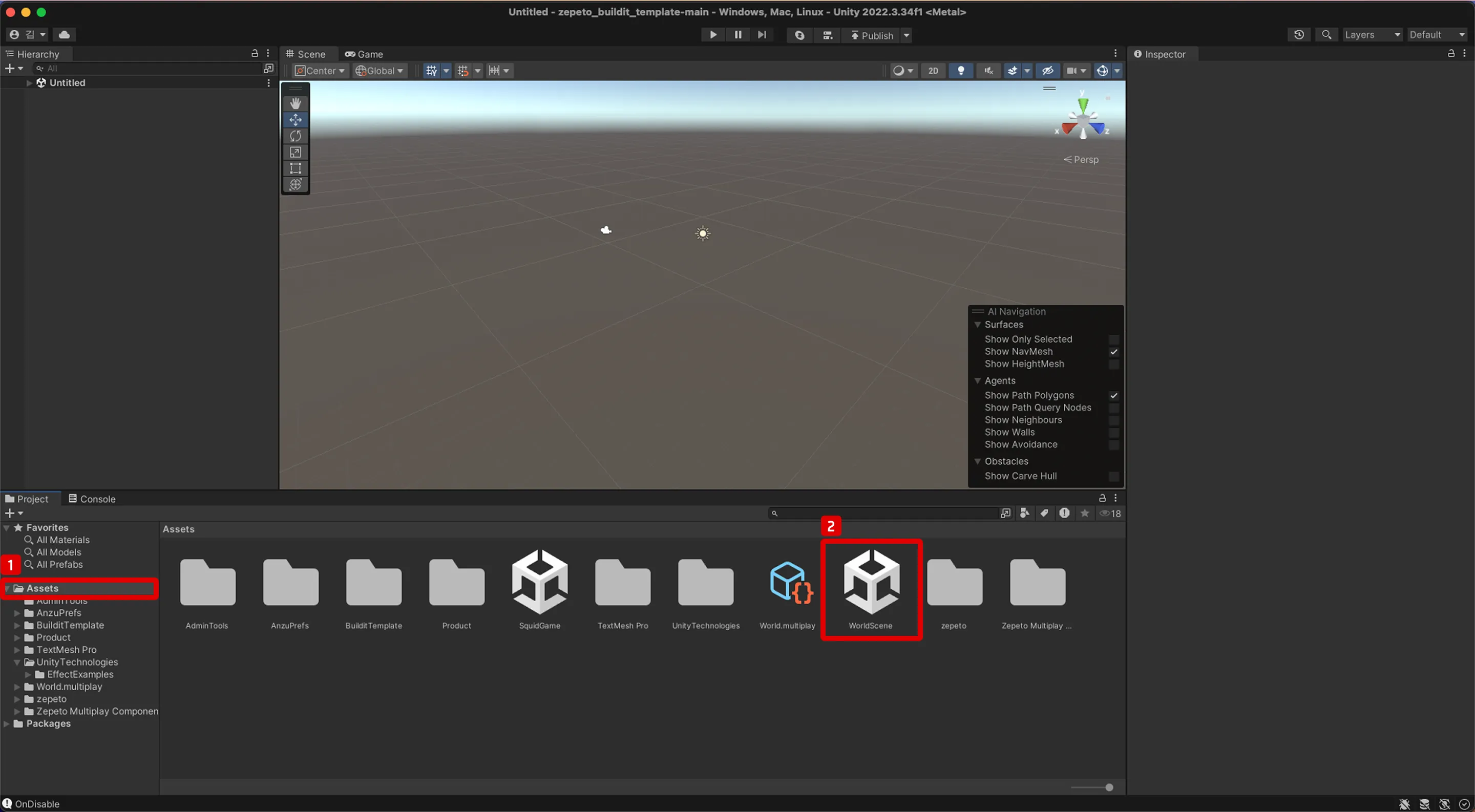
Double-click on the WorldScene to open it.
After selecting the Assets folder in the Project window at the bottom left of the Unity Editor, double-click WorldScene to open that scene.
You’re almost done—let’s check the basic program settings:
- Press button 2 to log in to your Zepeto account.
- Press button 1 to enable multiplayer.
- Press button 3 to test your world.
- Press button 3 again to return to edit mode.

Congratulations 🎉! The program has been successfully installed. Now, let’s move on and learn the basic controls.