Untitled
Validate Items is a feature that lets you check in the Unity editor, in advance, for violations that would be blocked at the Studio upload stage. These are not newly created violation criteria — it simply means you can now check the items previously inspected at the upload stage much earlier.
(image)
ㅣ About the Validate Items feature
📘 What is Validate Items?
Have you ever finished building an item and uploaded it to the web, only to find out then about a violation such as "the polygon count exceeds the standard"? In that case you had to go back to the editor, fix it, and upload again, moving back and forth between the editor and the web multiple times.
Now, with Validate Items, you can check for violations right inside the editor at any point while you are creating.
As this is a convenience feature, validation is not performed during the build process.
The build output behaves the same as before.
📘 What is validated
Between the converting and exporting steps of the 3D Converting & Exporting guide, it validates the prefab files created with ZEPETO Studio > Convert to ZEPETO style.
📘 Menu execution order
- Convert to ZEPETO style (create the prefab)
- (Optional) Validate Items
- Export as .zepeto (the final step before uploading the item)
The features are designed to be run in the order above, and from this update the menus are displayed in that order as well.
Validate Items is optional, so please use it whenever you need it.
(video)
ㅣSTEP 1 : Menu added
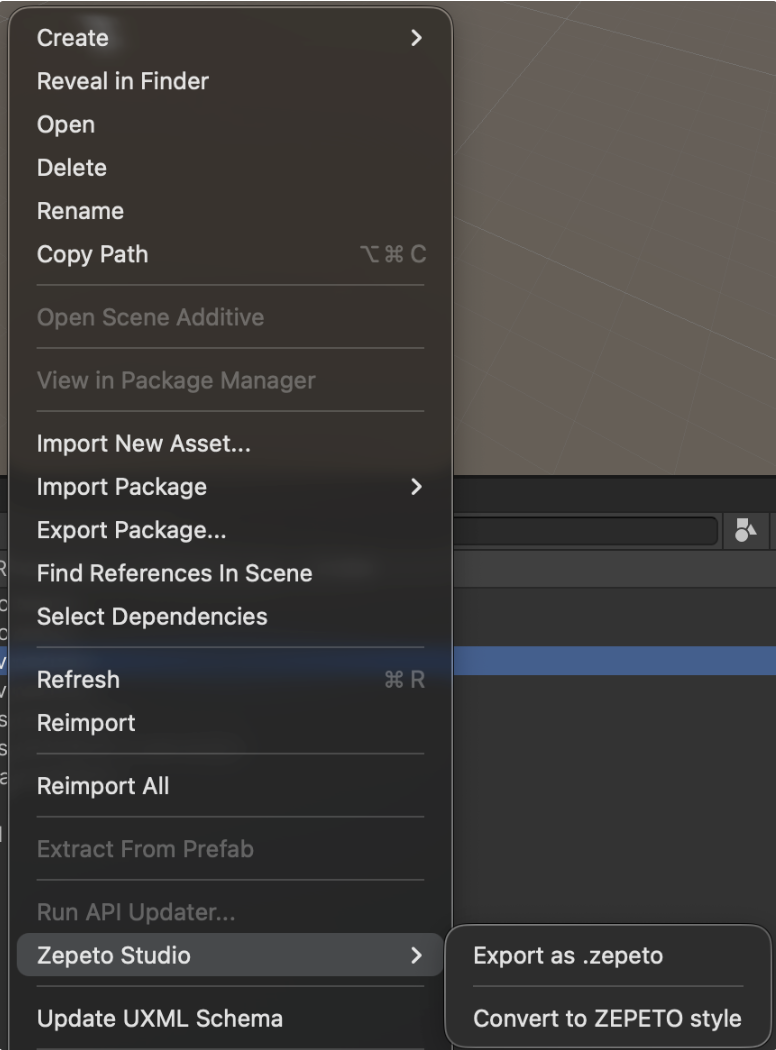
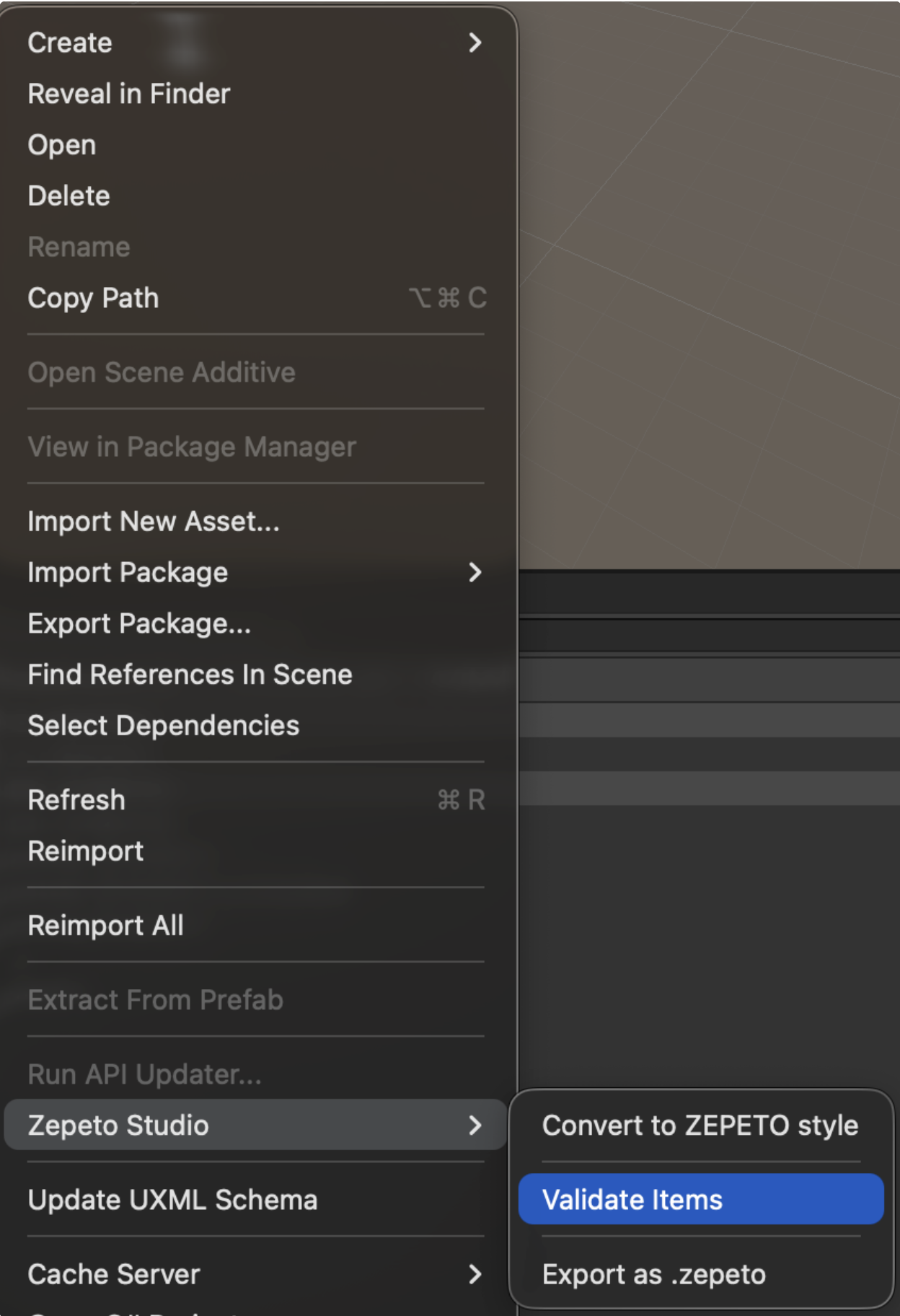
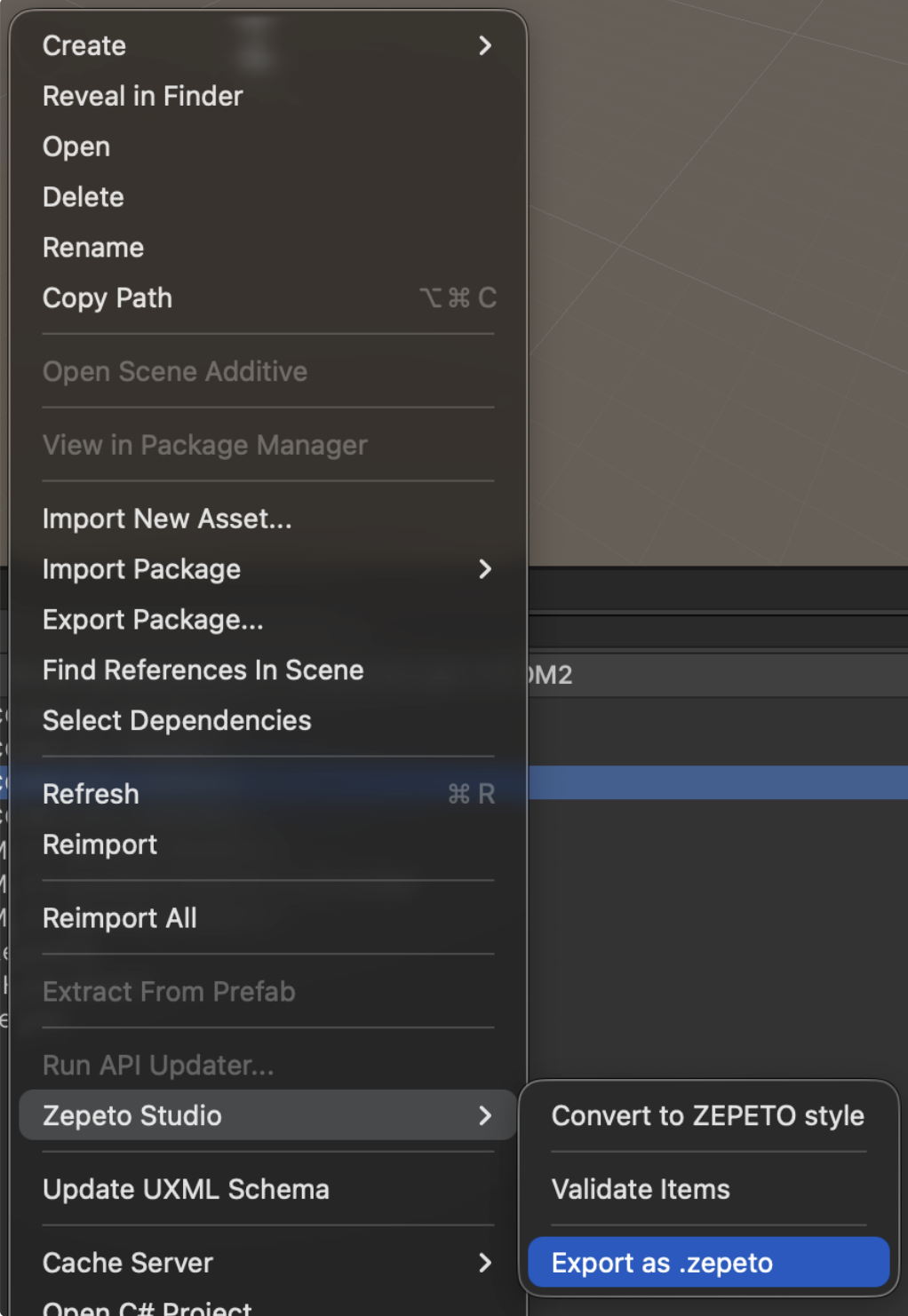
A Validate Items menu is added between Export as .zepeto and Convert to ZEPETO style.
As-Is
To-Be
ㅣSTEP 2 : Running Validate Items
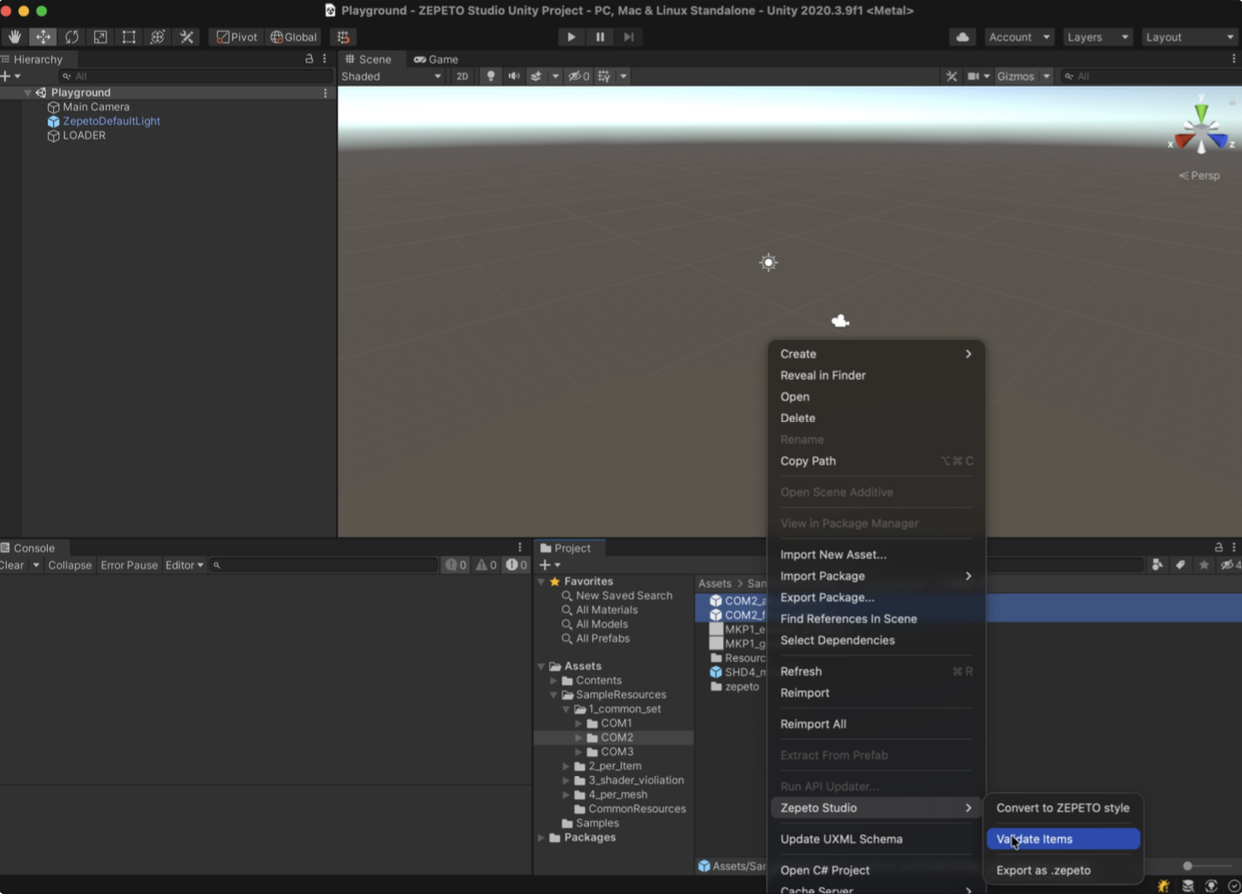
1. Select ZEPETO Studio > Validate Items
Select the target prefab you want to inspect (the output of Convert to ZEPETO style), then right-click and run the Validate Items menu.
- Validate Items targets prefab files only, so the menu is not enabled unless a prefab file is selected.
- Multiple selection is possible. (Up to 100 prefab files supported)
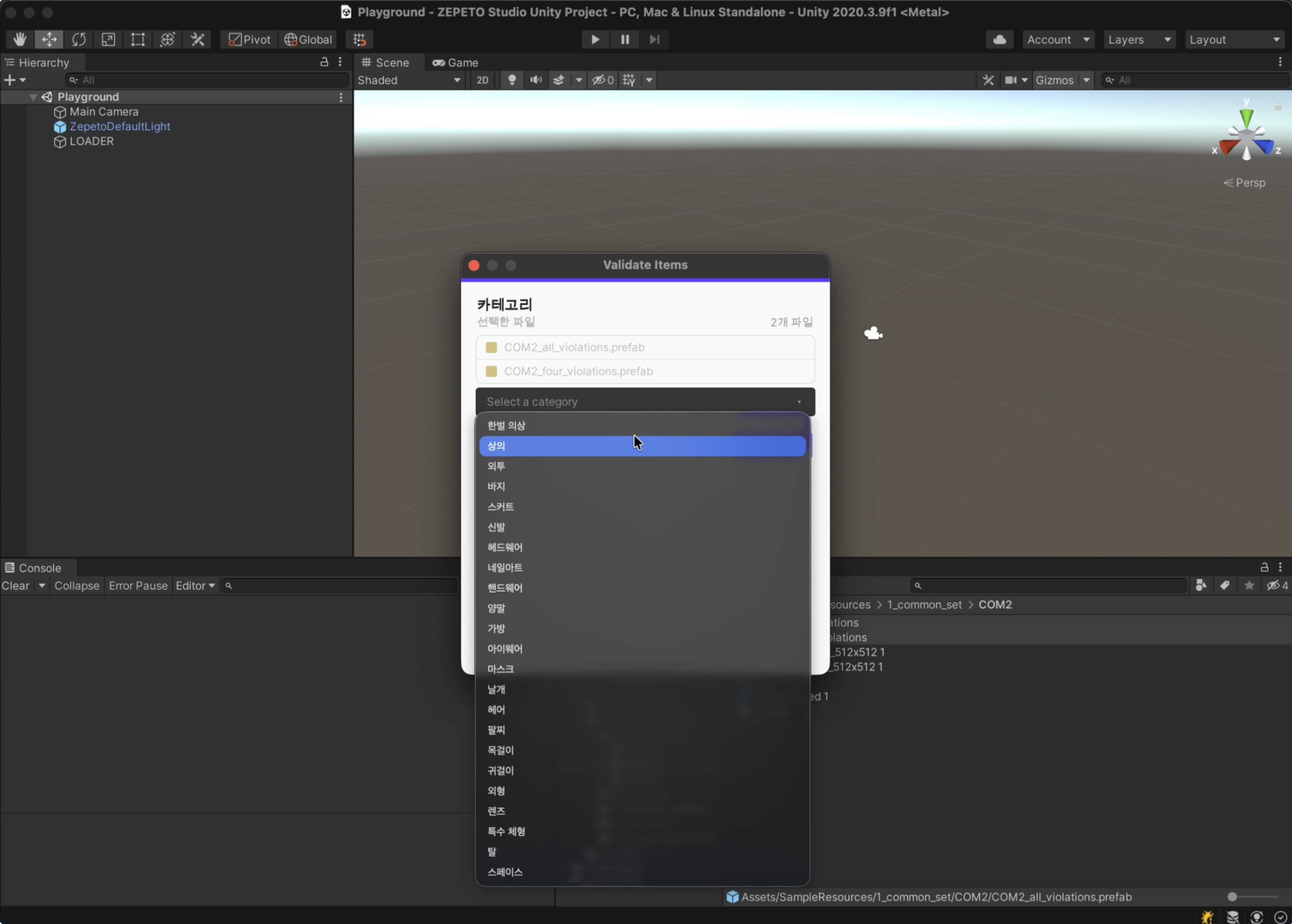
2. Select Category
Select the category under which the item will be reviewed. The violation check runs against the category you select.
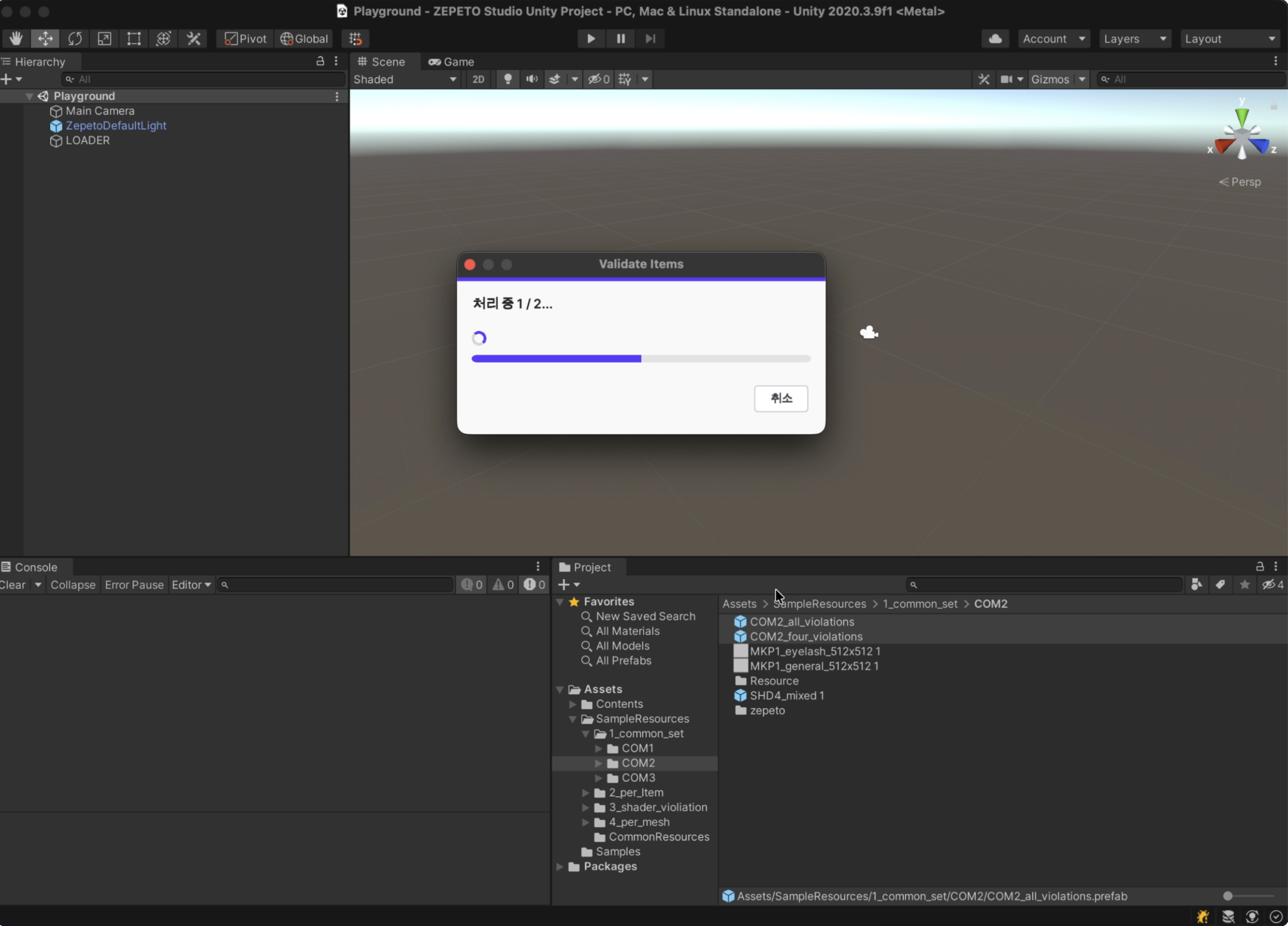
3. Progress window
Shows the progress of the process. Clicking the Cancel button stops the entire inspection.
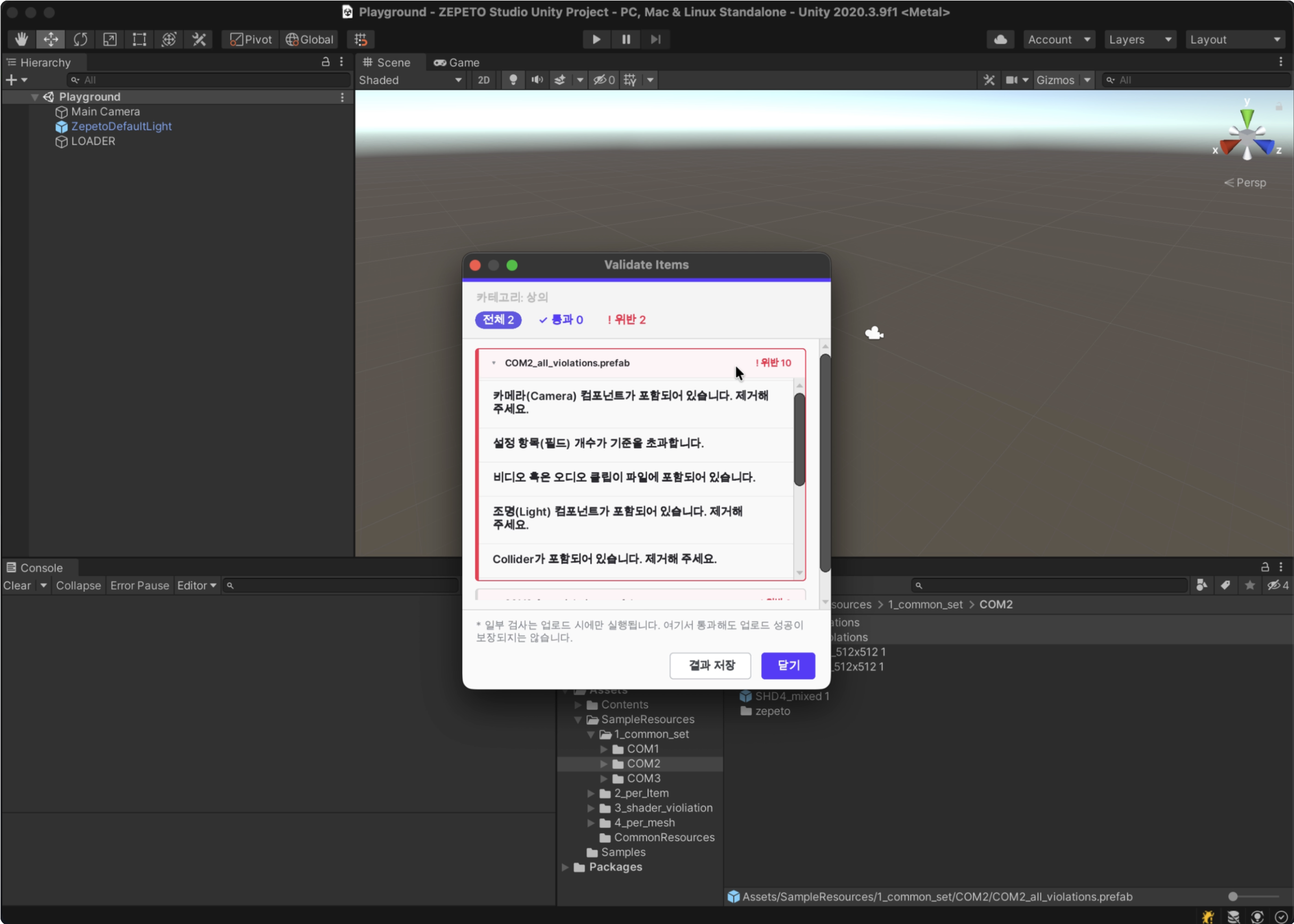
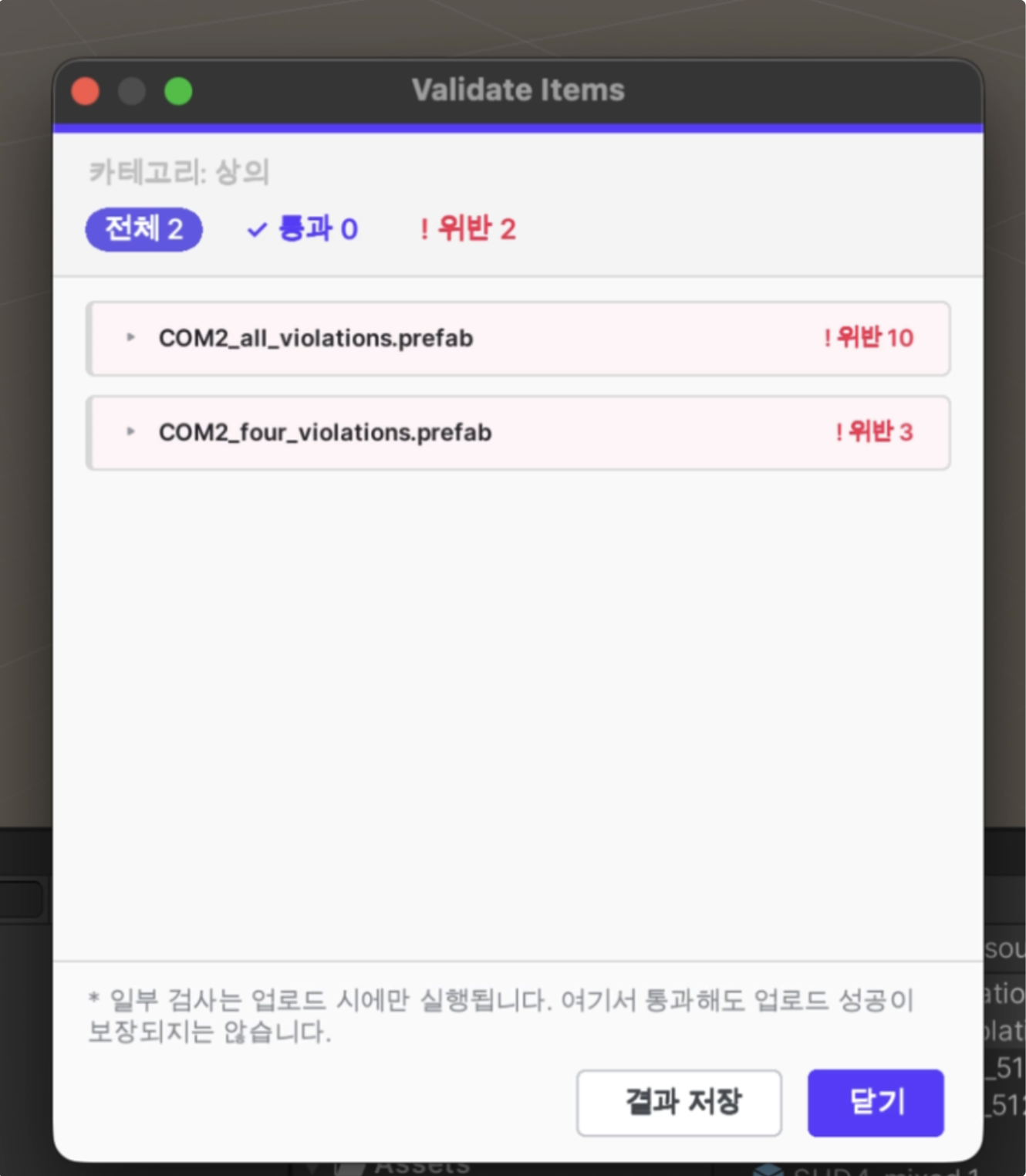
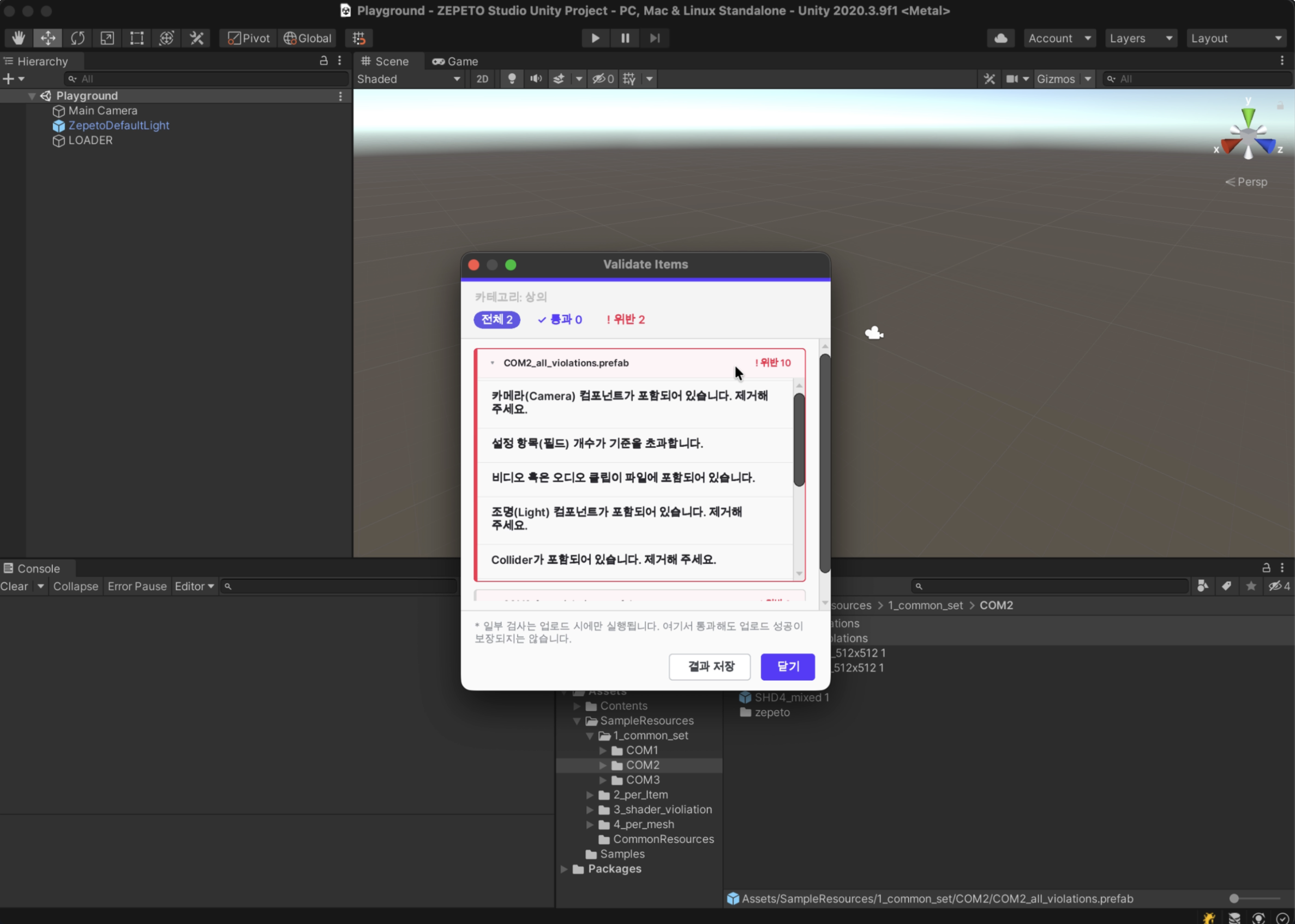
4-1. Result window - Results
If a prefab has any violations, the number of violations is displayed. Click the prefab name to expand the description of each violation.
⚠️ Caution
Some items are inspected separately at the upload stage, so passing this menu does not necessarily guarantee a successful upload.
Guides related to violations
- 3D Modeling Optimization Guidelines by Category
- 3D Texture Optimization Guidelines by Category
4-2. Result window - Saving results
You can save the results as a CSV file using the Save Results button.
ㅣ(Reference) Changes to the existing Export as .zepeto menu
1. Menu order changed
Along with the addition of Validate Items, the order in which the menus appear has changed.
As-Is
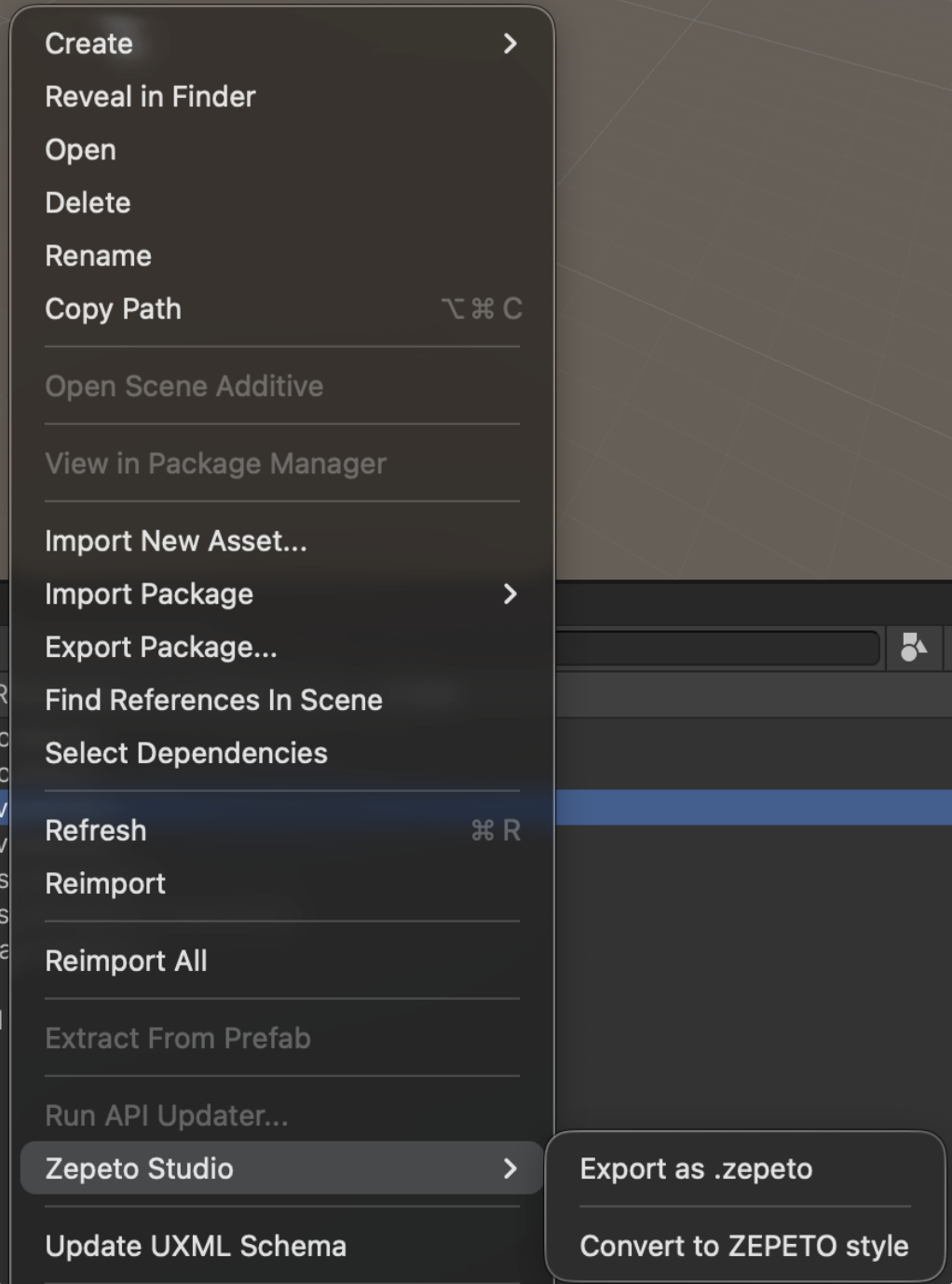
To-Be
2. Convert Makeup menu UI design changed
The design of the Convert Makeup panel shown when you select Texture has changed.
As-Is
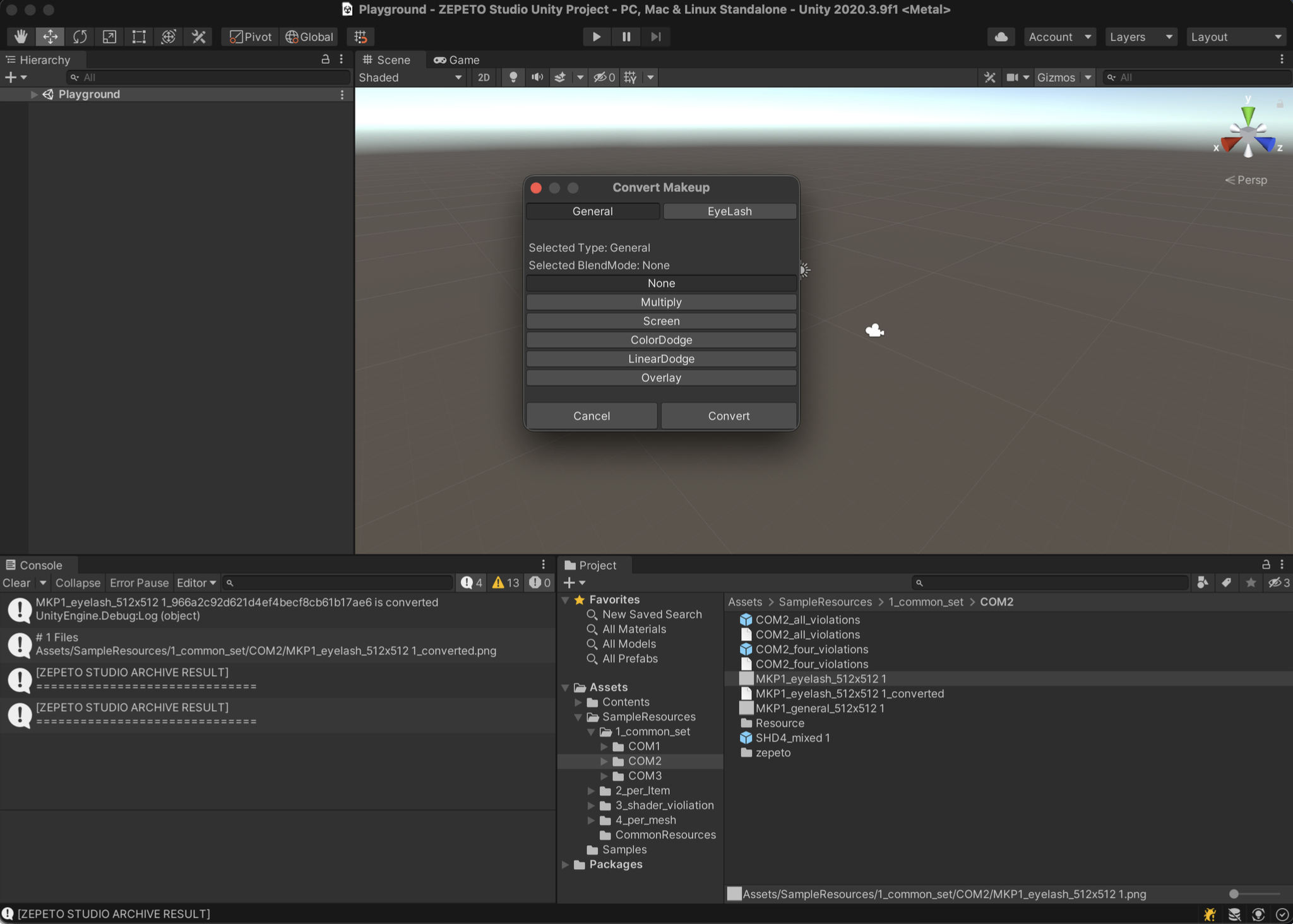
To-Be
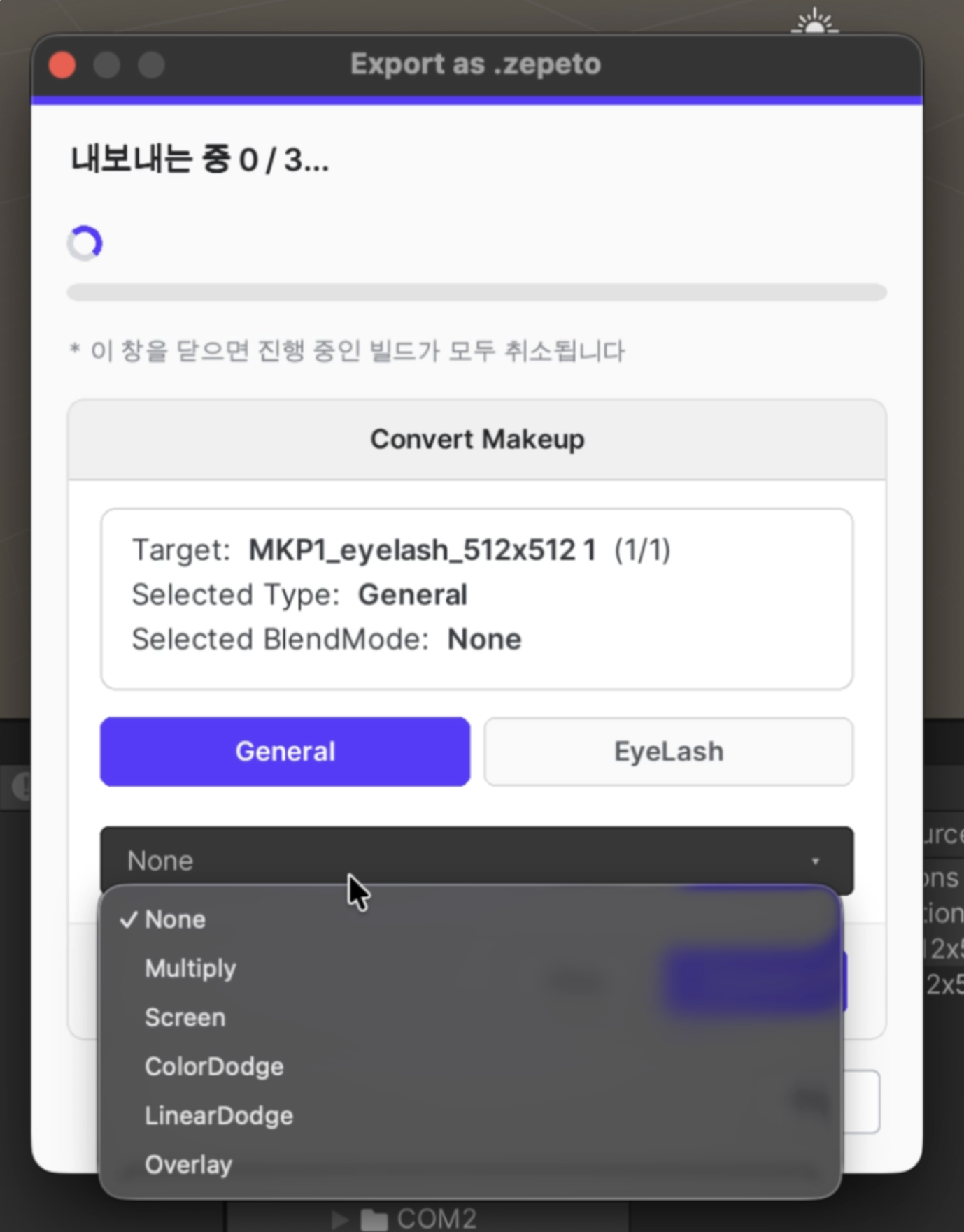
3. Progress window added
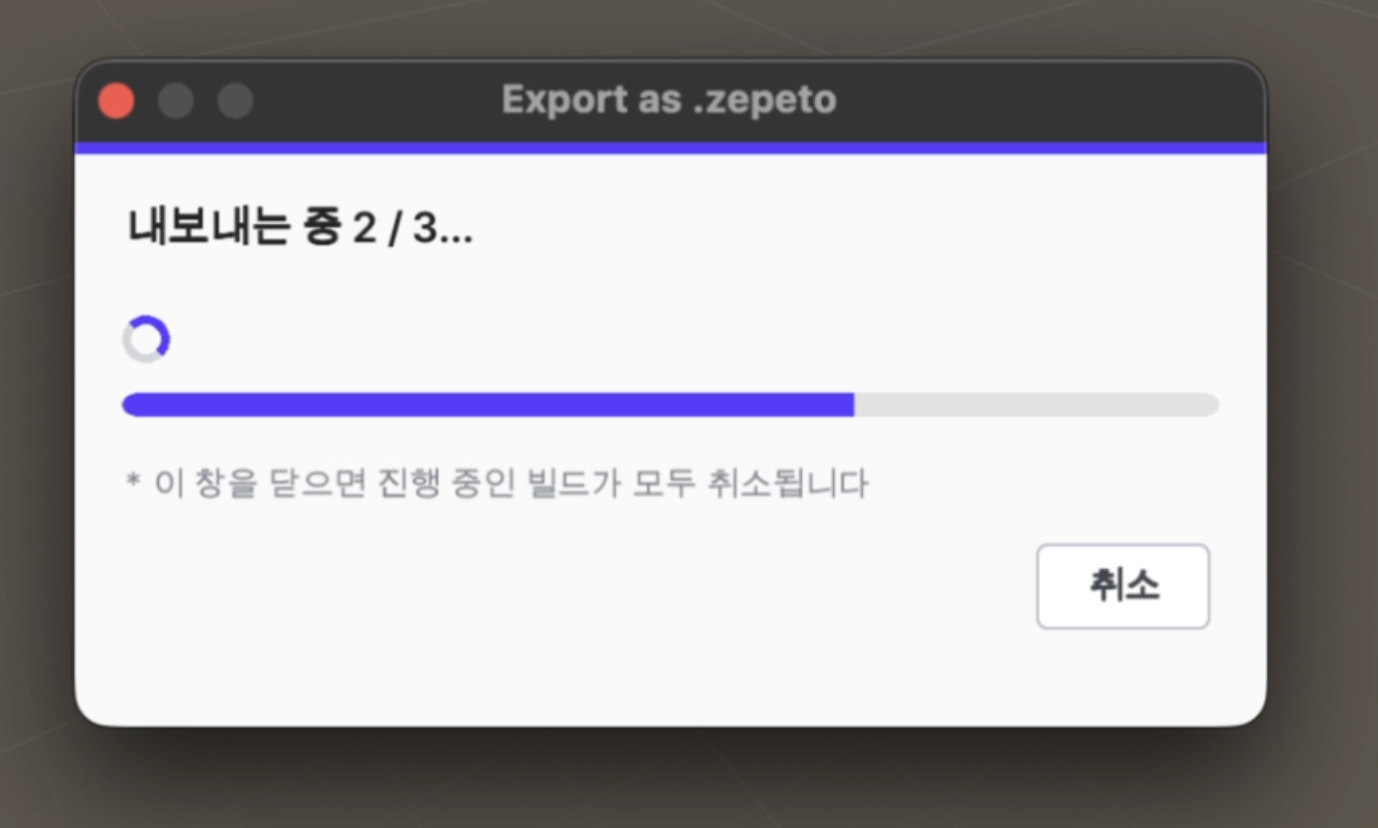
A progress window has been added. Clicking the "Cancel" button cancels all builds that follow. (Builds that have already been created are not deleted separately.)