Choice Template Guide
Summary | A creator template where players can select their preferences by passing through gates that match the questions, and compare their results with other players in the Sharing Zone. |
|---|---|
Difficulty | Intermediate (No code modification required) |
Genre | Personality test, Balance game, Record-based social sharing |
Single/Multiplayer | Multiplayer |
📘 Download Choice Template
🎥 Choice Template Video Guide If you prefer video instructions over text, please follow the video below. Subtitles are supported in multiple languages, so please turn them on while watching!
Building a Balance Game World with the Choice Template
Choice Template is a creator template that allows you to create a World where players select their preferences by passing through gates that correspond to various questions.
Creators can change questions, choices, the number of stages, and result board images without modifying any code.
Once a player completes all stages, they can view their selection results and compare them with other players' results in the Sharing Zone.
By following this guide in order, you can create a choice-based World that includes the following features!
- Selection gates displaying questions and choice images
- A progression system where multiple stages are connected in sequence
- Saving and restoring players' previous choice records
- A HUD displaying real-time selection ratios
- A Sharing Zone to compare your results with other players
- Features to save selection results as an image or share them to the ZEPETO Feed
1. Placing the Template
Adding Choice Template
The Choice_Template Prefab contains all the necessary objects to run Choice_Template, including selection gates, HUD, result boards, and the Sharing Zone.
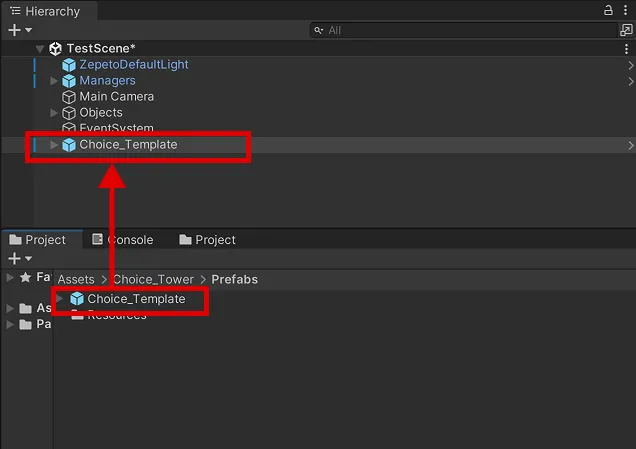
- In the Unity Project window, locate Assets/Choice_Template/Choice_Template.prefab.
- Drag Choice_Template.prefab into the Scene or Hierarchy window.
- Check the Hierarchy window to ensure that one Choice_Template object has been created.
If you want to start conveniently using a Sample Scene, refer to 9. Using Sample Scenes!
Choice Template Tutorial
When you first place the Choice_Template into the Scene, the Choice Template Tutorial Window will automatically open. The tutorial window guides you through the main setup locations of the template in the following order:
- Look Around the Template
- Enter Questions and Answers
- Apply to the Scene
- Add and Manage Questions
- Set the Game Rules
- Customize the Sharing Zone
- Test the World
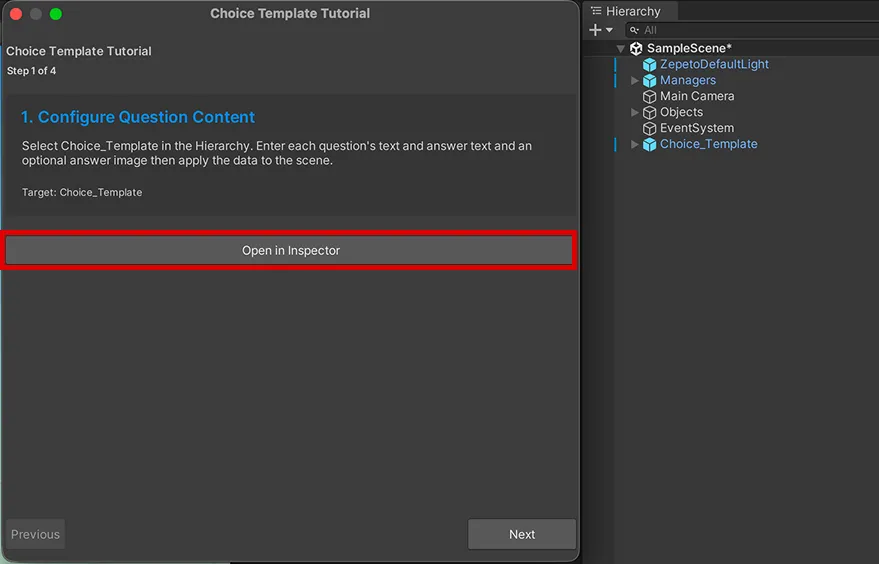
Try clicking the Open in Inspector button. The corresponding object will automatically be selected in the Hierarchy window, allowing you to proceed with the setup immediately in the Inspector window.
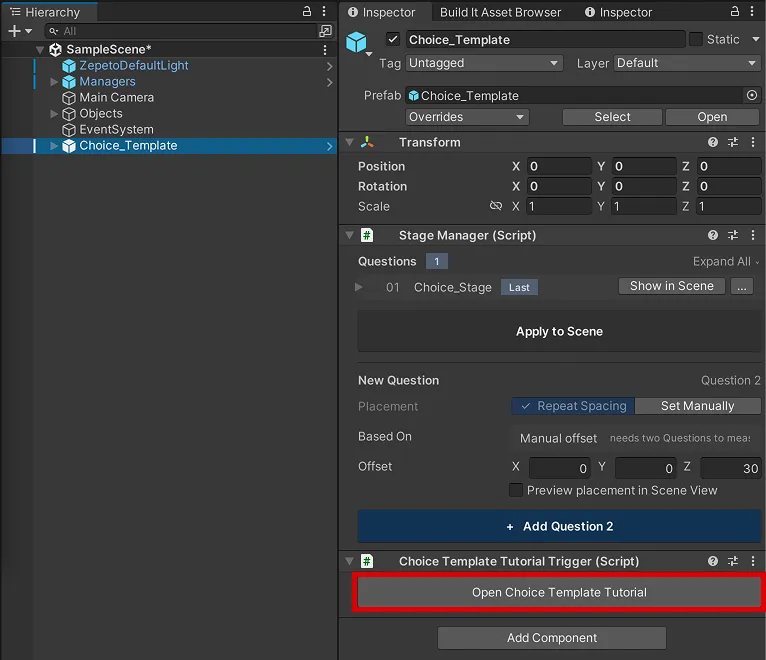
Want to open the tutorial window again?
Select Choice_Template in the Hierarchy window, then click the Open Choice Template Tutorial button in the Inspector window.
Precautions
- Please place only one Choice_Template per Scene.
- Before fully understanding how it works, it is recommended not to delete or disconnect objects inside the template.
- Please perform all setups in Edit mode, not in Play mode.
Basic Structure of the Template
Choice_Template largely consists of the following three parts.
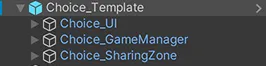
- Choice_UI
- A collection of UIs visible to the player, such as HUD (my choice, progress, selection ratio), toast notifications, and the result screen.
- Choice_GameManager
- Manages the question progression order, choice records, data saving, and restoration.
- Each question (Choice_Stage) and selection gate is placed under this object.
- Choice_SharingZone
- A space where players who have completed all selections can check their results and those of other players.
TIP
At first, try testing it once in its default state without drastically changing the position or size of the template.
It will be easier to understand if you adjust stage intervals and decorate the surroundings after confirming the basic behavior.
2. Setting Up Questions and Choices
Using Stage Manager
By using the StageManager inside the Choice_Template object, you can edit the questions and choices displayed in each stage in one place.
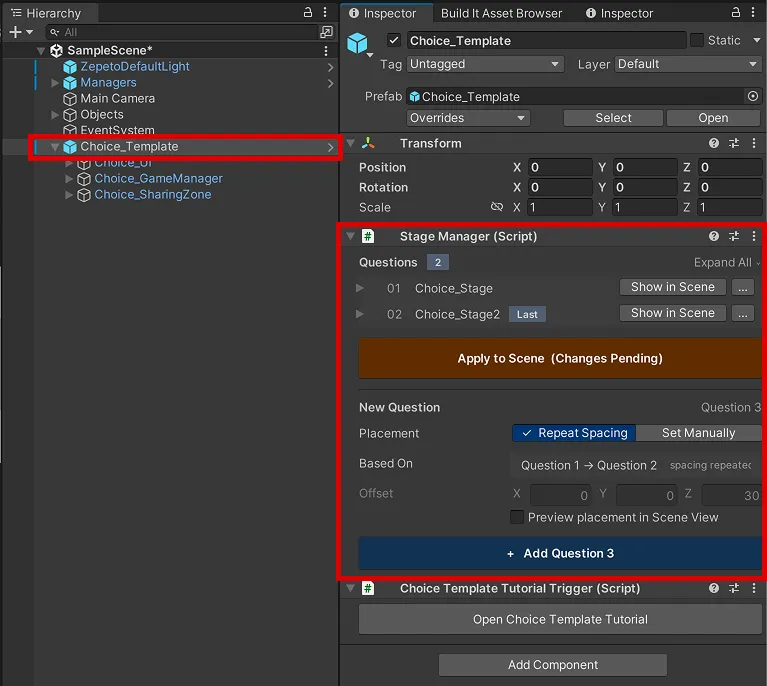
Select the Choice_Template object in the Hierarchy window.
TIPs
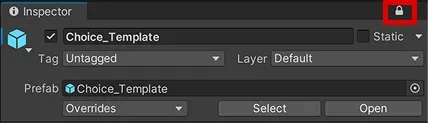
To prevent the Inspector from switching to another object while editing questions and answers, please activate the Lock button at the top right of the Inspector window.
Inspector item names may display differently depending on your PC's language settings. This guide uses the English Editor labels, such as Questions and Apply to Scene.
- Show in Scene
- Selects the corresponding question object and moves the Scene View camera to that location.
- You can use this feature to check and adjust question and gate positions.
- ⋯ Menu
- You can Duplicate This Question or Delete Question.
- Collapse All / Expand All
- Collapses or expands all question items at once.
If you click the name or arrow of each item to expand it, you can configure the following properties:
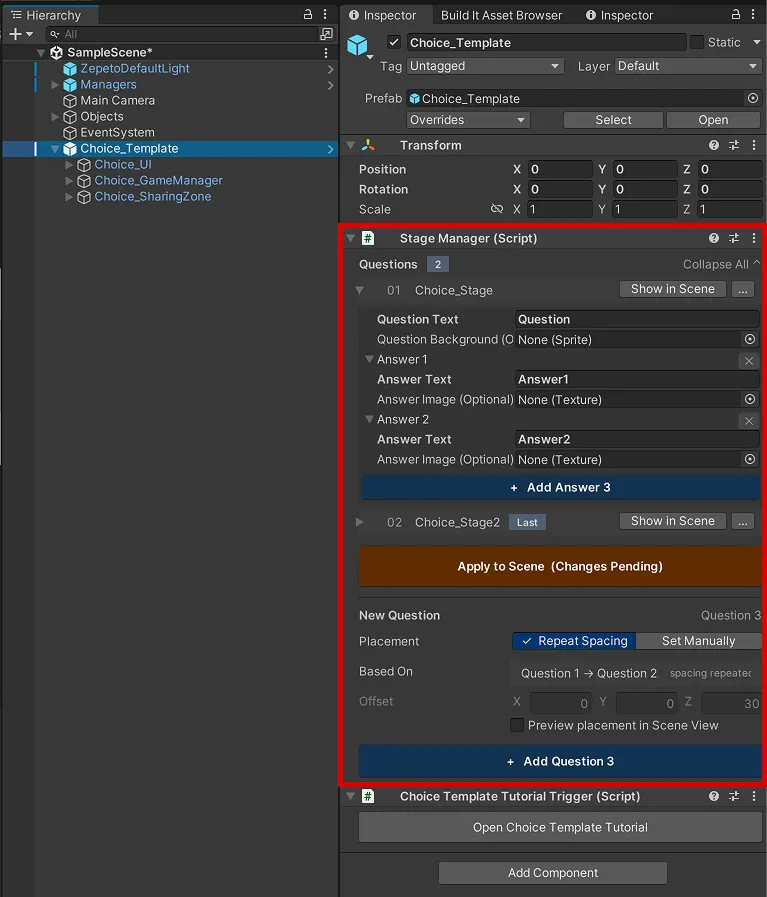
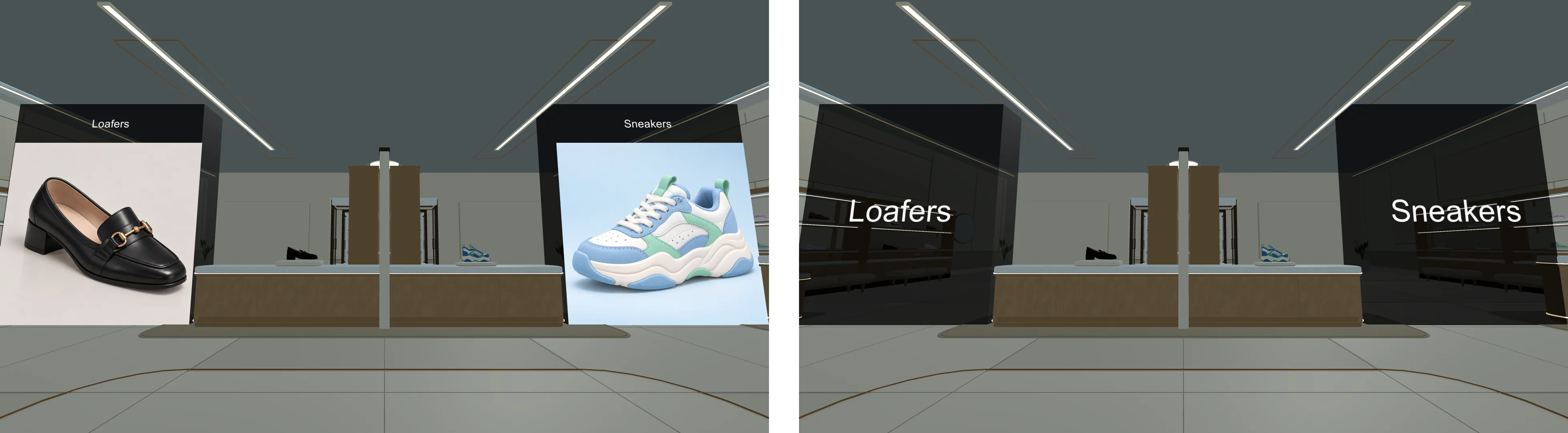
- Question Text
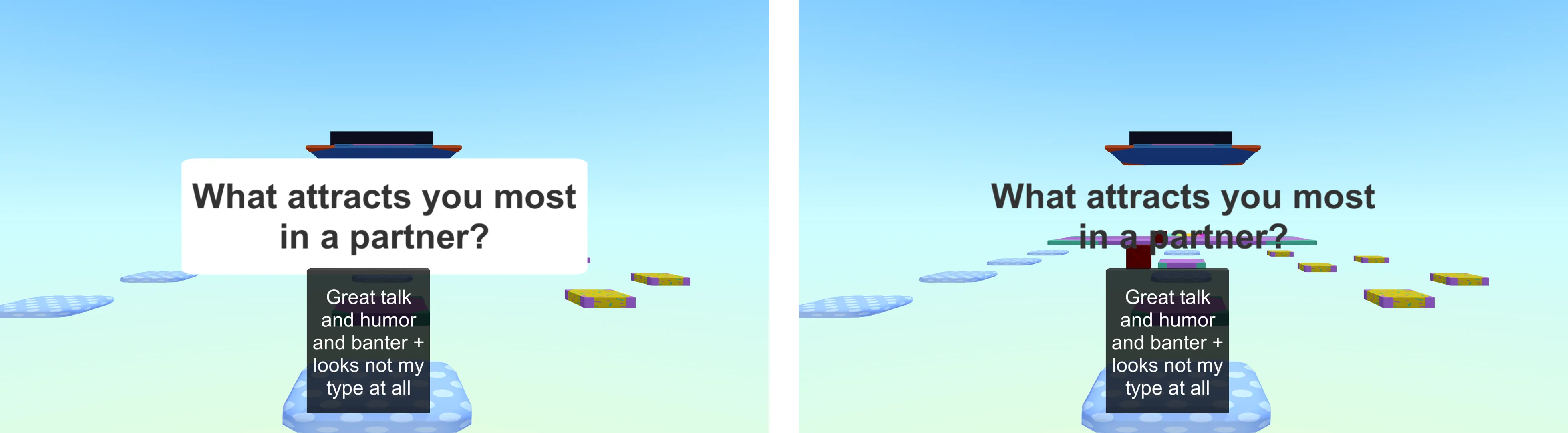
- Enter the question to display to the player in the stage.
- Example: What is your preferred clothing style?
- Question Background (Optional)
- Assign a background image to display on the question panel.
- You can leave it empty if you do not want to use an image.
- Answer 1, Answer 2 …
- These correspond to each gate. Expanding them reveals the following two properties:
- Answer Text
- Enter the name of the choice to display on each gate.
- Example: Lovely Style
- Answer Image (Optional)
- Used when you want to show the choice with an image.
- If you don't use an image, only the text will be displayed.
Adding and Deleting Answers
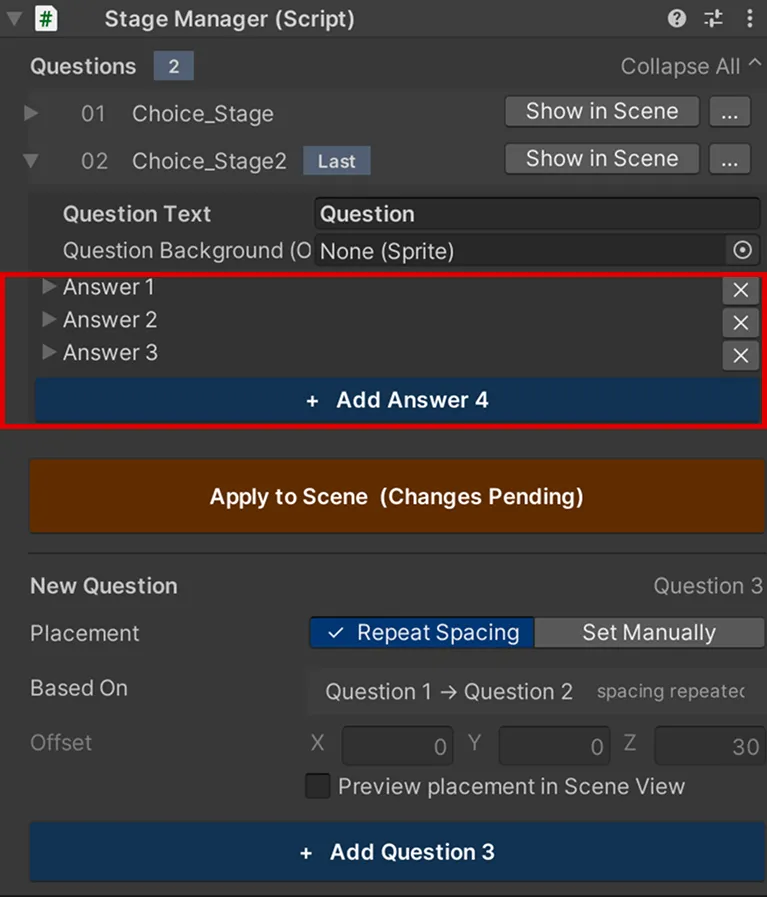
You can directly increase or decrease the number of answers (gates) per question. There's no need to copy the gate objects manually.
- Clicking the + Add Answer N button below the answer list will create an additional gate for that question, and the answer data item will also be added.
- Clicking the delete button to the right of each answer will prompt a confirmation window. After deletion, the remaining answers will be renumbered automatically.
- A minimum of 2 answers is required per question. The delete button becomes inactive if only 2 remain.
Applying Questions and Answers
After modifying the contents in the Inspector, you must click Apply to Scene.
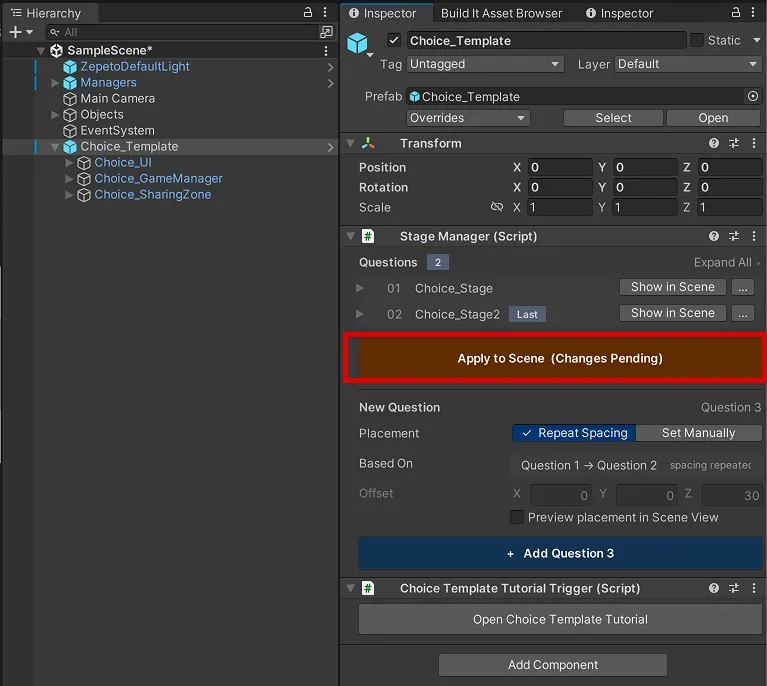
- Enter the question and answer text/images.
- Click the Apply to Scene button below the list.
- If the entered content differs from the Scene's content, the button will display in orange with a (Changes Pending) message.
- Check the question panel and selection gates in the Scene View to ensure the changes have been reflected.
If the Scene's content and the input data differ, the button will turn orange and (Changes Pending) will appear.
When you click the Apply button, the question text, question background, answer text, answer image, question object name, and local keys in the Localization csv file are all updated together.
Multilingual Question/Answer Setup When you click Apply to Scene, the following keys are automatically added to the ZW_LOCALIZATION_CHOICE_TOWER sheet:
- Question: STAGE_{Scene Name}_{Order}_QUESTION
- Answer: STAGE_{Scene Name}_{Order}_GATE_n (n is the answer number)
Please enter the questions and answers for other languages by language in the corresponding sheet. You set up the basic content of questions and answers in the Unity Inspector, and manage phrases for other languages in the sheet.
Precautions
- Ensure there are at least 2 gates per question.
- If a message appears stating that the number of detected questions differs from the number of data items in the question list, please check for missing questions or data items. Only corresponding items will be applied to the Scene.
- When you assign an answer image, the text size will automatically adjust to fit the image display.
3. Adding and Managing Questions
Adding a New Question
When you want to increase the number of questions, there is no need to copy the objects manually.
In the New Question section at the bottom of the Inspector, you can create a new question after the last one with a single button click.
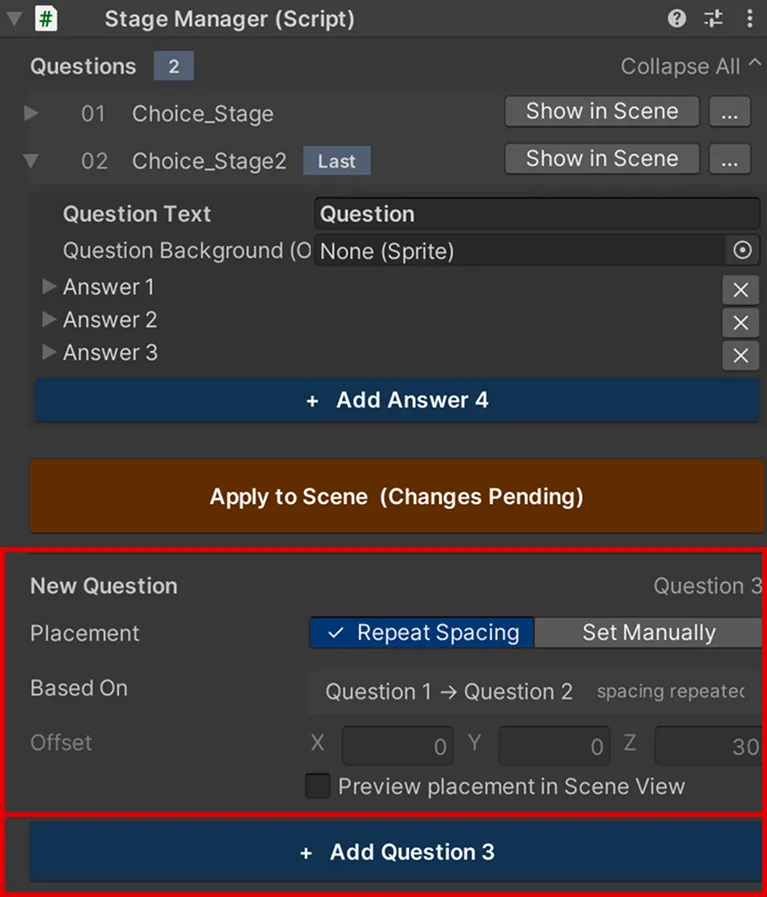
- Placement
- Repeat Spacing: Places it using the exact spacing between the last two questions. Recommended for basic layouts with regular question intervals.
- Set Manually : Places it at a distance defined by the applied offset values below.
- Based On
- Shows the criteria currently determining the position.
- Example: Question 2 → Question 3 spacing repeated
- If there are fewer than 2 questions, intervals cannot be measured, so only Set Manually can be used.
- Offset
- X, Y, Z movement values relative to the last question.
- If you select Repeat Spacing, the measured value is displayed and cannot be edited manually.
- Preview placement in Scene View
- When checked, the location where the new question will be created is marked with a square in the Scene View.
- + Add Question N
- Duplicates the last question and automatically adds the question/answer data items and numbering.
After adding a question, please modify the question text and answers to the desired content and click Apply to Scene.
Duplicating and Deleting Questions
- ⋯ Menu
- Duplicate This Question: Select from the ⋯ menu of the question list. Copies the configuration of that question and adds it after the last question.
- Delete Question: Select from the ⋯ menu and confirm in the popup window. Remaining question numbers are automatically reorganized.
- You cannot delete if only one question remains.
Precautions
- Question object numbers and names are managed automatically. Do not arbitrarily change the question object names in the Hierarchy.
Inserting Question/Answer Images
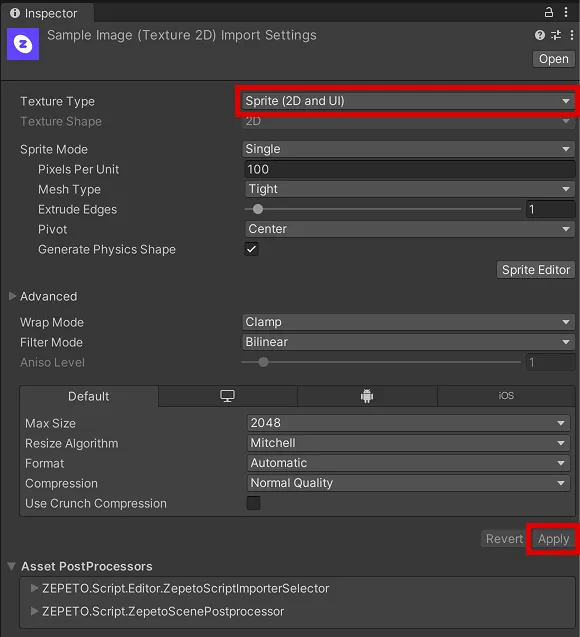
- Add the image file to the Unity Project window.
- Select the file and set the Texture Type to Sprite (2D and UI) in the Inspector.
- Connect the image to the Question Background or Answer Image slot in the StageManager.
- Click Apply to Scene to verify the actual display state.
Tips
For choice images, a square or similar ratio is recommended so they are easily distinguishable inside the gates.
Using text alone is suitable for personality tests, whereas using text and images together is ideal for content where visual comparison is important, such as fashion or food.
4. Setting Up Game Rules
Setting Choice GameManager
Select Choice_Template > Choice_GameManager in the Hierarchy.
You can configure the progression rules under Game Rules in the Inspector.
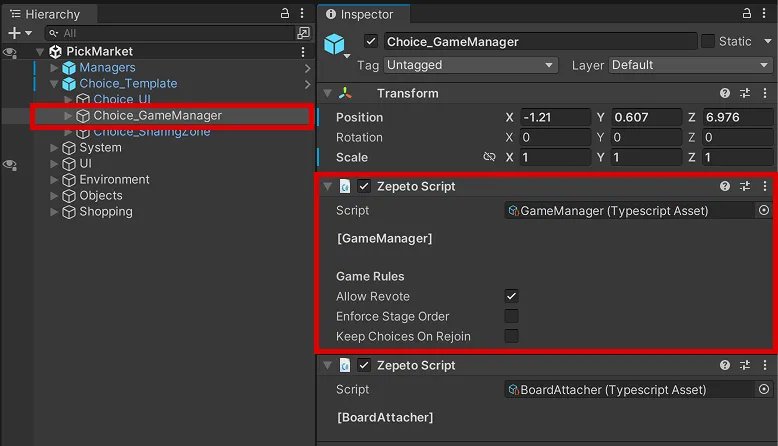
Game Rules
- Allow Revote
- If activated, players can re-select a different gate for questions they have already answered.
- If deactivated, players cannot change their answers to questions until their progress history is reset.
- Enforce Stage Order
- If activated, players must complete the preceding question before they can select the next one.
- Use this for Worlds that progress in the order of question numbers.
- Keep Choices On Rejoin
- If activated, previous choices are restored upon re-entry, and players resume from behind the last gate they passed.
- If deactivated, players who haven't completed all questions will restart from the first question. Results of players who completed all questions are maintained.
5. Sharing Zone
What is the Sharing Zone?
Players who have completed all questions can view their selection results in the Choice_SharingZone. If other players are in the same space, they can also compare each other's selection results.
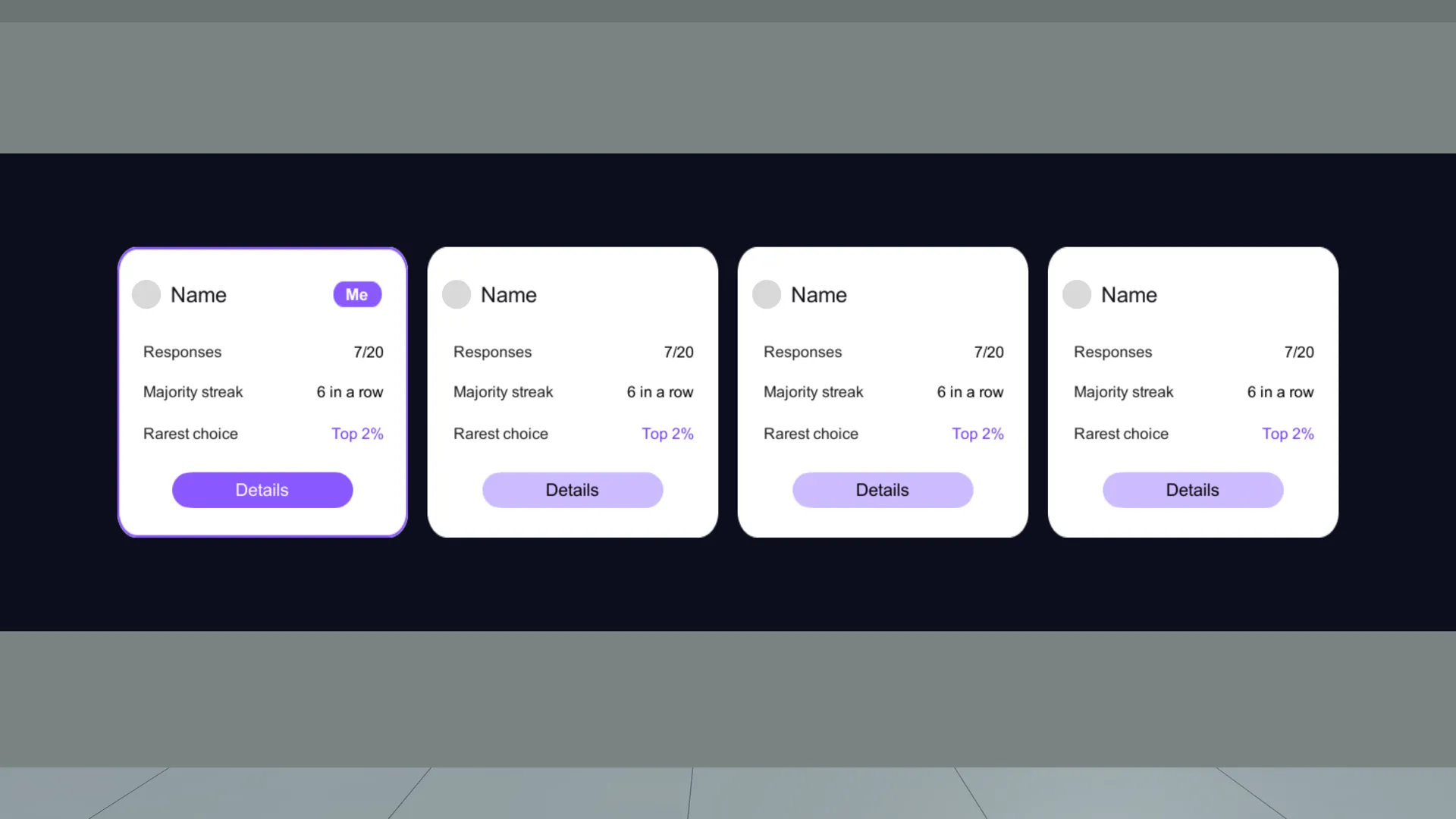
- You can check your own selection results.
- You can compare your results with other players in the same space.
- You can save your results as an image or share them to the ZEPETO Feed.
If Enforce Stage Order is active, you must complete all questions in sequence to enter the Sharing Zone.
Changing Sharing Zone Design
The template has a default UI design applied. If you want to change the design to fit the concept of your World, configure the following items.
Select Choice_Template > Choice_SharingZone in the Hierarchy.
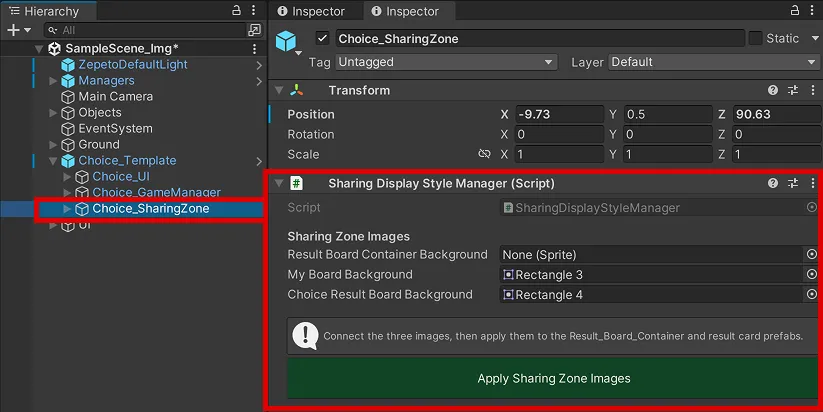
You can change the images below in the Sharing Display Style Manager in the Inspector window.
- Result Board Container Background
- The background of the entire result board area displayed in the Sharing Zone.
- My Board Background
- A dedicated background used to distinguish your own result card.
- Choice Result Board Background
- The default background used for other players' result cards.
Precautions
- After inserting images, you must click Apply Sharing Zone Images.
- The text, profile picture, and selection results of the result card can be verified in Play mode.
- It is recommended not to change the object names Result_Board_Container, Choice_ResultBoard, and My_Background.
6. Testing the World
Testing in Play Mode
After completing the setup, click Play at the top of Unity and test the actual play sequence.
When testing, please enable Multiplayer before playing! You’re almost done—let’s check the basic program settings:
Check the first question
- Check starting location, whether questions/answers display properly, and if the HUD updates when passing gates.
Check World progression
- Check if entering the next question is possible, if the HUD shows your choices and selection ratios, and if Enforce Stage Order and Allow Revote settings behave as intended.
Check the Sharing Zone
- Enter Sharing Zone after completing all questions.
- Verify your result card and detailed results, and ensure the image save and Feed sharing features work.
Check progress reset
- Execute Reset from the result screen or HUD to verify if records/HUD initialize and you return to the starting point.
Pre-Release Checklist
Please verify all the items below before publishing your World!
There is only one Choice_Template in the Scene.
Every question has at least 2 answers (gates).
After modifying questions/answers, Apply to Scene was clicked.
Question placement and Allow Revote, Enforce Stage Order, and Keep Choices On Rejoin settings match the design plan.
After modifying Sharing Zone images, Apply Sharing Zone Images was clicked.
Questions/answers for necessary languages were entered in ZW_LOCALIZATION_CHOICE_TOWER.
After completing all questions, the Sharing Zone and result boards are displayed.
After a Reset, progression restarts smoothly from the first question.
Ensure the released Scene file is maintained without being duplicated or saved under a different name.
Precautions
When updating a released World, if you duplicate the Scene file or save it under a different name, the existing World's selection records will be reset. Please use the originally released Scene as is.
7. FAQ
I changed the questions and answers but they are not reflected in the Scene
- Please select the Choice_Template object in the Hierarchy.
- In the Questions list of the Inspector, check if the modified questions and answers were entered correctly.
- Click the Apply to Scene button to reflect the changes.
- If the (Changes Pending) message continues to appear on the button, please double-check your modifications and press the Apply to Scene button again.
The added question is not visible in the list
- Check if the newly added question object in the Hierarchy is placed under Choice_Template.
- Select the corresponding question object and ensure the Stage script is attached in the Inspector.
- If Play mode is running, stop it, then check if the question object was successfully added in the Hierarchy.
- Select Choice_Template again and check if the number of questions correctly reflects the count on the number badge shown to the right of Questions in the Inspector.
Selection records are not saved or restored
- Please check the Keep Choices On Rejoin setting in Choice_GameManager. If deactivated, players who haven't completed all questions will restart from the first question upon re-entry.
- When updating after release, if you duplicated the Scene or saved it under a different name, a new save space is assigned, so existing records won't appear. To retain existing records, use the released Scene as is.
I can't select the gate for the next question
- Check if Enforce Stage Order is activated.
- Check if you have completed all preceding questions.
- Check if the order of questions in the StageManager matches the sequence of gates placed in the Scene.
I can't enter the Sharing Zone
- Check if there are any uncompleted questions remaining.
- Check if the progress count on the HUD matches the actual total number of questions.
- If you changed a previous choice, please complete all necessary questions again.
The Sharing Zone image doesn't change
- Check if images are assigned in the Sharing Display Style Manager of Choice_SharingZone.
- Check if you clicked Apply Sharing Zone Images.
- Check if the image's Texture Type is set to Sprite (2D and UI).
I want to change the BGM
- After adding the BGM file you wish to use as background music into the Project window, rename it to exactly match the name of the Scene you plan to release.
8. Utilization Ideas
By changing the question content, gate images, and the space around the stages, you can utilize the same template for various Worlds.
- A taste selection world comparing food, travel destinations, or fashion.
- A personality test where results are finalized through a series of questions.
- A balance game to compare choices with friends.
- A fan participation content where players pick brand products or characters.
- A story-type world where you choose crossroads in a narrative.
TIPs
Try decorating the space to match the theme of your questions.
Placing relevant props around the selection gates can help players understand the choices more intuitively.
9. Using Sample Scenes
Choice Template includes Sample Scenes demonstrating how you can expand the template.
You can find them in the Assets/Choice_Template/SampleScenes folder.
Scene | Configuration | Details |
|---|---|---|
BasicScene | Basic template features + Jump map | Added movement/play sections between questions |
PickMarket | Basic template features + Shopping mall, cart features, guide NPC | Object presentation and NPC guidance based on question results |
🚨 Precautions
- The Choice_Template is already placed in the Sample Scenes.
- When copying and using a Sample Scene, make sure you configure 4. Setting Up Game Rules in the Scene's Choice_Template to fit your World.
- When playing the Sample Scene, please enable Multiplayer before playing! You’re almost done—let’s check the basic program settings:
BasicScene: Combining a Jump Map with a Balance Game
BasicScene is an example combining a balance game with a jump map.
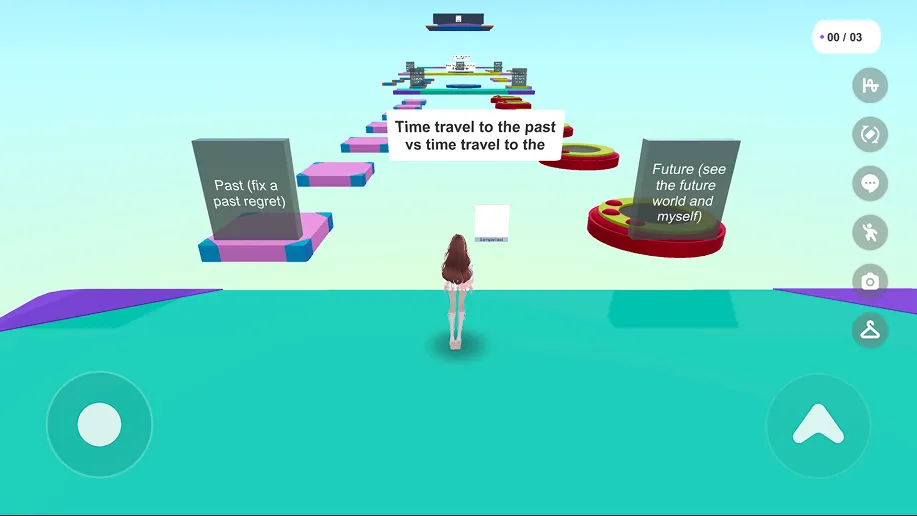
- Duplicate existing course sections or add platforms to expand the movement path.
- Create questions via + Add Question N, and adjust the position using the Set Manually placement method to fit the course.
- Use Show in Scene for each question to verify the location, and try completing the entire course in Play mode.
PickMarket: Adding Themes and Creative Elements
Using Choice_Template, you can create your own World by adding various creative elements.
Feel free to modify and expand PickMarket to create a new World, or simply use the provided Sample Scene to learn the features and how to utilize them.
PickMarket is a sample that connects the choice gates of Choice_Template to selecting items in a shopping mall. The player follows a guide NPC around the stores, selects items, and gathers them in a cart.
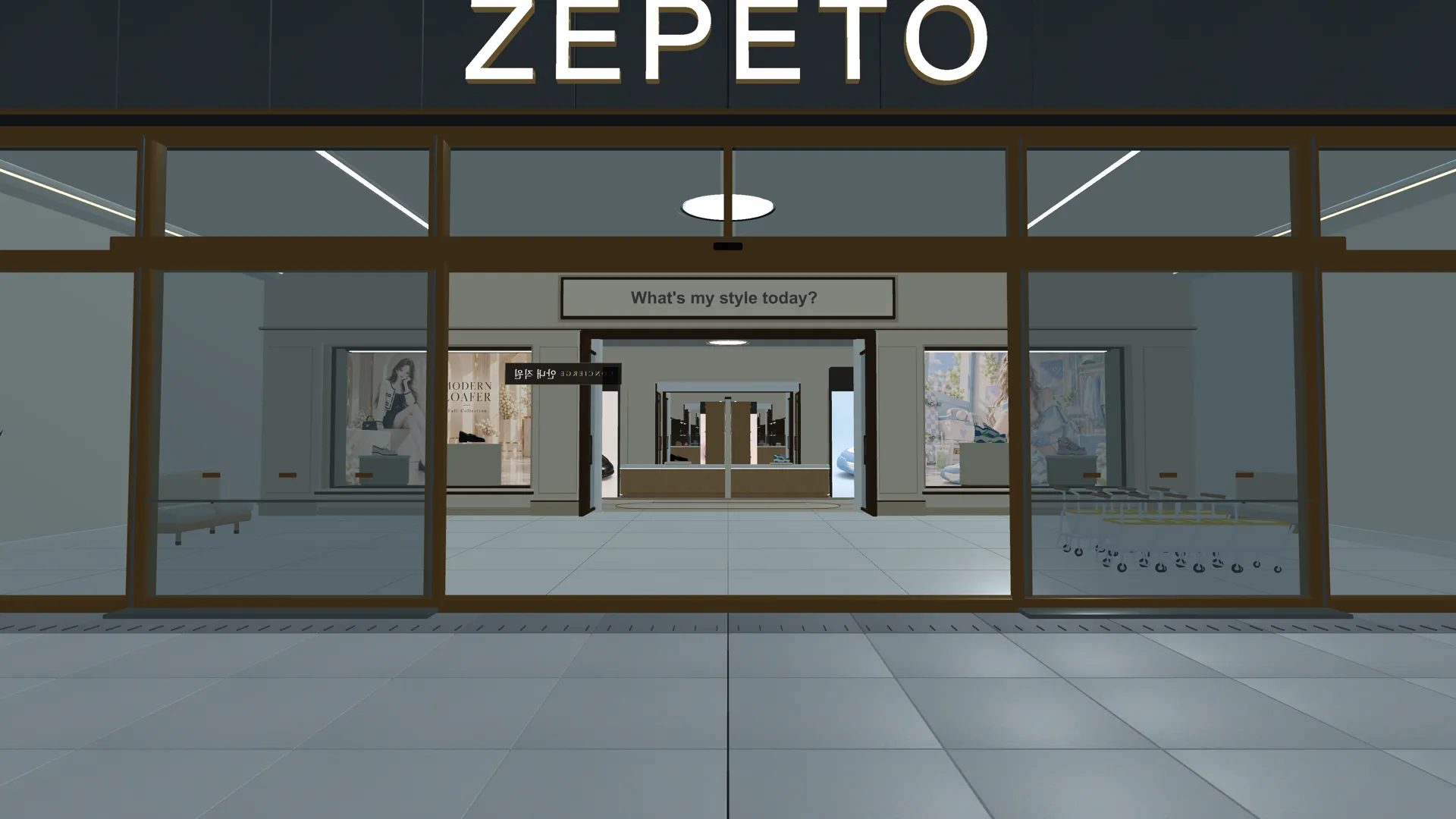
Play Flow
- Enter Shopping Mall: An entry camera sequence looking up plays, and the NPC guides you to the cart zone.
- Get a Cart: Grab a cart and move. If you go to the first store without a cart, the NPC will redirect you back to the cart zone.
- Select per Store: Listen to the NPC's explanation and pass through the product gate. The selected item is held in your hand or worn on your body, and goes into the cart when exiting the store.
- Final Zone: After completing selections across five stores, the cart disappears in the FinalZone, and the chosen items float around the player. Afterwards, you can move to the result board and photo shooting space.
Exploring Creative Elements
1. Entrance and Item Camera Presentation
This includes camera directions that play upon entering the World and show the wearing look when selecting an item.
To change detailed settings for the camera presentation, select System > SpawnPoint in the Hierarchy window, and adjust the items below as desired.
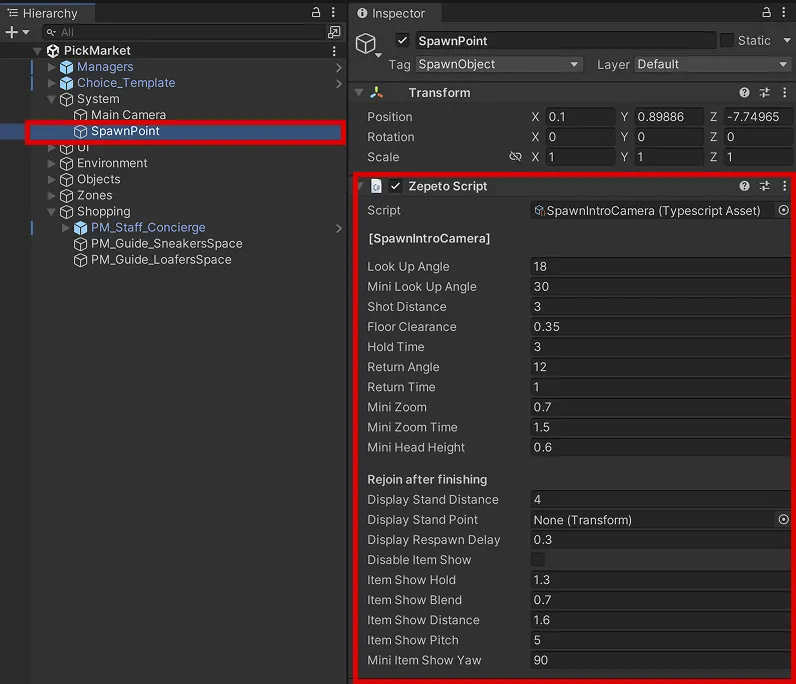
- Look Up Angle / Shot Distance / Hold Time: The upward angle, distance, and duration of the entrance camera.
- Rejoin after finishing: If a player who completed all questions re-enters, they are teleported in front of the Sharing Zone display.
- Disable Item Show: If activated, this disables the camera sequence highlighting the product when worn.
- Item Show Hold / Blend / Distance / Pitch: Duration, transition time, distance, and angle for the item presentation camera.
2. Cart System (Zones)
The selected item goes into the cart after demonstrating the wearing sequence.
In the Hierarchy window, navigate to PickMarket > Zones > 01_Shoes > LoaferZone.
If you select LoaferZone, the Zepeto Script (CartItemZone) configuration settings will display in the Inspector window.
You can select any Zone to modify its settings. It is fine to copy an existing Zone to create a new one, or change the name as needed.
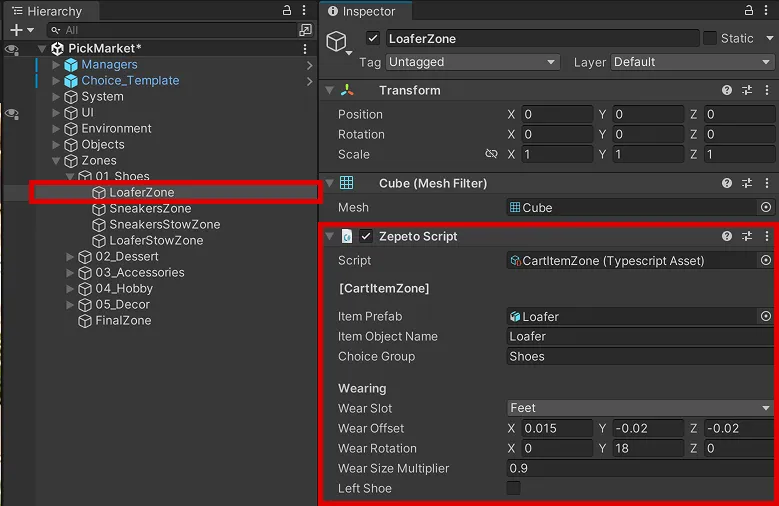
CartItemZone Settings
- Item Prefab: Assign the product Prefab to show to the player.
- Item Object Name: Used to find and copy an object with the same name in the Scene if Item Prefab is empty.
- Choice Group: A group name commonly entered for products of the same question. If you select one from the group, you cannot select the others.
- Wear Slot: The location where the item will be worn.
Wear Slot | Wearing Method | Items Used in Sample |
|---|---|---|
Head | Worn fitting the head size like a hat | Cap |
Eyes | Worn fitting the eye position like glasses | Sunglasses |
Ears | Worn covering the ears like headphones | Music (Headphones) |
Feet | Worn symmetrically on both feet like shoes | Sneakers, Loafer |
Left Hand / Right Hand | Release the cart handle and hold on the palm | Donut, Cake, Boba, MiniBag, Book, Game, Art, TeddyBear, Light, Speaker |
Chest / Back / Hips / Shoulder | Attached to the respective body part | (Not used in sample) |
- Adjusting Wear Position
- Wear Offset / Wear Rotation / Wear Size Multiplier: Fine-tune the wearing position, rotation, and size. If the product looks inverted, try changing the Y of Wear Rotation to 90 / 180 / 270.
💡 TIP
It is easier to verify by adjusting the wearing position while in Play mode.
Since changed values revert when Play ends, record the final values and re-enter them in Edit mode.
CartStowZone Settings
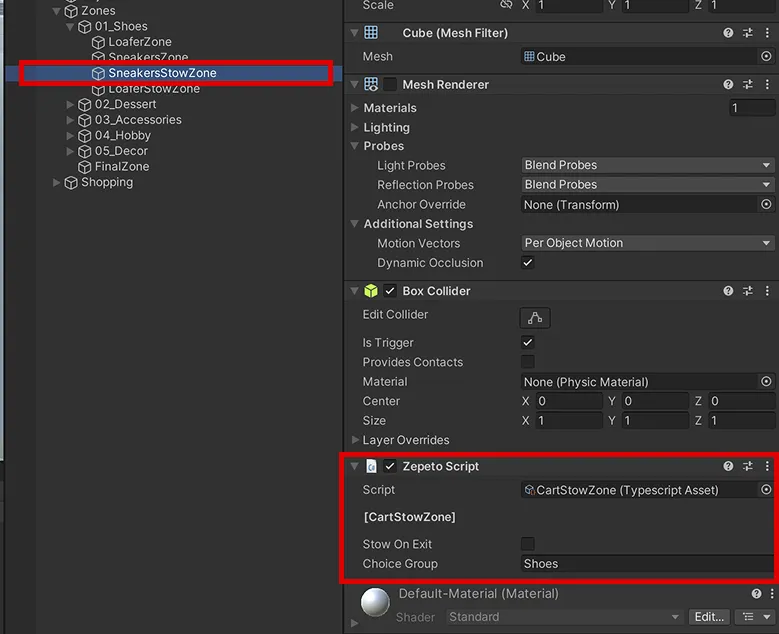
- Choice Group: Enter the exact same value as the CartItemZone of that store. Once a selected item goes into the cart, the exit for stores belonging to the same group closes.
- Stow On Exit: If toggled off, items enter the cart when entering the zone. If toggled on, they enter when exiting the zone. If turned on, place the zone widely to encompass the entire store.
Items Above Head (CartHalo)
When the cart is completed in the final zone, CartHalo is automatically added during runtime and floats the chosen items around the player's head.
3. Guide Staff NPC
The PM_Staff_Concierge in the Scene is the NPC that guides the shopping mall. It introduces the World, leads the way to the carts and store entrances, and reacts to player choices.
Staff Avatar and Dialogue (DepartmentStoreStaff)
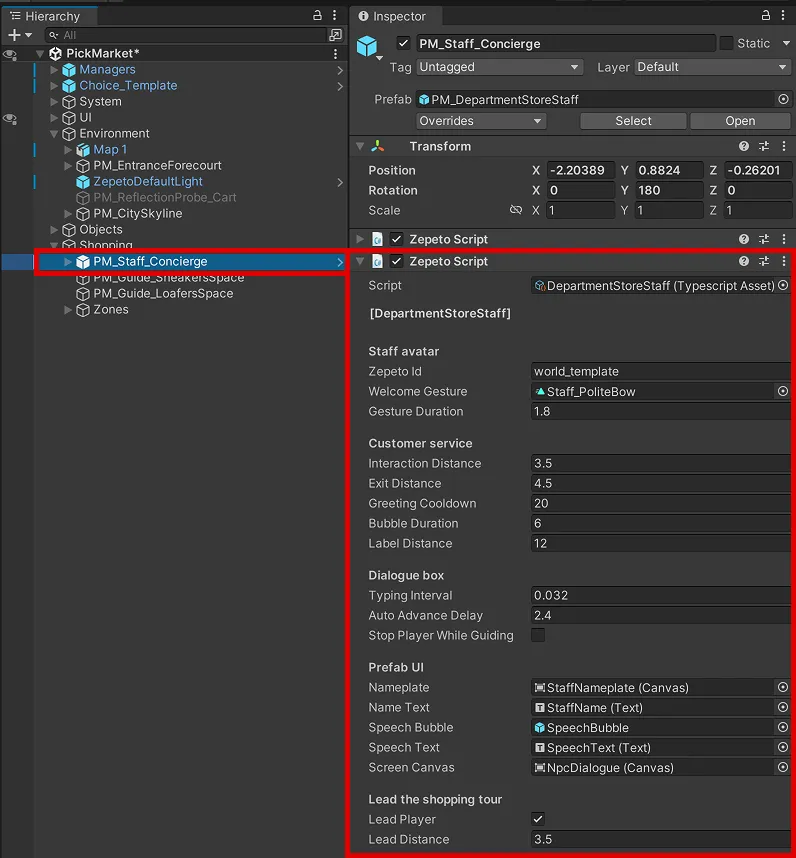
- Zepeto Id: The ZEPETO Account ID to use as the NPC's appearance. Enter the ZEPETO ID from the profile, not the nickname. Check the 2. NPC Object.
- Typing Interval: The speed (seconds) at which dialogue appears letter by letter. The default is 0.032.
- Auto Advance Delay: The time (seconds) to automatically proceed to the next dialogue. The default is 2.4.
- Stop Player While Guiding: If activated, stops the player during guiding dialogues.
- Lead Player / Lead Distance: The NPC walks ahead and stops to wait if they get ahead by this distance (default 3.5m).
Shopping Guide Flow (ShoppingGuideController)
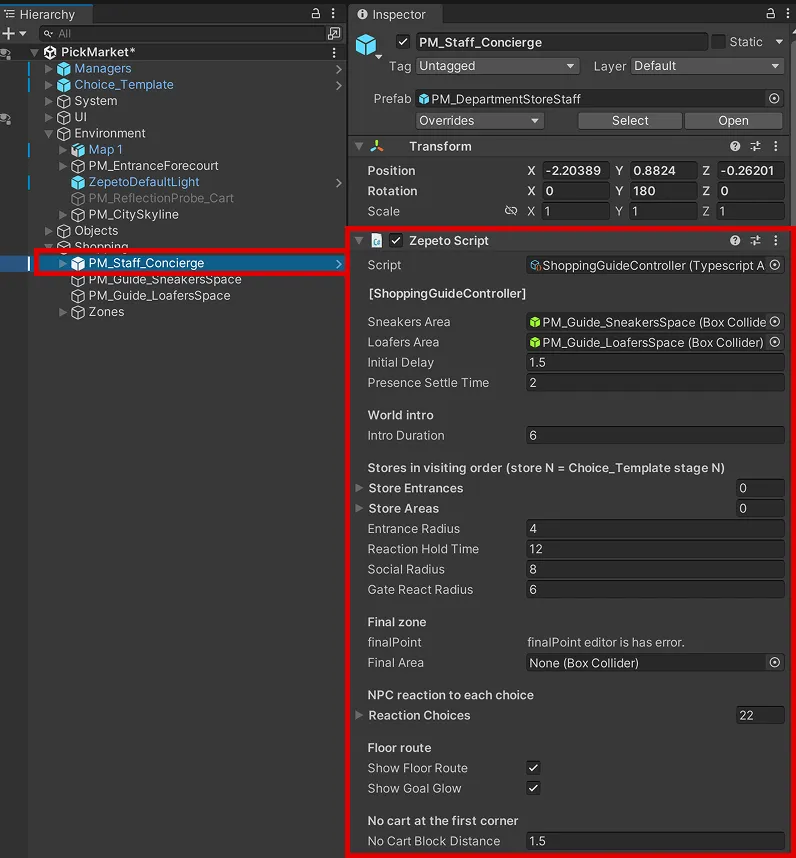
- Store Entrances / Store Areas: The store entrances where the NPC waits and the interior areas of the store. If left empty, it uses the store anchors in the map.
- Final Point / Final Area: The location and arrival detection area the NPC will guide to at the end. If left empty, it uses the FinalZone.
- Show Floor Route: Displays arrow paths on the floor leading to the destination.
- Show Goal Glow: Emits a soft glow on the floor of the next destination (cart, store entrance, exit, final zone). It does not glow on the gates so as not to influence choices.
- No Cart Block Distance: If you approach the first store entrance without a cart by this distance (default 1.5m), the NPC blocks you and directs you to the cart.
Changing PickMarket to Your Own Theme
You can adapt PickMarket to various themes by keeping its structure but changing the content.
- Changing Questions
- Change the questions and answers to a cafe theme in the StageManager and click Apply to Scene. (Example: "Today's drink?" → Latte / Ade / Smoothie)
- Changing Items
- Change the Item Prefab or Item Object Name of each CartItemZone to new items.
- Set the Wear Slot according to the item, and adjust the wearing position in Play mode.
- Expanding Items (Answers)
- If you added a gate, duplicate the existing item zone (CartItemZone) and exit zone (CartStowZone) and place them to match the new gate.
- Enter the same Choice Group for the new item just like the other items in the same store.
- Changing NPC Dialogue
- If you wish to change the NPC's dialogue, please use ZW_LOCALIZATION_PICKMARKET.csv.
- Changing NPC Appearance
- Change the Zepeto Id in DepartmentStoreStaff to the ID of an account styled as a staff member.
Precautions when Modifying PickMarket
💡 Precautions when Modifying PickMarket
- Unify Choice Group: The exact same value, including capitalization and spelling, must be entered for CartItemZone and CartStowZone in the same store. The group names in the sample are Shoes, Food, Fashion, Hobby, Home.
- Linking Answers and NPC: If you change the answer text in StageManager, please similarly modify the Reaction Choices in ShoppingGuideController. Dialogue modifications should only be done in ZW_LOCALIZATION_PICKMARKET.csv.
- Remaining Items: Sneakers Zone and Loafers Zone in ShoppingGuideController are currently unused but visible in the Inspector. Do not randomly delete them or change their order.
- Moving Maps/Changing Sizes: Ensure you also check and align objects placed outside the map, such as SpawnPoint, PM_EntranceForecourt, PM_Staff_Concierge, PM_CitySkyline (city background), PM_Guide_*Space, zones under Zone, and PM_ReflectionProbe_Cart.
- Preventing Duplicate Maps: Do not activate two maps with the same anchor name at the same time. The NPC might reference the wrong anchor.
- Server Module: Displaying other players' carts is handled in World.multiplay/ServerModule/Modules/CartModule.ts. When moving PickMarket features to another project, this module must be brought over as well.
- Template Scripts: PickMarket creative elements use the public functions of Choice Template. It is recommended not to arbitrarily modify basic template scripts like GameManager.