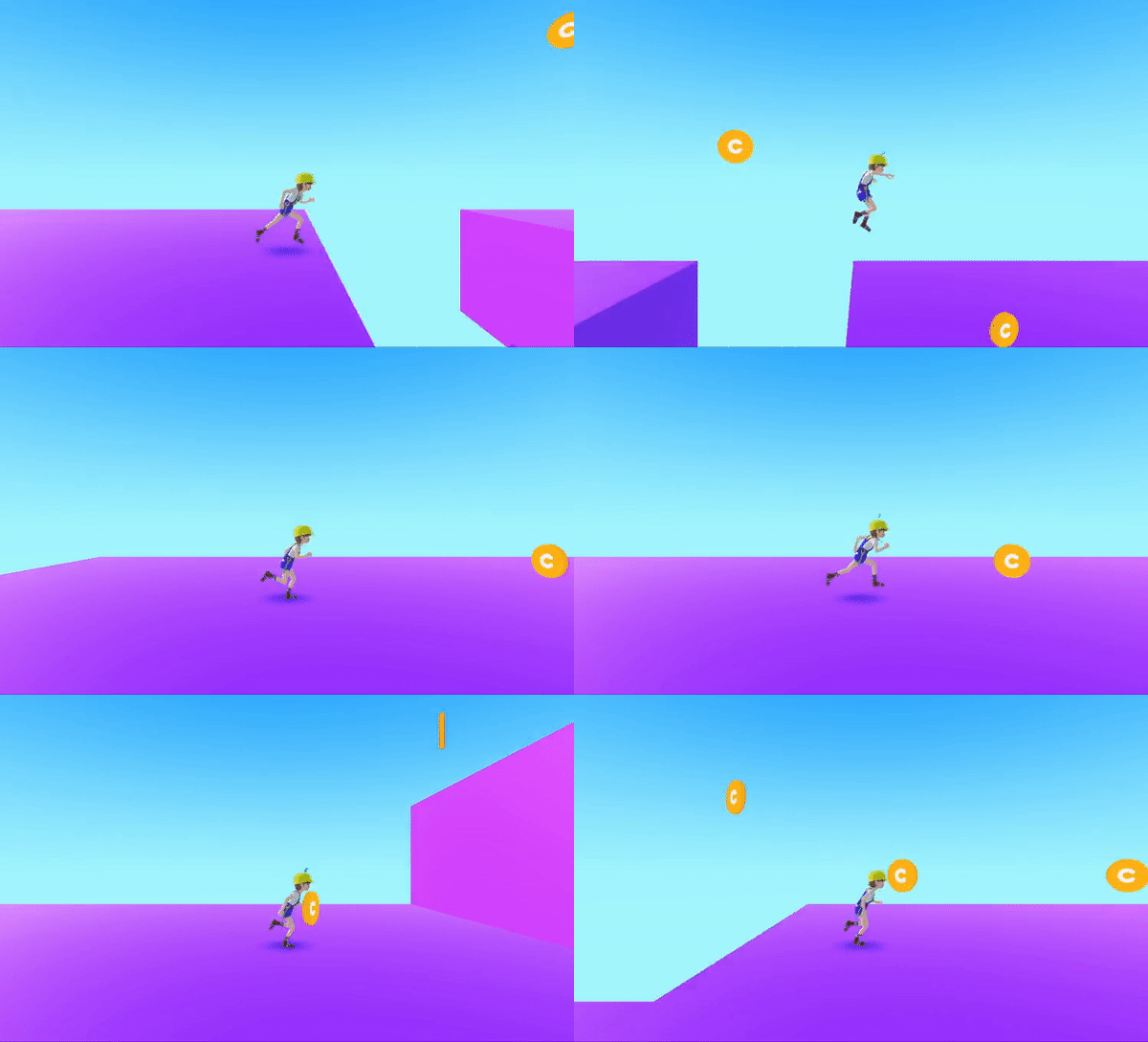
サイドビューの例
4 分
これはサイドビューコントロールの設定例です。
ステップ 1 : カメラビュー設定
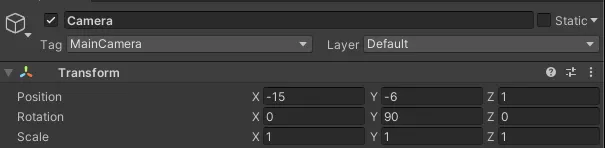
カメラをサイドビューに設定します。(これは例ですので、プロジェクトに応じてカメラ設定を変更してください。)
この時点で、カメラのタグはMainCameraに設定されている必要があります。
ステップ 2 : InputAction設定
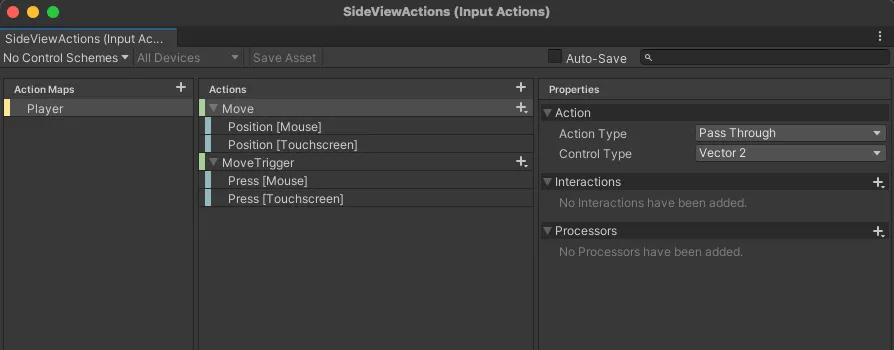
サイドビューに合った新しいInputActionを定義することで、タッチスクリーンを通じてキャラクターの動きを制御できます。
作成 > Input Actionsを選択し、ファイル名をSideView Actionsにします。
- 移動
- アクションタイプ : 通過
- 移動トリガー
- アクションタイプ : ボタン
階層を作成 > 空のオブジェクトを作成し、名前をSideView Controllerに変更します。
SideViewControllerオブジェクトから、コンポーネントを追加を選択し、Player Inputを追加します。
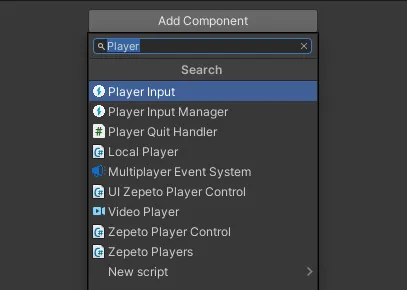
作成したSideViewアクションをアクションリストにドラッグして接続します。
動作をUnityイベントを呼び出すように変更します。
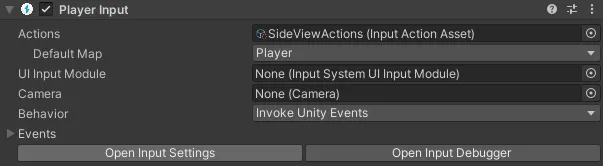
ステップ 3 : スクリプティング
ZEPETOキャラクターを左右に移動させ、カメラが追従するスクリプトを作成します。
作成 > ZEPETO > TypeScript を選択し、SideView Controller に名前を変更します。
スクリプトを SideViewController オブジェクトに追加します。
import {ZepetoScriptBehaviour} from 'ZEPETO.Script'
import {PlayerInput,InputAction} from "UnityEngine.InputSystem"
import {CallbackContext} from "UnityEngine.InputSystem.InputAction"
import {CharacterState, ZepetoCharacter, ZepetoPlayers, ZepetoCamera} from 'ZEPETO.Character.Controller'
import {Camera, Quaternion, Time, Vector2, Vector3, WaitForEndOfFrame} from "UnityEngine";

export default class SideViewController extends ZepetoScriptBehaviour {

    public customCamera : Camera;
    public cameraDistance : number = 10;

    private originSpawnPoint : Vector3 = new Vector3(-16,-5,0);
    private myCharacter: ZepetoCharacter;
    private startPos: Vector2 = Vector2.zero;
    private curPos: Vector2 = Vector2.zero;

    private playerInput: PlayerInput;
    private touchPositionAction : InputAction;
    private touchTriggerAction : InputAction;

    private isTriggered: boolean = false;
    private isTouchDown: boolean = false;

    private CanMove() : boolean {
        return this.isTouchDown && !this.isTriggered;
    }


    OnEnable(){
        this.playerInput = this.gameObject.GetComponent<PlayerInput>();
    }

    Start() {

        this.touchTriggerAction = this.playerInput.actions.FindAction("MoveTrigger");
        this.touchPositionAction = this.playerInput.actions.FindAction("Move");

        this.touchTriggerAction.add_started((context)=>{
            this.isTriggered = true;
            this.isTouchDown = true;
        });

        this.touchTriggerAction.add_canceled((context)=>{
            this.isTriggered = false;
            this.isTouchDown = false;
        });

        this.touchPositionAction.add_performed((context)=>{

            if(this.isTouchDown)
            {
                this.curPos = context.ReadValueAsObject() as Vector2;

                if(this.isTriggered) {
                    this.isTriggered = false;
                    this.startPos = this.curPos;
                }
            }
        });

        //turn off zepeto camera
        ZepetoPlayers.instance.OnAddedLocalPlayer.AddListener(() => {
            ZepetoPlayers.instance.LocalPlayer.zepetoCamera.gameObject.SetActive(false);
            this.myCharacter = ZepetoPlayers.instance.LocalPlayer.zepetoPlayer.character;
            this.customCamera.transform.position = this.myCharacter.transform.position + this.originSpawnPoint;
            this.StartCoroutine(this.InputControlLoop());
        });
    }

    private *InputControlLoop(){
        while(true)
        {
            yield new WaitForEndOfFrame();

            if (this.myCharacter && this.CanMove()) {

                var camRot = Quaternion.Euler(0, Camera.main.transform.rotation.eulerAngles.y, 0);
                var moveDir = Vector2.op_Subtraction(this.curPos, this.startPos);
                moveDir = Vector2.op_Division(moveDir, 100);


                if (moveDir.magnitude > 0) {

                    if(moveDir.magnitude > 1)
                        moveDir.Normalize();

                    //left-right
                    var optMoveDir = new Vector3(moveDir.x, 0, 0);
                    optMoveDir = Vector3.op_Multiply(optMoveDir, Time.deltaTime * 80 );
                    this.myCharacter.Move(camRot * optMoveDir);
                }
            }
        }
    }

    //follow zepeto character
    LateUpdate()
    {
        if(null == this.myCharacter)
        {
            return;
        }
        let characterPos = this.myCharacter.transform.position;
        //let cameraPosition = new Vector3(characterPos.x - this.cameraDistance, this.customCamera.transform.position.y, characterPos.z);
        let cameraPosition = new Vector3(characterPos.x - this.cameraDistance, characterPos.y + 1, characterPos.z);
        this.customCamera.transform.position = cameraPosition;
    }
}
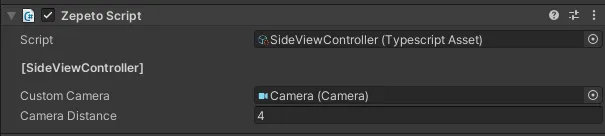
実行する前にインスペクターでカメラを設定してください。